
Guide
How to Completely Uninstall Apps on Mac (and Delete the Leftovers the Trash Misses)
Here’s the thing nobody tells you when you drag an app to the Trash on a Mac: you haven’t uninstalled it. You’ve deleted the app bundle – the icon – and left behind everything the app quietly created while you used it: caches, preferences, logs, support files, saved state, sometimes background agents that keep running. On a typical Mac those leftovers add up to gigabytes. On a developer’s Mac they can add up to tens of gigabytes.
This guide shows you five ways to uninstall an app on a Mac properly, from the two-second method to the thorough one, plus what to do when an app refuses to delete. Skip to the part you need:
- Why dragging to the Trash doesn’t fully uninstall an app
- Method 1 – Drag to the Trash (Finder)
- Method 2 – Launchpad (App Store apps)
- Method 3 – The app’s own uninstaller
- Method 4 – Find and delete the leftovers by hand
- Method 5 – Let a scanner find the leftovers for you
- The app won’t delete? Six fixes
- How much space do leftovers really take?
- FAQ
Why dragging an app to the Trash doesn’t fully uninstall it
macOS keeps an app’s program and its data in different places. The program lives in /Applications as a single .app bundle – that’s what you drag to the Trash. The data lives in your user Library folder, spread across several locations the app writes to as it runs:
| Location | What ends up there | Typical size |
|---|---|---|
~/Library/Application Support/ | Databases, plugins, downloaded models, project data | MB to many GB |
~/Library/Caches/ | Temporary files the app didn’t clean up | Often the biggest |
~/Library/Preferences/ | .plist settings files | Small, but they linger forever |
~/Library/Logs/ | Crash and diagnostic logs | MB to GB |
~/Library/Saved Application State/ | Window positions, “resume” state | Small |
~/Library/LaunchAgents/ and /Library/LaunchDaemons/ | Background helpers that start at login – these keep running after you delete the app | Small files, big annoyance |
~/Library/Containers/ and Group Containers/ | Sandboxed app data (App Store apps especially) | Can be large |
~/Library/WebKit/, Cookies/, HTTPStorages/ | Embedded-browser data | Small to medium |
None of that goes to the Trash with the app. Apple designed it this way so your settings survive if you reinstall – sensible for an app you use, wasteful for one you’ve abandoned. The result: a Mac that says it’s full while “deleted” apps quietly own 30, 40, 50 GB of it.
Method 1 – Drag to the Trash (the standard way)
- Quit the app first (Cmd + Q, or right-click its Dock icon → Quit). Uninstalling several apps at once? Our OneClick QuitAll (on the Mac App Store) closes every open app in one click.
- Open Finder → Applications.
- Drag the app to the Trash in the Dock, or select it and press Cmd + Delete.
- Enter your password if macOS asks (some apps install with admin rights).
- Right-click the Trash → Empty Trash.
What it leaves behind: everything in the table above. This is the “delete” most people mean when they search “how to delete an app on Mac” – and it’s fine for a small app you tried once. For anything big, keep reading.
Method 2 – Launchpad (for App Store apps)
- Open Launchpad (pinch with four fingers on the trackpad, or press F4 on many keyboards).
- Click and hold any icon until they jiggle – or hold Option.
- Click the × on the app you want gone, then Delete.
Only apps installed from the Mac App Store show the ×. Because those apps are sandboxed, this removes their Containers folder too – so Launchpad is actually a slightly more complete uninstall than dragging to the Trash. It still leaves preferences and caches.
Method 3 – Use the app’s own uninstaller
Some apps install pieces all over the system – kernel extensions, background daemons, menu-bar helpers, browser plugins – and ship their own uninstaller because dragging to the Trash would leave those running. Always use it when one exists:
- Adobe apps – Creative Cloud app → Apps → ⋯ → Uninstall (or the separate Creative Cloud Uninstaller).
- Microsoft Office – Microsoft’s own removal steps; the apps plus
~/Library/Containers/com.microsoft.*. - Antivirus / VPN / backup tools – almost always have an “Uninstall” item in the app menu or a separate uninstaller in the DMG.
- Docker Desktop – Troubleshoot menu → Uninstall (this one matters: the VM disk image can be 20-60 GB).
- Parallels, VMware, Little Snitch, Logitech Options – all ship uninstallers.
Check the app’s menu bar, its DMG, or the developer’s support page for the word “uninstall” before you drag it anywhere.
Method 4 – Find and delete the leftovers by hand
This is the thorough, free, manual method. It takes five to ten minutes per app and requires a little care.
- Delete the app first using Method 1, 2 or 3.
- Open your Library folder. It’s hidden by default. In Finder, choose Go → Go to Folder… (Cmd + Shift + G), type
~/Libraryand press Return. (Or hold Option while opening the Go menu and click Library.) - Work through the folders in the table above – Application Support, Caches, Preferences, Logs, Saved Application State, LaunchAgents, Containers, Group Containers – looking for anything named after the app or its developer. Preferences and Containers use the app’s bundle identifier, which looks like
com.developer.appname(for examplecom.docker.docker). - Move each match to the Trash – don’t permanently delete yet. If something breaks, you can put it back.
- Check the system-wide folders too:
/Library/Application Support,/Library/LaunchAgents,/Library/LaunchDaemons,/Library/Preferences. These need your password to change. - Restart to stop any background helper that was still running, then Empty Trash.
Three rules that keep this safe: only remove folders clearly named for an app you’ve already deleted; never touch /System or anything from Apple; and when you’re not sure, leave it – a stray 200 KB plist is harmless, a deleted folder some other app depended on is not. Several developers share one “Group Container” across their apps, so a folder named for a company you still use something from should stay.
Method 5 – Let a scanner find the leftovers for you
Method 4 is exactly what an uninstaller app automates: it reads each app’s bundle identifier, checks every Library location for matches, and shows you the whole list with sizes so you can decide in one screen instead of ten folders.
We make one – Nix – and, since this guide is on our site, here’s the honest version of what it does and doesn’t do:
- Free to scan. Open it and you see every app on your Mac, every leftover, and every size – before anything is removed and before you pay anything.
- It only moves files to the Trash. Nothing is ever permanently deleted, and a History view restores anything you change your mind about. That’s the same safety rule as Method 4, enforced by the app.
- It’s cautious on purpose. Matches are scored by confidence; low-confidence ones are shown unchecked so you decide. Personal folders like Documents need a higher match to be flagged at all.
- Leftover Hunt finds the ghosts of apps you deleted months or years ago – the part that’s tedious to do by hand.
- Your files never leave your Mac. No account needed, and no file, file path or list of your apps is ever uploaded. Nix does send basic device and usage information to keep your license working and improve the app – the privacy policy lists exactly what.
- What costs money: the free tier shows sizes and lets you remove up to a limit; Nix Pro is a one-time $29 (two Macs, 7-day refund) for full file paths and unlimited removal. No subscription.
If you’d rather do it by hand, Method 4 works and costs nothing. If you’d rather see it all in one screen, download Nix and scan – it’s notarized by Apple and runs on Apple Silicon and Intel Macs on macOS 14 or later.
The app won’t delete? Six fixes
“How to delete apps on Mac that won’t delete” is one of the most common searches around this topic. Nearly every case is one of these:
- “The item is in use.” The app – or one of its helpers – is still running. Quit it with Cmd + Q. If it’s stubborn, press Cmd + Option + Esc to Force Quit, then try again.
- A background helper is holding it. Open System Settings → General → Login Items & Extensions and turn off anything from that app under “Allow in the Background,” then restart and delete.
- “You don’t have permission.” Select the app, press Cmd + I (Get Info), open Sharing & Permissions at the bottom, and give yourself Read & Write (click the lock first). Then delete.
- It’s an Apple app. Safari, Mail, Music and friends are protected by System Integrity Protection and can’t be removed. That’s by design – hide them instead.
- It was installed by a company profile. If your Mac is managed by work or school (MDM), some apps are locked. Ask your IT admin.
- It has a kernel or system extension. Use the developer’s uninstaller (Method 3). If it’s gone already, check System Settings → General → Login Items & Extensions and
/Library/LaunchDaemonsfor the leftover, remove it, and restart.
How much space do leftovers really take?
Rough real-world numbers from Macs we’ve scanned. Yours will vary, but the pattern holds – the heavier the app, the more it leaves behind:
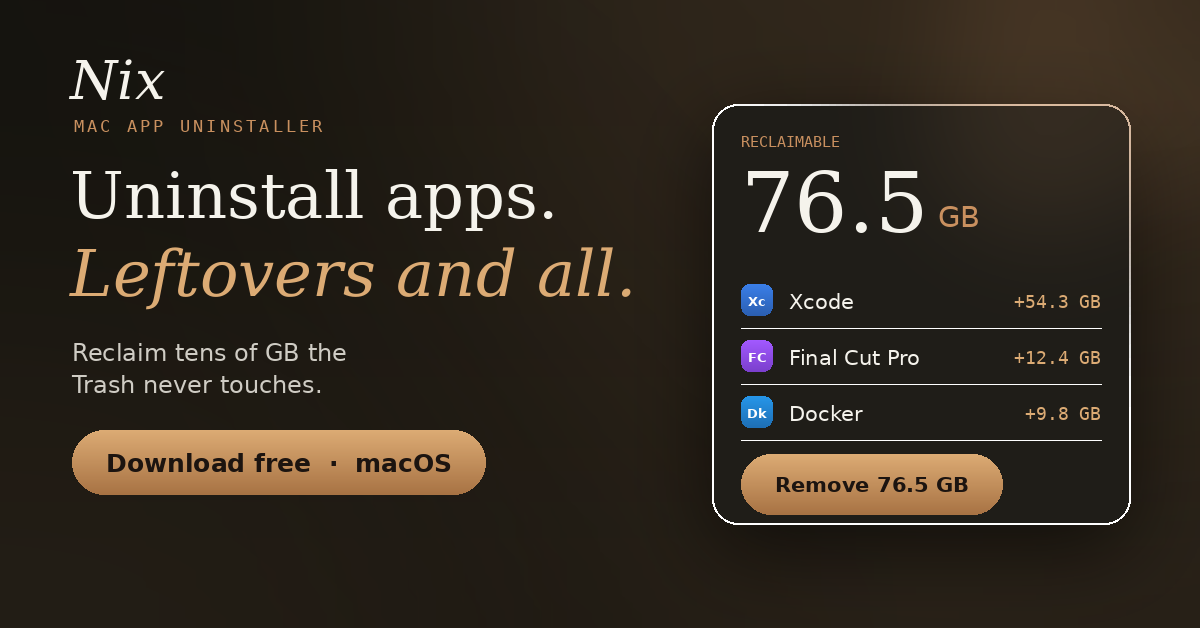
- Xcode – 30-60 GB of DerivedData, simulators, device support files and archives. The single biggest offender on any developer Mac.
- Docker Desktop – a 20-60 GB virtual-machine disk image that survives dragging the app to the Trash.
- Final Cut Pro / DaVinci Resolve – render and proxy caches, often 10-40 GB.
- Adobe Creative Cloud – 5-20 GB across Application Support and Caches, plus background agents.
- Chrome, Slack, Zoom, Teams – 1-5 GB each in caches and containers.
- Games and AI tools – downloaded models and assets in Application Support can run to tens of GB.
Add the dozens of small apps everyone tries once, and 20-50 GB of reclaimable space is normal on a Mac that’s a couple of years old.
FAQ
Does deleting an app on Mac delete all its files?
No. Dragging an app to the Trash removes the app bundle only. Its preferences, caches, support files, logs and any background agents stay in your Library folder until you remove them (Method 4) or use an uninstaller that does (Method 5).
What’s the difference between deleting and uninstalling on a Mac?
Deleting removes the app icon. Uninstalling removes the app and the data and helpers it left across the system. macOS has no built-in “uninstall” – it only deletes – which is why the leftovers pile up.
Is it safe to delete files in ~/Library?
Mostly yes, if the folder is clearly named for an app you’ve already removed. Move things to the Trash rather than deleting permanently, leave anything you’re unsure about, and never touch /System. Folders shared by several apps from one developer (Group Containers) should stay if you still use any of them.
How do I see the hidden Library folder?
In Finder, choose Go → Go to Folder…, type ~/Library, and press Return. Or hold the Option key while opening Finder’s Go menu and click Library.
Do I need a Mac cleaner app?
Not a general “cleaner” – those tend to touch things you didn’t ask about. What helps is a targeted uninstaller that shows you exactly what an app left behind and only moves it to the Trash. Or do it by hand with Method 4; it’s free and just takes longer.
How do I uninstall apps on a MacBook Air or MacBook Pro?
Exactly the same way – the steps above apply to every Mac running a modern version of macOS, laptop or desktop, Apple Silicon or Intel.
How do I uninstall the Nix package manager from macOS?
Different Nix! That one is a Linux-style package manager; removing it involves its own installer’s uninstall steps and a few system files. We’re writing a separate guide for it – if you’re here for that, check back or search “uninstall nix package manager macos”.
See what your Mac’s deleted apps left behind
Nix scans every app and shows every leftover with its size – free. It only ever moves files to the Trash, and your files never leave your Mac.
Download Nix for macOS Free to scan · Notarized · Apple Silicon + Intel