

On macOS 27.2 and later, open System Settings > Privacy & Security > Local Network, select the stale or duplicate app, and click the remove (-) button below the list. Apple added the add (+) and remove (-) buttons in 27.2; its technote TN3179 states that on earlier versions “there’s no way to reset your program’s Local Network privilege”. If you are on macOS 15 Sequoia or macOS 26 Tahoe, the honest answer is that a stale entry stays until you update, and editing the system files behind the list is not a safe workaround.
Why we did this: our Nix uninstaller exists to clean up what apps leave behind, and people who uninstall a browser or a video tool often ask why its name still sits in Privacy & Security afterwards. This guide is built from Apple’s TN3179 (revised 6 October 2026 for macOS 27.2), Apple Support’s Local Network page and Apple’s developer forum answers; each claim is linked to its source.
Remove a stale entry on macOS 27.2 or later
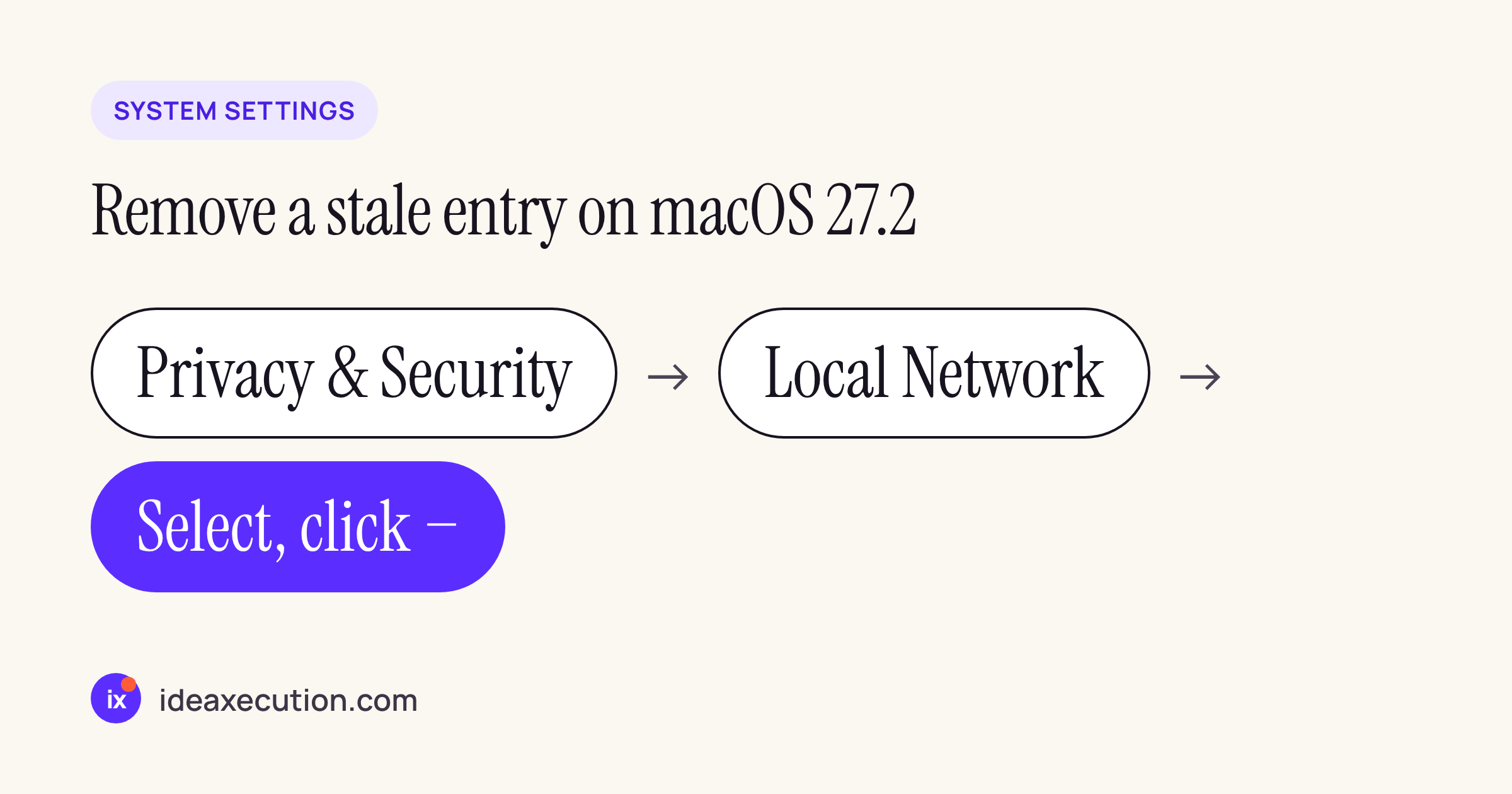
Three clicks, available from macOS 27.2.
- Choose Apple menu > System Settings, then click Privacy & Security in the sidebar (you may need to scroll down). Apple documents this path on Control access to your local network on Mac.
- Click Local Network.
- Select the entry you want gone and click the remove (-) button below the list. TN3179 describes this as resetting the program’s Local Network privilege.
Removing an entry resets it to “not decided”. If the app is still installed and talks to the local network again, macOS shows the “Allow … to find devices on local networks?” alert again and adds it back with your new answer. That is the behaviour you want for a stale entry, and a quick way to re-ask an app you denied by mistake.
The switch next to each app is a different thing: it allows or denies access but keeps the entry. Use the switch for apps you use; use remove (-) for apps that are gone or duplicated.
Why the list fills up with duplicates
TN3179 says Local Network privacy “tracks the identity of your program using its code signature” and also uses “your main executable UUID as part of its implementation”. In a developer forum answer, Apple’s Quinn lists at least four factors: the bundle ID, the path to the app, the designated requirement and the main executable UUID. When one of those changes, macOS can treat the same app as a new one.
| What happens | Why it can create a new entry | Source |
|---|---|---|
| Several versions of one app installed | Apple lists “unexpected behavior” in Privacy & Security with multiple installed versions (FB15568200) | TN3179 |
| An app that runs from a different path each launch | Path is one of the identity factors; forum users traced hundreds of entries to browser bundle clones in temporary folders | Forum thread 846119 |
| Apps installed in versioned folders | A new path per update; the dontallow README describes “a new row per update” | dontallow README |
| Ad hoc signed or unsigned builds | Apple warns that identity tracking misbehaves without an Apple-issued signing identity | TN3179 |
| Two programs sharing an executable UUID | “local network privacy may behave weirdly” | TN3179 |
The third-party rows are user reports, not Apple statements; the Apple rows are quoted from the technote.
What does not work, and why
tccutil reset. Most rows in Privacy & Security are managed by TCC, but Quinn wrote that “Local Network and Location are the two critical outliers”. Sotccutildoes not clear them.- Editing the preference files. In the same thread Quinn calls the storage “very much an implementation detail” that you “shouldn’t rely on”. One person who edited a network extension plist reported that their Mac stopped booting. We do not recommend touching those files, and we do not list them here.
- MDM profiles. TN3179: “Device managers aren’t able to configure local network privacy using MDM.” Since macOS 15.5 an administrator can mark address ranges as non-local through the
com.apple.network.local-networkdefaults, but that changes which networks count, not the list of apps. - Deleting the app. Apple does not document that uninstalling an app removes its entry, and forum reports disagree. Plan on removing it yourself on 27.2.
- Auto-dismissing the alert. Tools such as dontallow, shared on Hacker News in late October, press “Don’t Allow” for you through the Accessibility API. That stops the interruptions but leaves every duplicate in place. On 27.2 the remove button fixes the list itself.
Before 27.2: what you can do
On macOS 15 and 26 there is no supported way to remove one entry. TN3179’s own suggestions for developers who need a clean state are a virtual machine snapshot or a fresh user account, since the setting is stored per user. For everyone else: switch stale entries off so they cannot reach the network, and clean them out after updating to 27.2.
Uninstalling an app cleanly, then clearing its entry
The Local Network list is one of several places an app’s name survives after you drag it to the Trash. Its caches, logs, preferences and support files in ~/Library stay behind too. Our guide to deleting apps on Mac completely covers those files by hand; Nix for Mac finds them for you and moves them to the Trash so they can be restored.
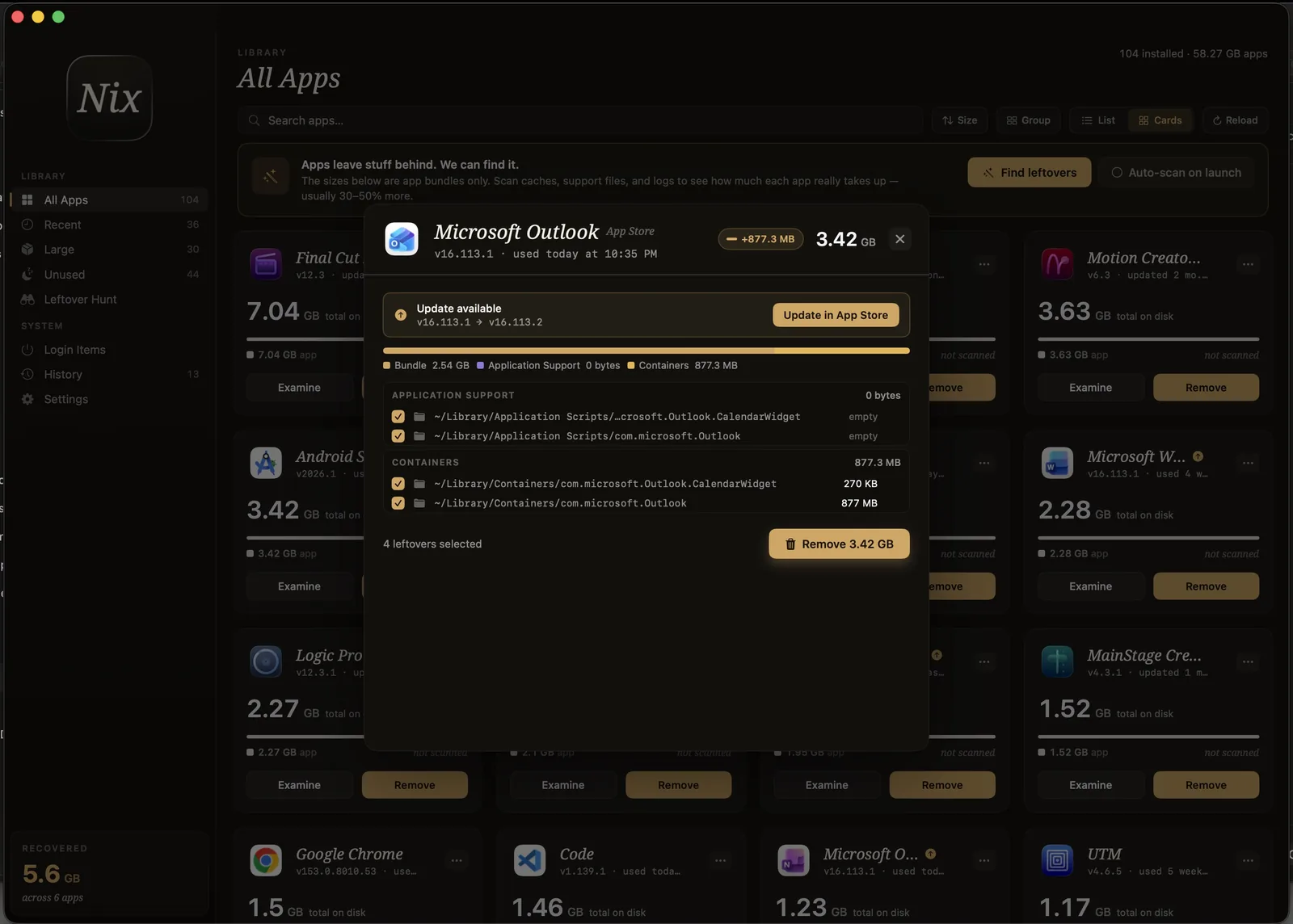
The Nix uninstaller lists the files an app left behind, with real paths.
Privacy entries are a system setting, not files in your Library, so the order that works is: uninstall the app and its leftovers, then open Privacy & Security > Local Network and remove its row.
For Mac developers: do not create duplicates
Quinn’s accepted answer in thread 846119: “The best way to deal with this problem is to avoid creating duplicate entries.” From TN3179, that means:
- Sign every build people run, including internal betas, with an Apple-issued identity (Developer ID or Apple Development), never ad hoc.
- Keep a stable bundle ID and a stable install location; do not install each version into a new versioned folder.
- Make sure each main executable has its own
LC_UUID(the linker adds one by default; do not strip it or reuse a binary between products). - Put
NSLocalNetworkUsageDescription, andNSBonjourServicesif you browse or advertise Bonjour services, in the app’s Info.plist. Helpers and extensions are attributed to the app. - Know what triggers the alert: Bonjour browsing, registering or resolving; outgoing TCP to a local address; sending or receiving UDP multicast or broadcast; resolving a
.localname. Accepting incoming TCP does not. Third-party libraries that do discovery are, in Apple’s words, “a common cause” of surprise alerts.
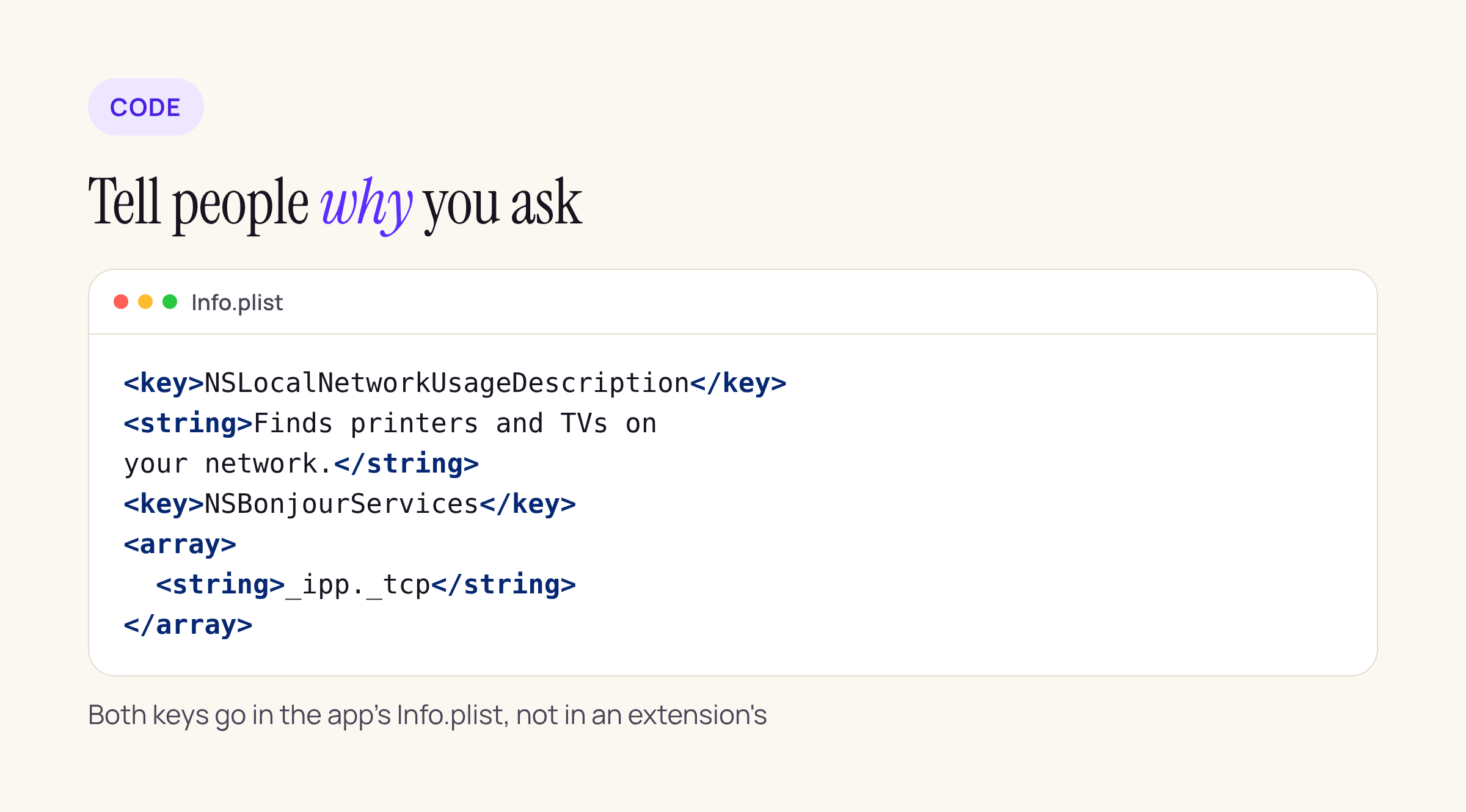
A sketch to adapt: replace the text and the service types with what your app actually uses.
Launch daemons, programs running as root and command-line tools started from Terminal or over SSH are exempt on macOS, according to TN3179; launch agents are not. We covered the same permission on phones in Local network permission on Android 17 and iOS.
Sources
- TN3179: Understanding local network privacy (Apple, revised 6 Oct 2026)
- Control access to your local network on Mac (Apple Support)
- Apple Developer Forums: 766270, 762917, 846119
- dontallow on GitHub (README, for the third-party reports)