

Dragging Android Studio to the Trash removes the app and nothing else. To completely uninstall Android Studio on a Mac you also clear four groups of files: the IDE’s settings, caches and logs in ~/Library, the Android SDK (usually ~/Library/Android/sdk), the emulator images in ~/.android/avd, and the Gradle cache in ~/.gradle. The last three are shared with React Native, Flutter and any other Gradle build, so delete them only if nothing else on the Mac uses them. The paths below come from Google’s and Gradle’s own documentation and apply to current Stable and Preview builds on macOS 26 and 27.
Why we wrote this: we build our Android and Android TV apps, BMDB on TV, Peepal and Shopkeeper, in Android Studio on our Macs, and an old SDK plus a few emulator images is one of the biggest things a developer Mac carries after a project ends.
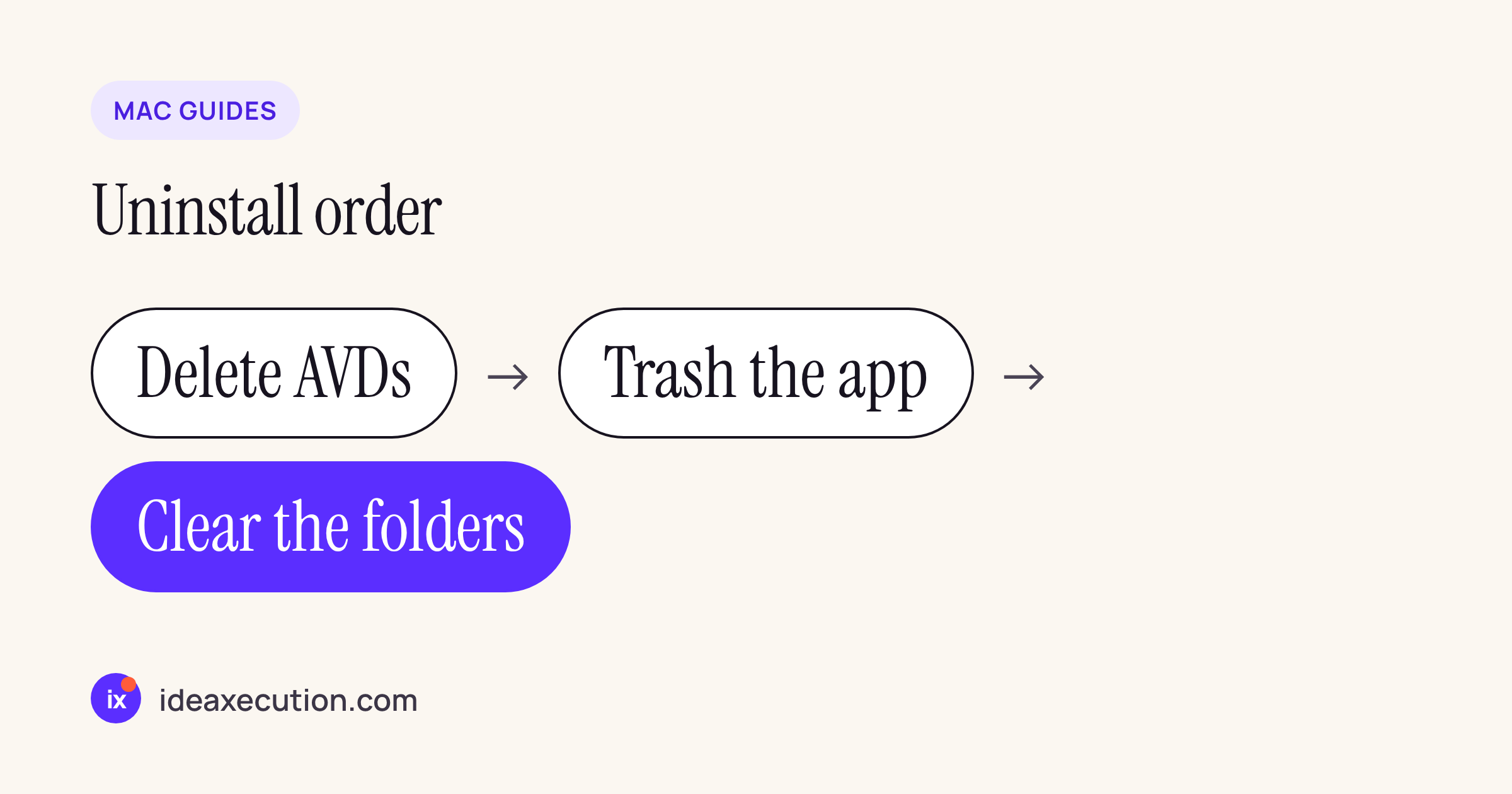
The order matters: delete emulators while the app still runs, then the app, then the folders.
Before you delete Android Studio: keep what you need
- Your projects. Android Studio never deletes them, but check where they live before you clear folders in your home folder (it suggests a folder named
AndroidStudioProjects). - Other tools that use the SDK. React Native, Flutter, Expo and command-line Gradle builds all read the same Android SDK and the same
~/.androidfolder. If you still build Android apps another way, stop after Step 3. - The debug signing key.
~/.androidholdsdebug.keystore. If you registered its fingerprint with a Google service (Maps, Sign-In), copy that file somewhere safe first.
Step 1: Delete the emulators from inside Android Studio
Emulator images (AVDs) are the largest part for most people. Open Android Studio, choose View > Tool Windows > Device Manager, and delete each virtual device from its menu. Google documents that the emulator keeps “AVD data under $HOME/.android/avd/” (Android environment variables), so anything you miss here you can still remove in Step 4.
While the app is open, note the Android SDK Location shown under Settings > Languages & Frameworks > Android SDK. You need that path in Step 4.
Step 2: Quit Android Studio and delete the app
Google ships no uninstaller for Android Studio on macOS, so Apple’s standard steps apply (Delete or uninstall apps on Mac):
- Quit Android Studio (and any running emulator).
- Open the Applications folder in the Finder.
- Drag Android Studio (and Android Studio Preview, if you have it) to the Trash, or select it and choose File > Move to Trash.
- Enter an administrator name and password if asked.
Do not empty the Trash yet; you can still restore things until the last step.
Step 3: Remove what Android Studio leaves in your Library
Google lists the directories Android Studio uses “to store settings, caches, plugins, and logs” on macOS (Troubleshoot Android Studio: Directories). In the Finder choose Go > Go to Folder and open each one:
~/Library/Application Support/Google/: folders namedAndroidStudioplus a version (settings and plugins)~/Library/Caches/Google/: the same names (system caches and indexes)~/Library/Logs/Google/: the same names (logs)
Stable releases use AndroidStudio in the folder name, RC and Canary builds use AndroidStudioPreview. You will often find one folder per version you ever installed; move all of them to the Trash. Leave other folders under Google alone, they belong to other Google apps.
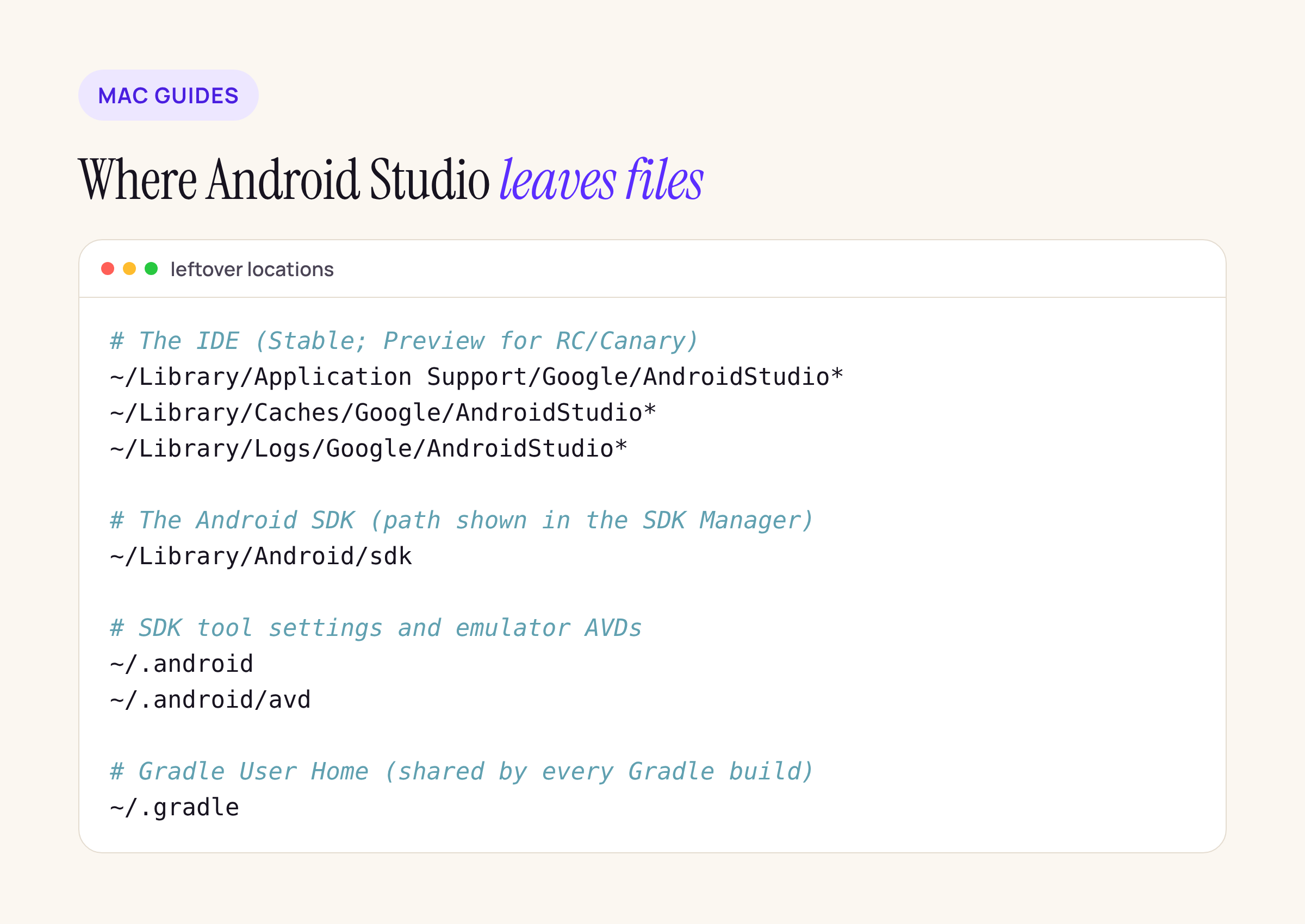
The IDE folders come from Google’s directories list; the SDK path is the one the SDK Manager shows.
Step 4: Remove the Android SDK, emulators and Gradle cache
These are shared folders. Skip any you still need for other Android work.
The Android SDK. Go to the path you noted in Step 1 (on most Macs ~/Library/Android/sdk) and move the sdk folder to the Trash. It holds platforms, build tools, system images and the emulator itself.
The .android folder. Google documents $HOME/.android/ as the default “user preferences directory for tools that are part of the Android SDK”, with emulator data in avd inside it (Android environment variables). Folders starting with a dot are hidden: in the Finder press Command-Shift-Period in your home folder to show them, then move .android to the Trash (after saving debug.keystore if you need it).
The Gradle cache. Gradle keeps its caches, downloaded wrapper distributions and daemon logs in the Gradle User Home, ~/.gradle by default (Gradle-managed directories, Gradle 9.9.2). Gradle already cleans old entries on its own (for example, downloaded resources unused for 30 days), so delete ~/.gradle only if you are done with Gradle builds on this Mac. If you still build other projects, leave it.
Prefer Terminal? These commands only list what is there and how big it is; they change nothing:
ls -d ~/Library/Application\ Support/Google/AndroidStudio* \
      ~/Library/Caches/Google/AndroidStudio* \
      ~/Library/Logs/Google/AndroidStudio*
du -sh ~/Library/Android/sdk ~/.android ~/.gradle 2>/dev/null
Move what you decide to remove to the Trash in the Finder, so you can still put it back.
Step 5: Empty the Trash
When everything you removed is in the Trash and nothing you need is missing, choose Finder > Empty Trash (Apple). Until then each item can be restored with Put Back.
The faster way: Nix uninstaller for Mac
Steps 2 and 3 are the part people skip, and folders from every version you ever installed pile up. Nix uninstaller, our Mac uninstaller, does that part for you: it is free to download and scan, shows the leftovers the Trash misses (caches, logs, preferences, containers, saved states) with their real paths, and moves them to the Trash so you can restore them. It keeps a history of what it removed.
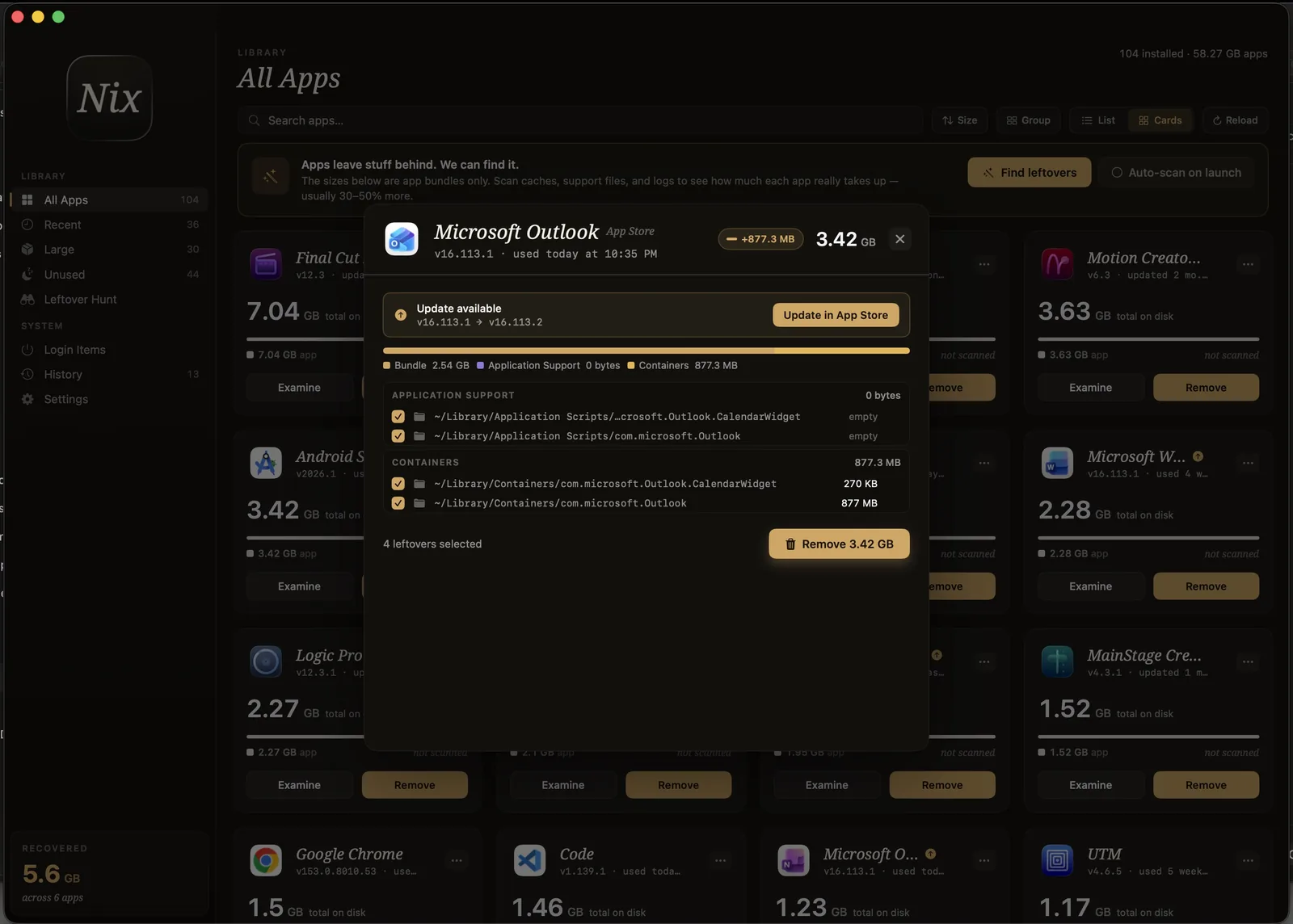
Nix Examine shows each leftover with its path and size before anything is moved.
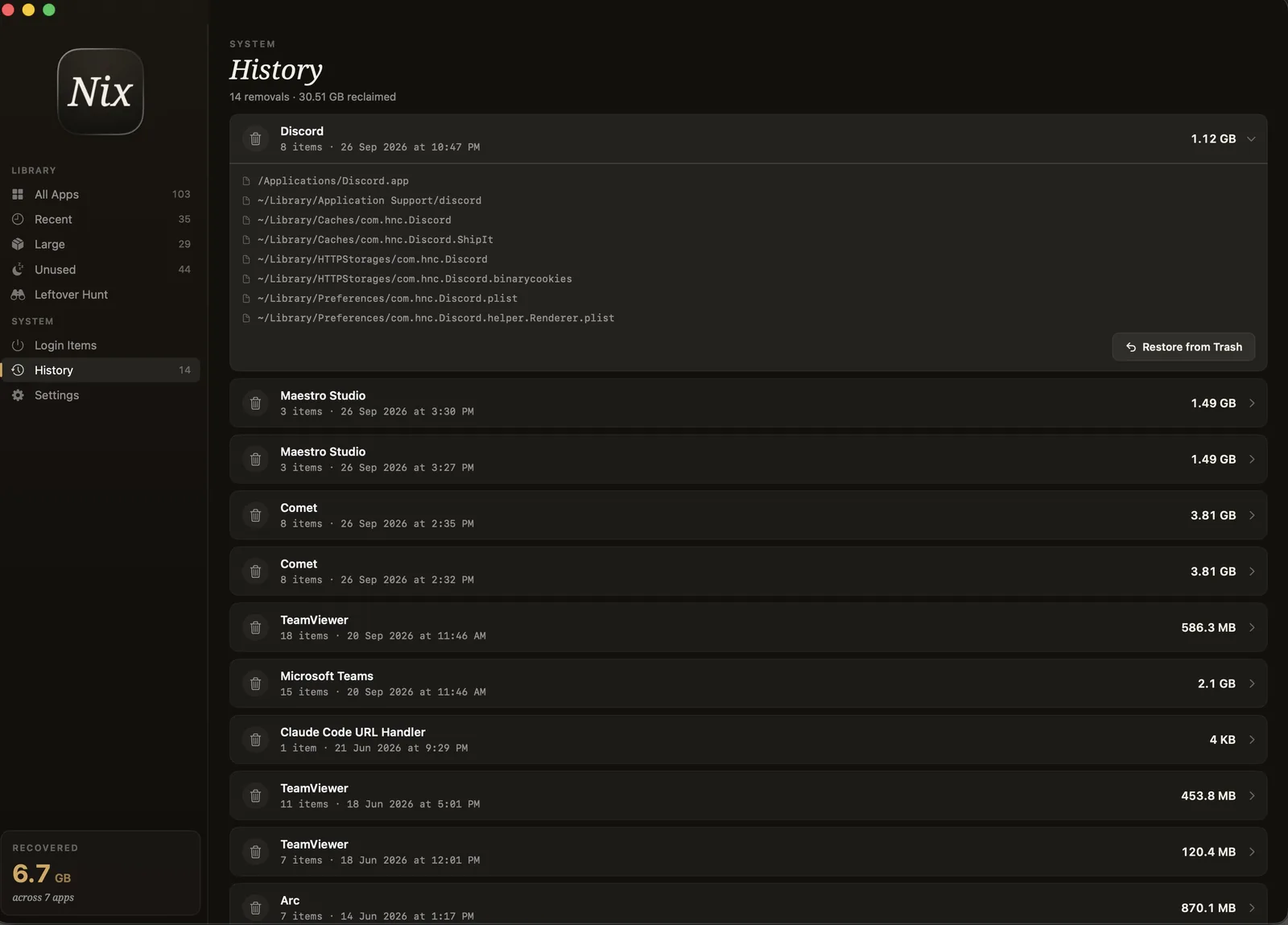
Removed something you still need? Restore it from History.
The shared Android folders from Step 4 (the SDK, ~/.android, ~/.gradle) are a decision only you can make, because other tools may still depend on them. For other apps, see the full guide on how to delete apps on Mac completely.
Common questions
Does deleting Android Studio delete the Android SDK?
No. The SDK lives in its own folder (shown in the SDK Manager, usually ~/Library/Android/sdk) and stays there after the app goes to the Trash. Remove it separately in Step 4.
Will removing the SDK break React Native or Flutter?
Yes, if they use it. Both build Android apps with the same SDK, ~/.android and Gradle cache. Keep those folders if you still build Android apps from the command line.
Is it safe to delete the .gradle folder?
Yes, Gradle recreates it and downloads what the next build needs, which takes time on the first build. Gradle also cleans old cache entries on its own, so you rarely need to delete it unless you are done with Gradle.
How do I reinstall Android Studio cleanly later?
Do Steps 2 and 3, then install the new version. Android Studio starts with default settings and offers to download a fresh SDK.