

If your Mac is running slow, open Activity Monitor, click the Memory tab and look at the Memory Pressure graph at the bottom. If it is yellow or red, memory is part of the problem: click the Memory column to sort the biggest apps first, then quit the ones you are not using with Command-Q, or with the Stop button and Quit in Activity Monitor. Keep Force Quit for apps that do not respond. The steps below follow Apple’s Mac User Guide and Activity Monitor User Guide for macOS 27, and they work the same way on recent macOS versions.
Why we wrote this: we make OneClick QuitAll, a menu bar app that quits the apps you are not using, and “my Mac is slow, what do I close?” is the question behind most of the mail we get about it. Here is the full answer with the tools that come with every Mac.
Step 1: check whether memory is the problem
Apple’s page If your Mac runs slowly lists several causes: too little free storage, an app that needs more memory than is easily available, apps that are not compatible with your Mac, apps you are not using, and disk problems. Memory is the one you can check in a minute.
- Open Activity Monitor (Applications > Utilities, or search for it with Spotlight).
- Click Memory in the toolbar.
- Look at the Memory Pressure graph at the bottom of the window.
Apple explains the colours in Check if your Mac needs more RAM:
| Graph colour | What Apple says it means | What to do |
|---|---|---|
| Green | The Mac is using all of its RAM efficiently | Memory is not your bottleneck; look at the other causes below |
| Yellow | The Mac might eventually need more RAM | Quit apps you are not using (step 2 and 3) |
| Red | The Mac needs more RAM | Quit apps now; if it stays red with your normal set of apps, your work needs more memory than the Mac has |
Two things surprise people here. First, a Mac with little “free” memory is not a problem in itself: Apple says free or unused memory does not necessarily improve performance, and macOS works best when it uses and manages all of it. The pressure graph is the number to watch, not the free amount. Second, the panel next to the graph tells you why pressure is high. In View memory usage in Activity Monitor, Apple describes Compressed (memory squeezed to make room, inactive apps first) and Swap Used (space on the startup disk used to move data out of RAM). A large and growing Swap Used figure while the graph is yellow or red means the Mac is moving data to disk, and that is the slowness you feel.
Step 2: find the apps using the most memory on your Mac
Still on the Memory tab:
- Click the Memory column header so the largest processes are at the top. Click it again if the smallest ones show first.
- Read down the Process Name list. Apps you opened show their own names and icons.
- Choose View > All Processes, Hierarchically if one app appears as many helper processes. Browsers and some chat and editor apps run several processes each; the hierarchical view groups them under the app they belong to, so you see the real total.
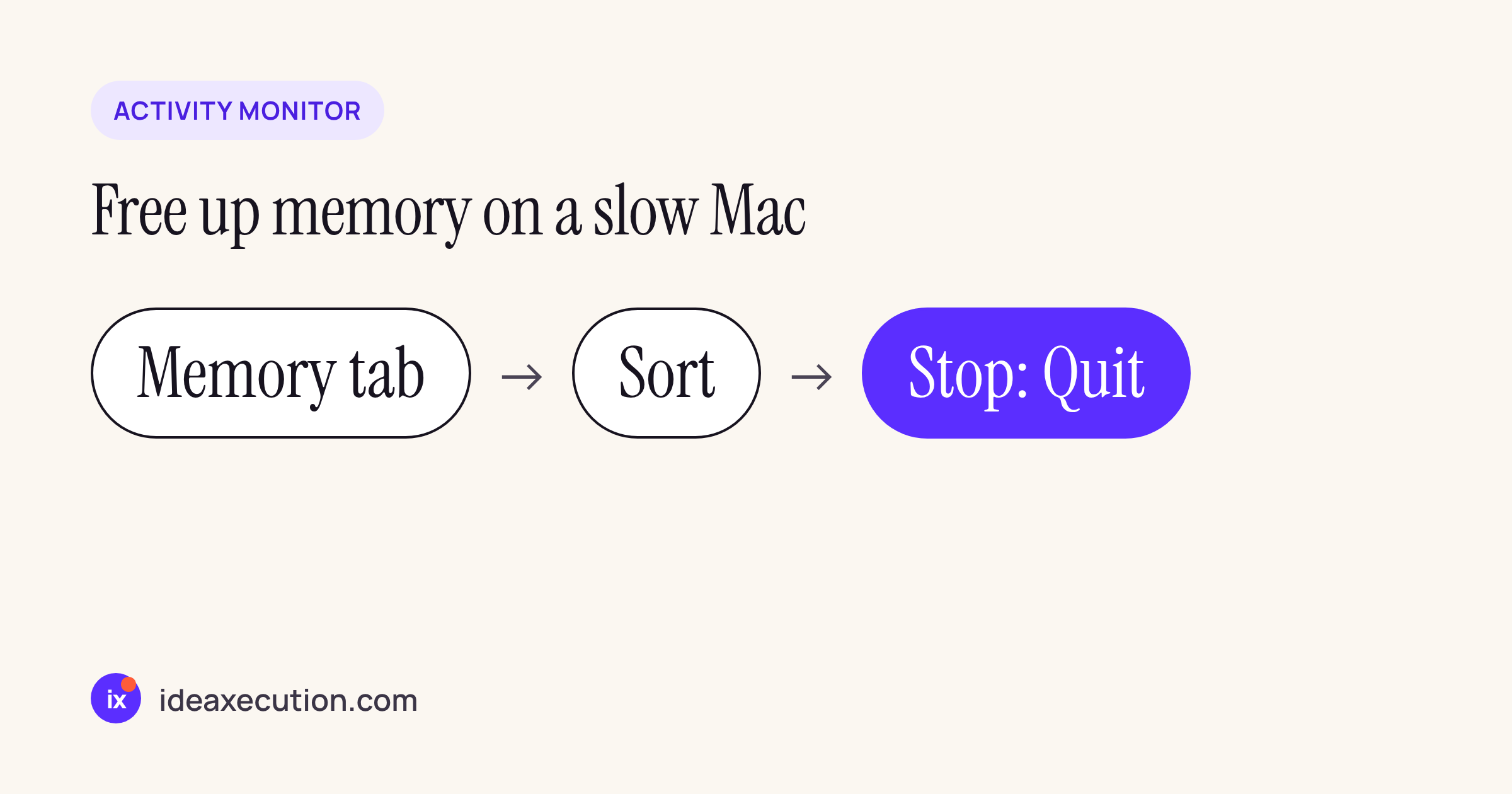
The three steps in Activity Monitor, from Apple’s Activity Monitor User Guide.
Leave processes you do not recognise alone. Many of them are parts of macOS, and Wired Memory, which Apple describes as memory the system needs to operate, cannot be freed by quitting anything.
If the Memory tab looks calm but the Mac still feels slow, click CPU instead. Apple’s View CPU activity page explains the System, User and Idle figures at the bottom: a high User figure means one of your apps is busy, and sorting by % CPU shows which.
Step 3: quit the heavy apps properly
The safest way to quit an app is the normal one: switch to it and press Command-Q, or choose the app’s name in the menu bar, then Quit. The app gets to save your work and shows a save dialog if a document has unsaved changes. Closing the window with the red button is not enough; the app keeps running and keeps its memory.
You can also quit straight from Activity Monitor, following Apple’s Quit an app or process:
- Select the app in the Process Name list.
- Click the Stop button in the upper-left corner of the window.
- Choose Quit. Apple says this is the same as choosing File > Quit within the app, and the app quits when it is safe to do so.
Choose Force Quit only for an app marked “(Not Responding)”. Apple warns that a force quit happens immediately, that you may lose data if the app has open files, and that other apps using that process could have problems.
After quitting two or three of the biggest apps you are not using, watch the Memory Pressure graph for a minute. If it goes back to green, you have found the cause.
Other reasons a Mac runs slow
If memory pressure is green and the CPU is mostly idle, Apple’s list points to the other usual suspects:
- Storage: a nearly full startup disk slows everything. Go to Apple menu > System Settings > General > Storage and use the recommendations there, or move large files to an external disk.
- Incompatible apps: quit any app that is not made for your Mac’s processor or graphics. System Settings > General > About shows which chip your Mac has.
- Disk problems: run First Aid in Disk Utility, as described in Apple’s slow-Mac page.
Stop the same apps from coming back
Many of the apps that fill memory are ones you never opened today: they started at login. Our guide How to stop apps opening at login on Mac walks through Login Items and background items in System Settings. If you want to clear everything at once before a call or at the end of the day, How to quit all apps on Mac at once compares five built-in ways.
The faster way: OneClick QuitAll
Everything above works with built-in tools. The slow part is doing it every time: open Activity Monitor, sort, find the apps, quit them one by one. OneClick QuitAll keeps that list in your menu bar. It shows your running apps with their memory and CPU use, you tick the ones you want to keep, and it quits the rest properly, so every app gets the chance to save first, the same as Command-Q.

OneClick QuitAll lists running apps with their memory and CPU use.
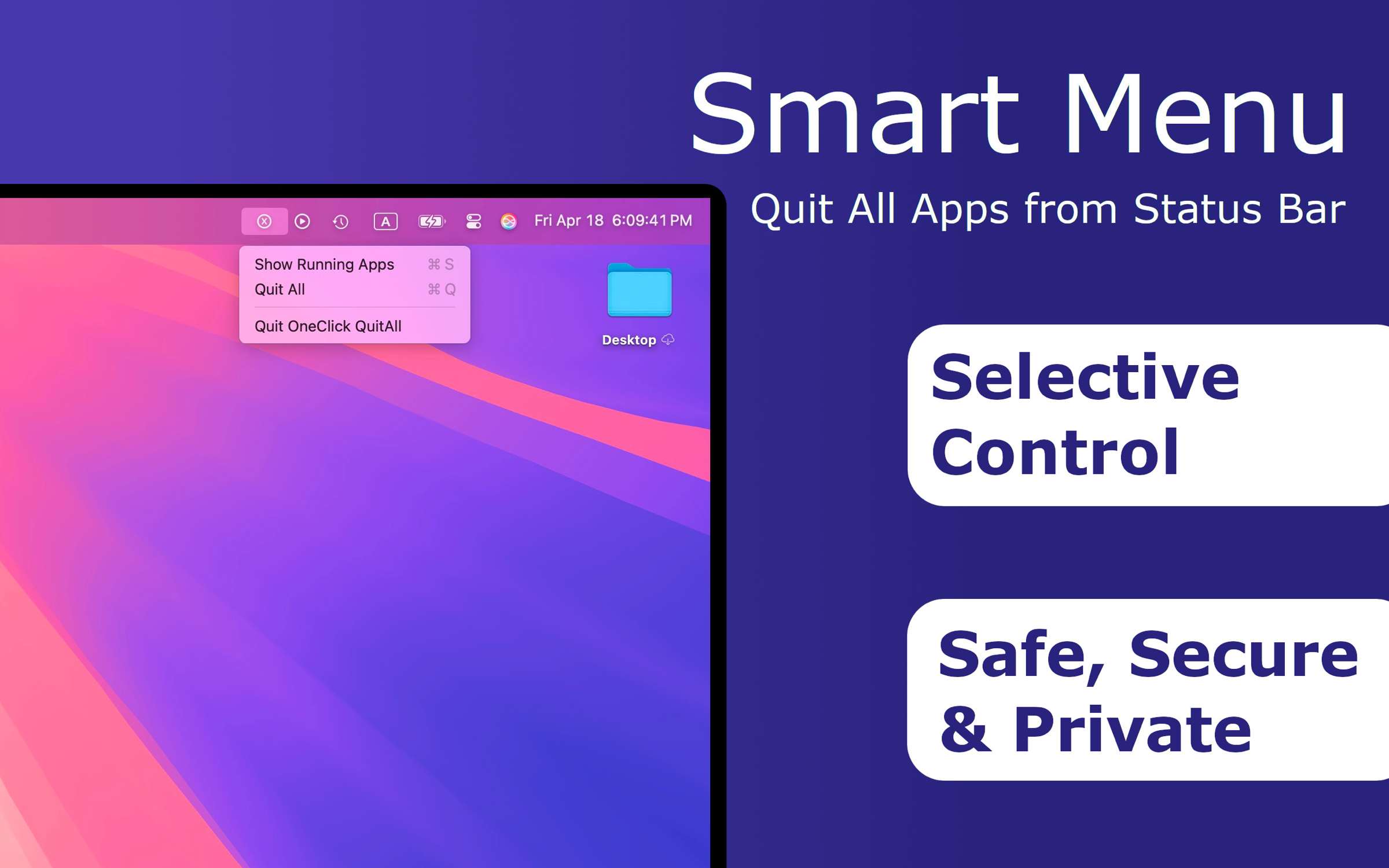
Tick the apps to keep; the rest quit normally and can save their work.
It is on the Mac App Store; details are on the OneClick QuitAll page.
Quick answers
Does quitting apps free memory on a Mac? Yes. A quit app releases its memory; a closed window does not, because the app keeps running.
Should I use Force Quit to speed up my Mac? No. Use it only for an app that does not respond. A normal Quit lets the app save first; Force Quit can lose unsaved work.
What does a red Memory Pressure graph mean? Apple says the Mac needs more RAM for what it is doing right now. Quit apps you are not using; if it stays red with your usual apps open, your work needs more memory than the Mac has.