Do not drag Photoshop or the Creative Cloud app to the Trash. To completely uninstall Adobe Creative Cloud on a Mac, work in the order Adobe documents: uninstall each Adobe app from inside the Creative Cloud desktop app (choose Remove to drop its preferences), then remove the desktop app itself with Creative Cloud Uninstaller, and only then clear the Adobe folders left in your Library. Adobe says you can uninstall the desktop app “only when you have uninstalled all Creative Cloud apps”, and warns that moving apps to the Trash removes the files but not the licensing information. The steps below follow Adobe’s help pages as updated in 2026 and Apple’s guide for macOS 26 and 27.
Why we wrote this: we make Nix, a Mac uninstaller, and Adobe’s suite is one of the apps people most often ask us how to delete properly. This is the fourth per-app guide in our series on deleting apps on Mac completely.
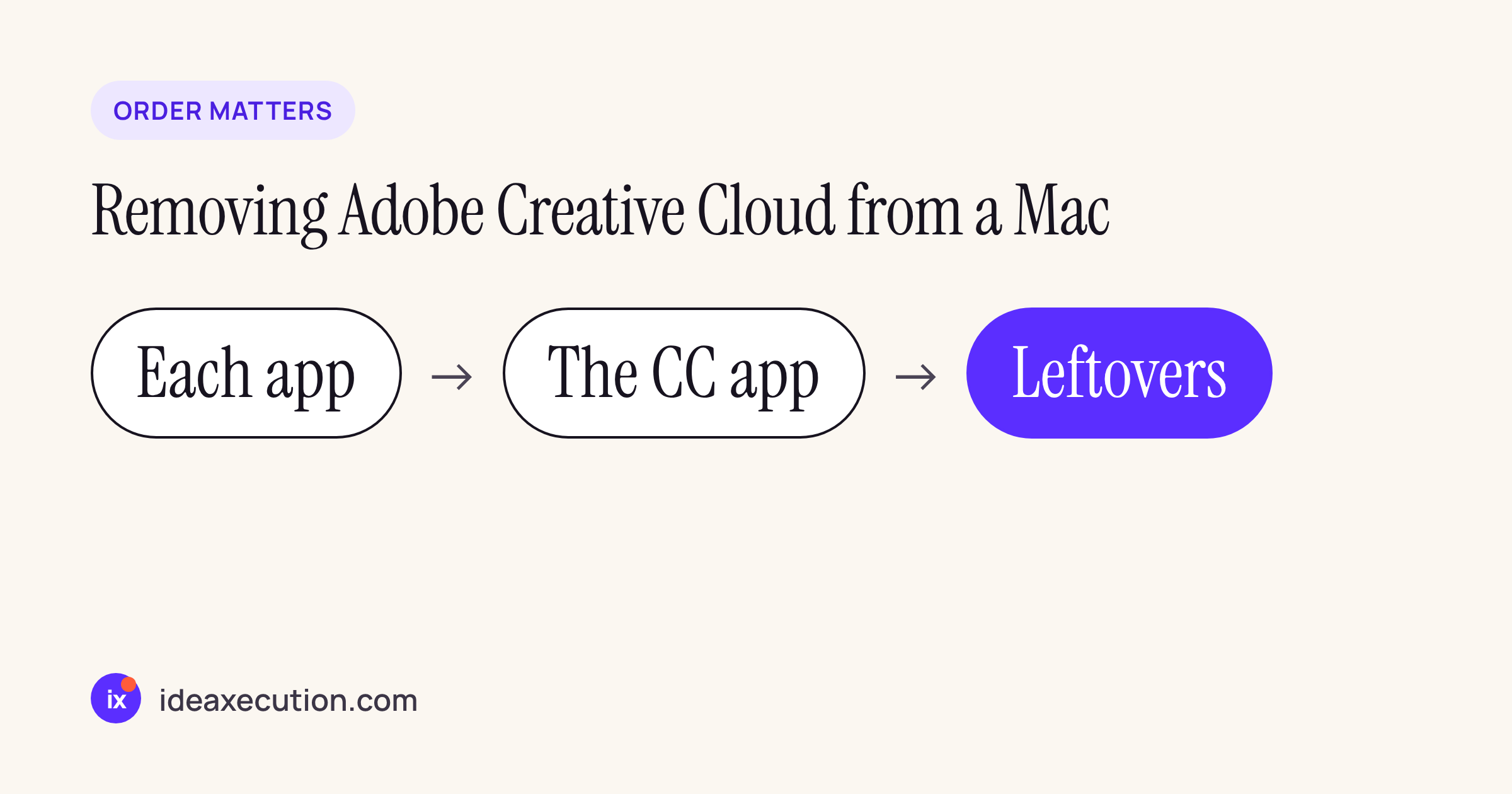
Each app first, then the Creative Cloud app, then the leftovers. Skipping ahead is what leaves a Mac half-cleaned.
Before you delete Creative Cloud: save what you need
- Let your files finish syncing. Adobe warns that “files not synced” before you remove the desktop app “could be lost”. Open the Creative Cloud app and check that syncing has finished.
- Back up presets, plug-ins and fonts you added. Adobe’s preparation page for its Cleaner tool asks you to back up “third-party plug-ins and preference files” before any deep clean. Photoshop users can export presets first (Adobe: preset migration).
- Keep installers for old versions. The same page notes that Adobe “only provides downloads for the two most recent versions” of each app.
- Cancel the plan separately. Uninstalling does not end a subscription; that happens in your Adobe account.
Step 1: Uninstall each Adobe app from the Creative Cloud app
Adobe’s page Uninstall Creative Cloud apps gives these steps for macOS:
- Click the Creative Cloud icon in the menu bar to open the desktop app.
- Select the Apps tab in the left sidebar, then Your apps.
- Next to the app (Photoshop, Illustrator, Premiere Pro and so on), click the More actions icon (three dots) and choose Uninstall.
- Choose Remove to delete the app’s “notifications, alerts, interface settings, plugins, and other preferences” as well, or Keep if you plan to reinstall it later.
Repeat for every app in the list. If you are deleting Creative Cloud for good, choose Remove each time: it is the cleanest option Adobe offers, and it saves you hunting for those settings in Step 3.
Step 2: Remove the Creative Cloud desktop app with its uninstaller
Once no Adobe app is left in Your apps, remove the desktop app itself. Adobe’s page Uninstall the Creative Cloud desktop app describes it for macOS:
- Quit Creative Cloud from its menu bar icon.
- Extract the uninstaller zip Adobe provides and double-click Creative Cloud Uninstaller.app. Allow it to run if macOS asks.
- The uninstaller first offers Repair. If you are removing Creative Cloud for good, choose Uninstall.
- Click Close when it confirms.
Adobe itself “doesn’t recommend” removing the desktop app unless you are troubleshooting or done with Adobe software, because every Creative Cloud app depends on it. If you only wanted one app gone, Step 1 was enough.
On a company Mac, your IT team may need to do this. Adobe documents an admin tool for managed Macs: download Adobe uninstall tool from the Admin Console and run sudo ./AdobeUninstaller --list to see what is installed, or sudo ./AdobeUninstaller --all to remove everything including the desktop app (Adobe: Uninstall Creative Cloud products). That page is also where Adobe says plainly: “Do not use operating system uninstall methods”, such as moving applications to the Trash.
Step 3: Check your Library for Adobe leftovers
Adobe does not publish a full list of the folders its apps leave on a Mac, and the Cleaner tool page offers no Mac procedure. So the last step is a manual check of the standard macOS Library folders, keeping anything you still need. In the Finder choose Go > Go to Folder and look at:
~/Library/Application Support/Adobe: per-user app data. Adobe names~/Library/Application Support/Adobe/CoreSyncas the sync data to back up before a clean.~/Library/Preferences: files whose names start withcom.adobe.~/Library/Caches: folders and files namedAdobeor starting withcom.adobe./Library/Application Support/Adobe: shared data for every user of the Mac (an admin password is needed to remove it).
Leave these alone if you still use any other Adobe software on the Mac, such as Acrobat Reader: the folders are named after Adobe, not after one app. Apple’s guide Delete or uninstall apps on Mac explains the Go to Folder and Trash steps for macOS.
When you are sure, move the folders to the Trash, check nothing you need is in there, and empty it.
Check what is left with Nix uninstaller
Step 3 is the slow one: Adobe apps spread files across several Library folders, and the names do not always say which app they belong to. Nix for Mac does that part for you. It is free to download and the scan is free. Its Leftover Hunt looks across apps you already uninstalled and lists what they left, with the real path for every item, and anything you remove goes to the Trash so you can restore it.

Nix Leftover Hunt: leftovers from apps that are no longer installed, each with its path.
Run it after Steps 1 and 2, not instead of them: Adobe’s own uninstallers are still the right way to remove the apps and their licensing.
Quick answers
Can I just drag Adobe apps to the Trash? Adobe says not to: the Trash removes “product files, but not the licensing information”.
Why does the Creative Cloud app refuse to uninstall? Adobe only lets you remove it after every Creative Cloud app is gone. Go back to Step 1 and check Your apps.
Does uninstalling cancel my Adobe plan? No. Plans are managed in your Adobe account, not on the Mac.
Where are the other per-app guides? See our guides for Docker Desktop, Xcode and Android Studio, and the hub on how to delete apps on Mac completely.