

The quickest built-in way to quit all apps on a Mac at once is to restart with Reopen windows when logging back in turned off: every app gets the normal quit request, and nothing comes back afterwards. If you want to keep working, quit apps one by one with Command-Q, or use Activity Monitor to find the heavy ones first. Force Quit is for frozen apps only, because it can lose unsaved changes. The steps below follow Apple’s Mac User Guide for macOS 27 and work the same way on recent macOS versions.
Why we wrote this: we make OneClick QuitAll, a menu bar app for exactly this job, and the question we hear most is how to close all apps on a Mac without it. Here are the honest answers, built-in tools first.
Quit and close are not the same on a Mac
Clicking the red Close button closes a window, but the app keeps running. Apple says so in Quit apps on Mac: to quit, choose the app’s name in the menu bar, then Quit, or press Command-Q. That is why a Mac with no windows on screen can still have a dozen apps using memory: look for the small dot under their icons in the Dock.
A normal quit asks the app to stop. The app gets to save state and shows its save dialog if a document has unsaved changes. A force quit does not ask. Keep that difference in mind for every method below.
1. Command-Q through the app switcher
This is the manual way, and it is fine for three or four apps.
- Press and hold Command, then press Tab to show the app switcher. Apple describes the switcher in Move and arrange app windows on Mac.
- Keep holding Command and press Tab (or the arrow keys) until the app you want is selected, then release Command.
- Press Command-Q to quit it.
- Repeat until only Finder is left. Finder stays running; that is normal.
Good for: a handful of apps, when you want to decide each one. Slow for: fifteen apps before a call.
2. Restart without reopening windows (closes all apps on Mac in one go)
When you restart or shut down, macOS asks every open app to quit. The catch is that it normally reopens your app windows when you log back in. Apple’s steps in Shut down or restart your Mac:
- Choose Apple menu > Restart.
- Deselect Reopen windows when logging back in.
- Click Restart.
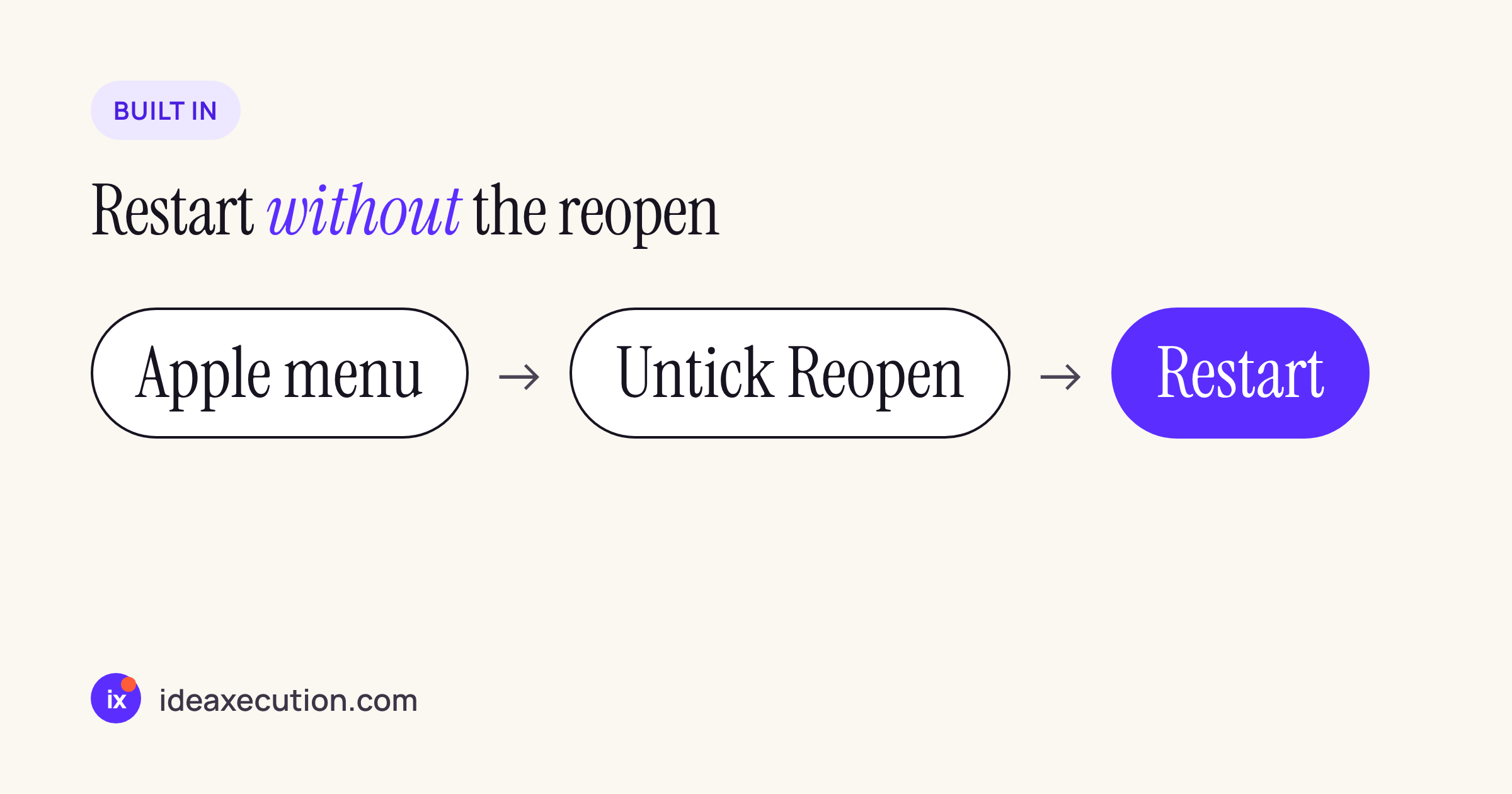
Restart with the reopen box unticked: you come back to an empty desktop.
If an app has unsaved work, it shows its save dialog and the restart waits for you. Good for: the end of the day, or when the Mac feels slow and you want a clean slate. Not good for: the middle of a working session, because you lose your place in everything.
3. Activity Monitor: stop the apps that use the most memory
If the real goal is how to stop apps on Mac that are slowing it down, start with the ones using the most memory. Activity Monitor is in Applications > Utilities.
- Open Activity Monitor and click the Memory tab; click the Memory column to sort the biggest first.
- Select the app, then click the Stop button in the upper-left corner of the window (Apple: Quit a process).
- Choose Quit. Apple notes this “is the same as choosing File > Quit within an app”. Choose Force Quit only if Quit does nothing.
Activity Monitor also lists background processes that are not apps. Leave anything you do not recognise alone: some of those are parts of macOS.
4. A script that quits every app except a keep list
If you quit apps in bulk every day, a short AppleScript does it in one run. Open Script Editor (Applications > Utilities), paste this, change the keep list, and click Run:
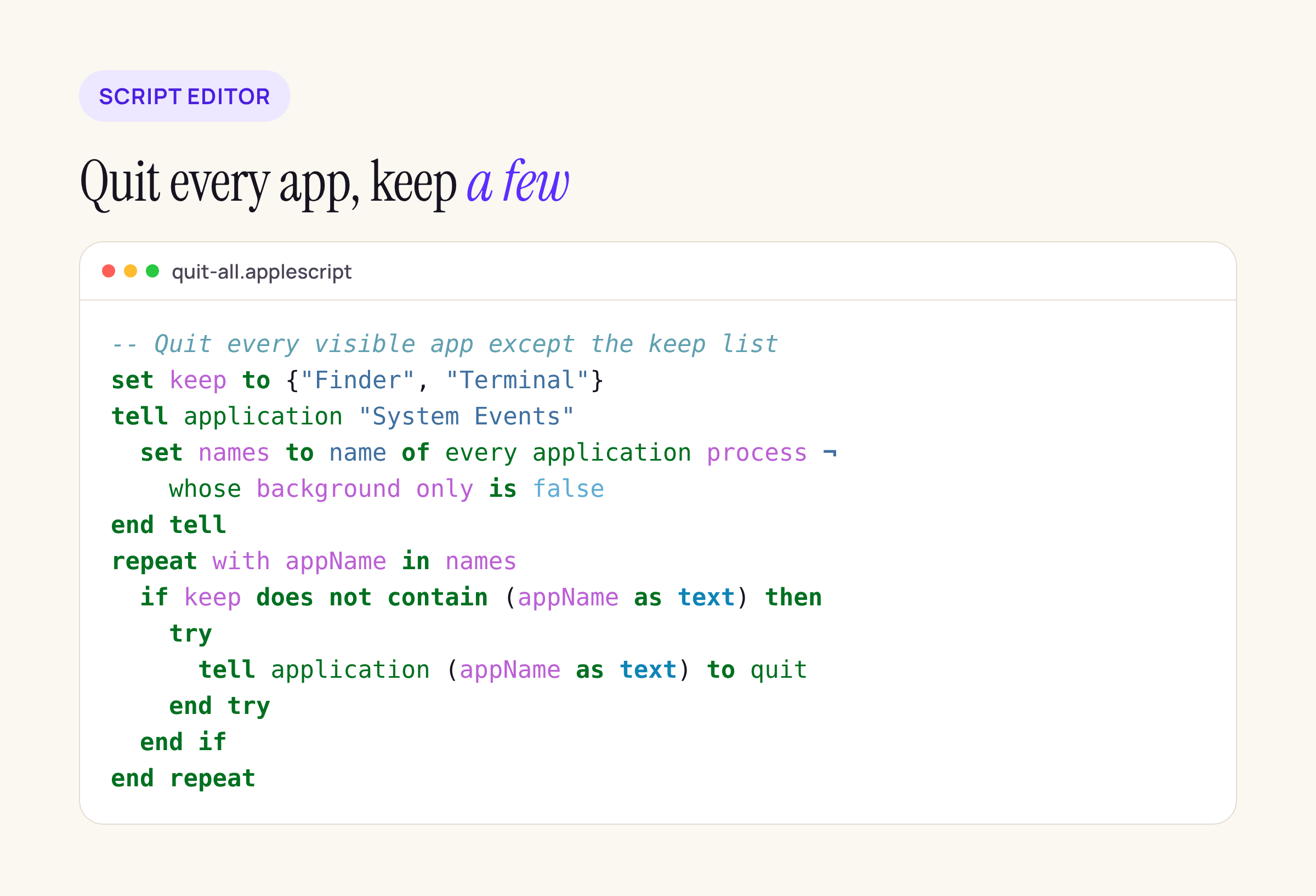
The script asks each visible app to quit normally, skipping the names in the keep list.
-- Quit every visible app except the keep list
set keep to {"Finder", "Terminal"}
tell application "System Events"
  set names to name of every application process ¬
    whose background only is false
end tell
repeat with appName in names
  if keep does not contain (appName as text) then
    try
      tell application (appName as text) to quit
    end try
  end if
end repeat
Treat this as a starting point and run it once while watching what happens. Three things to know:
- The first time, macOS asks whether Script Editor may control System Events. Allow it, or the script cannot list the apps.
quitis a normal quit, so apps with unsaved changes show their save dialog.- A few apps run under a process name that differs from their app name. If one is skipped or errors, add it by the name the script sees.
You can save it as an app from Script Editor (File > Export, File Format: Application) and keep it in the Dock.
5. Force Quit: only for apps that stopped responding
Force Quit is the method people reach for, and it is the wrong one for closing all apps. Apple’s Force an app to quit on Mac:
- Press Option-Command-Esc, or choose Force Quit from the Apple menu.
- Select the unresponsive app, then click Force Quit.
From the Dock, Control-click the app’s icon and choose Force Quit; Apple’s Dock guide warns “you may lose unsaved changes”. Use this for one frozen app, never as a routine way to clear the Mac.
The faster way: OneClick QuitAll
OneClick QuitAll does method 1 for every app at once, from the menu bar. It lists the running apps with their memory, CPU and running time, you tick the ones to keep, and it quits the rest with the normal macOS quit, so apps get their save dialog instead of being force-closed. It remembers your keep list for next time, and if an app will not quit it tells you rather than forcing it. It is on the Mac App Store and runs on macOS 11.5 or later.

QuitAll shows what each running app uses before you quit it.
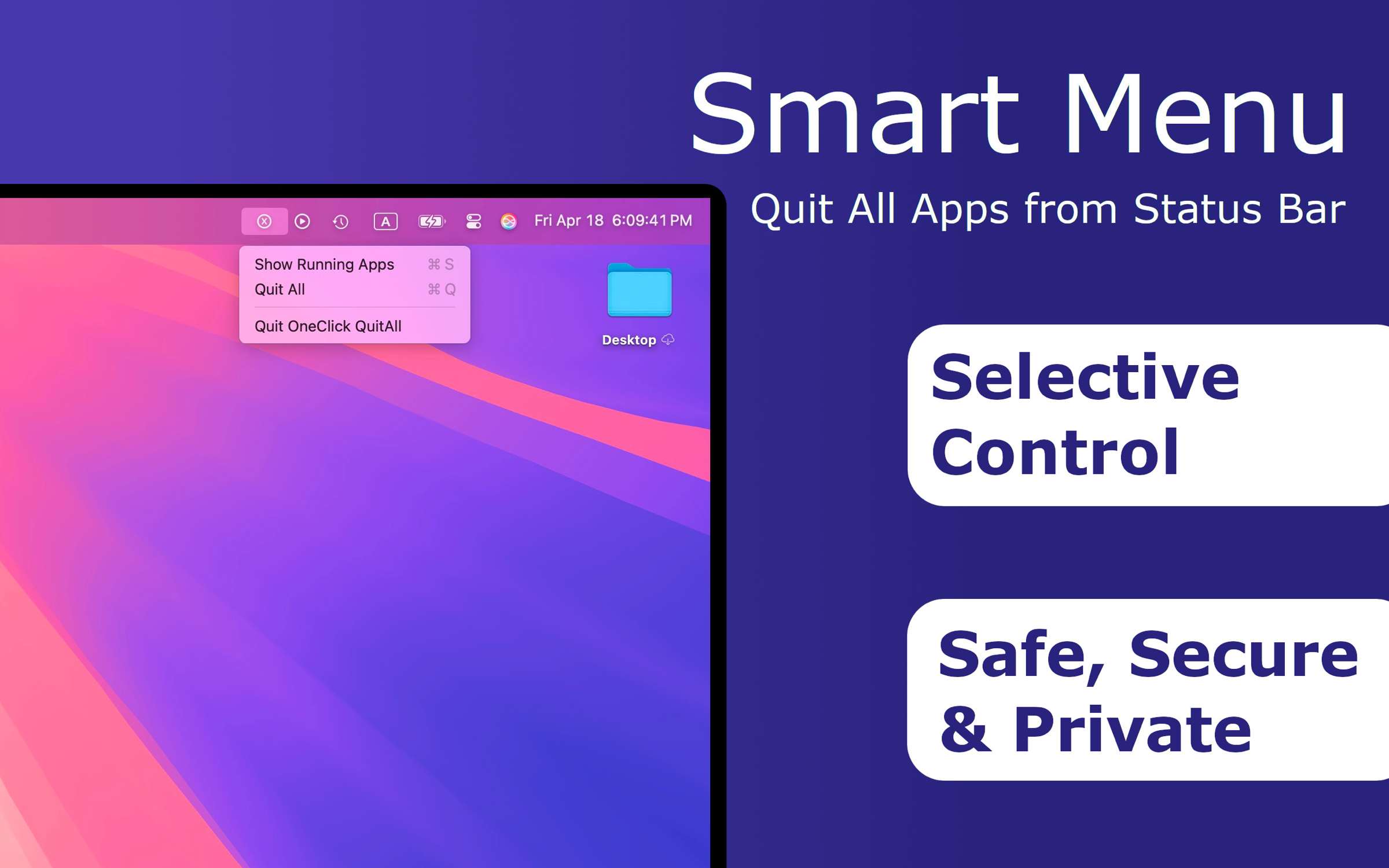
Tick the apps to keep; the rest quit in one click.
Which way to use
| Situation | Best way |
|---|---|
| Three or four apps | Command-Q via the app switcher |
| End of the day, clean slate | Restart with Reopen windows unticked |
| Mac is slow, find the cause | Activity Monitor, Memory tab |
| Same routine every day | The script, or QuitAll |
| One app is frozen | Force Quit |
Whatever you choose, prefer a normal quit over a force quit. It is the difference between closing all apps on a Mac and losing the paragraph you forgot to save.