
Before a video call or a presentation on a Mac, do three things: quit the apps you will not use (Command-Q), hide the ones you need later (Option-Command-H hides every app except the one in front), and silence notifications while you share your screen (System Settings > Notifications > Notification Center). The steps below use Apple’s own settings on macOS Tahoe 26 and macOS 27, and each one links to the Apple Support page it comes from.
Why we wrote this: we build OneClick QuitAll, a small Mac app for exactly this moment, and “how to close all apps on Mac” is one of the searches that brings people to us. The built-in way works fine; the app only makes it one click.
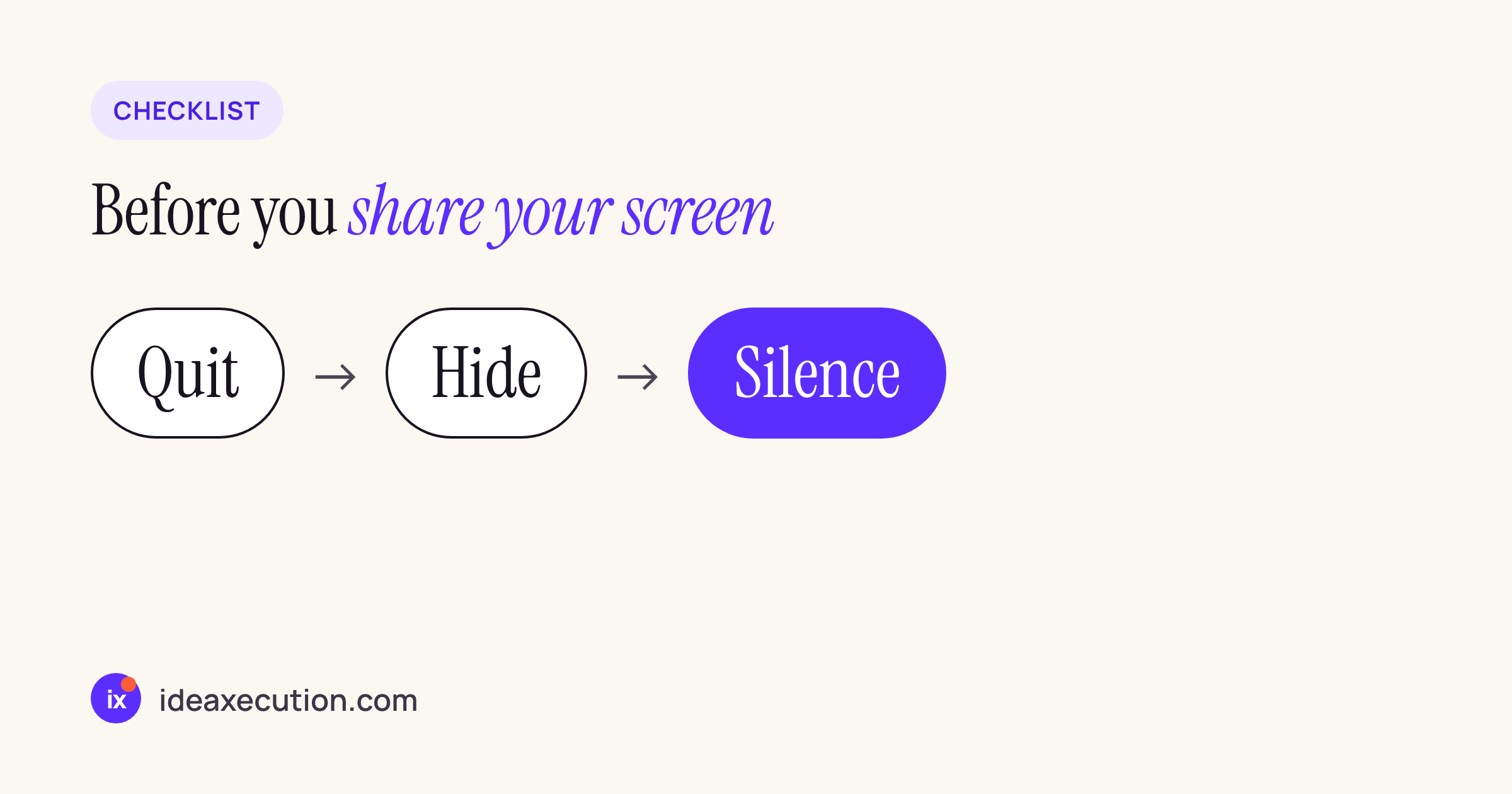
The checklist in the order we use it.
Why quit apps before a call at all
Three reasons, all practical:
- Privacy on a shared screen. A chat window, a mail preview or a banking tab can appear the moment you switch apps or share the whole display.
- Memory and fans. A video call app, a browser and Keynote at once is a heavy load on an 8 GB Mac. If the Mac already feels slow, our guide to finding the apps using memory shows how to read Activity Monitor’s memory pressure first.
- Fewer interruptions. Apps that are not running cannot bounce in the Dock or pop up a dialog in the middle of your slide.
Step 1: Quit the apps you will not use
Apple’s Mac keyboard shortcuts page lists Command-Q as “Quit the current app”. The quick way through a dozen apps:
- Press and hold Command, press Tab to open the app switcher, and use the arrow keys to land on an app (Move and arrange app windows on Mac).
- Release, then press Command-Q. The app quits the normal way, so anything unsaved asks you first.
- Repeat until only the call app, your slides and anything you will show are left.
Keep Force Quit (Option-Command-Esc, from the same shortcuts page) for an app that has stopped responding. A force quit does not let the app save.
If you want to quit everything at once, our guide How to quit all apps on Mac at once covers five ways, including a restart with “Reopen windows” turned off.
Step 2: Hide the apps you need later
Some apps you want back right after the call: your editor, the browser with your notes. Hide them instead of quitting:
- Bring the app you are presenting from to the front (Keynote, the browser with your demo, the call app).
- Press Option-Command-H. Apple’s shortcuts page describes it as the way “to view the front app but hide all other apps”.
- Command-H hides just the front app; Command-M minimises the front window to the Dock.
Hidden apps stay running and keep their windows. They will not show on a shared screen until you click them in the Dock or switch to them.
Step 3: Silence notifications while you share
macOS has a setting made for this. In Change Notifications settings on Mac, Apple puts it under System Settings > Notifications > Notification Center: “allow notifications when mirroring or sharing the display”, with the choice Notifications Off or Allow Notifications. Apple’s example is giving a Keynote presentation. Set it to Notifications Off once and it applies every time you share or mirror your display.
For a call where you are not sharing your screen, turn on Do Not Disturb in Control Center (Set up a Focus on Mac and Turn a Focus on or off).
Make it automatic with a Focus schedule
A Focus can turn itself on when you open an app. On the Set up a Focus page, Apple lists three schedule types under Set a Schedule > Add Schedule: Time, Location and App, where the Focus turns on when you open the app and off when you close it or switch to another app. Add a schedule for your call app or for Keynote and the Mac goes quiet on its own.
Step 4: A last look before you click Share
- Share one window instead of the whole screen when your call app offers it.
- Check the menu bar: icons from apps you quit are gone, which is part of the point.
- Close browser tabs you would not want on a projector, or present from a separate browser window.
The faster way: OneClick QuitAll
Steps 1 and 2 take a minute or two when a dozen apps are open. OneClick QuitAll does Step 1 in one click from the menu bar. It lists every running app with its memory and CPU, you tick the apps to keep, such as the call app and your slides, and it quits the rest with the same normal quit the Dock uses. Apps with unsaved work still ask, nothing is force-killed, and it remembers your keep list for next time.
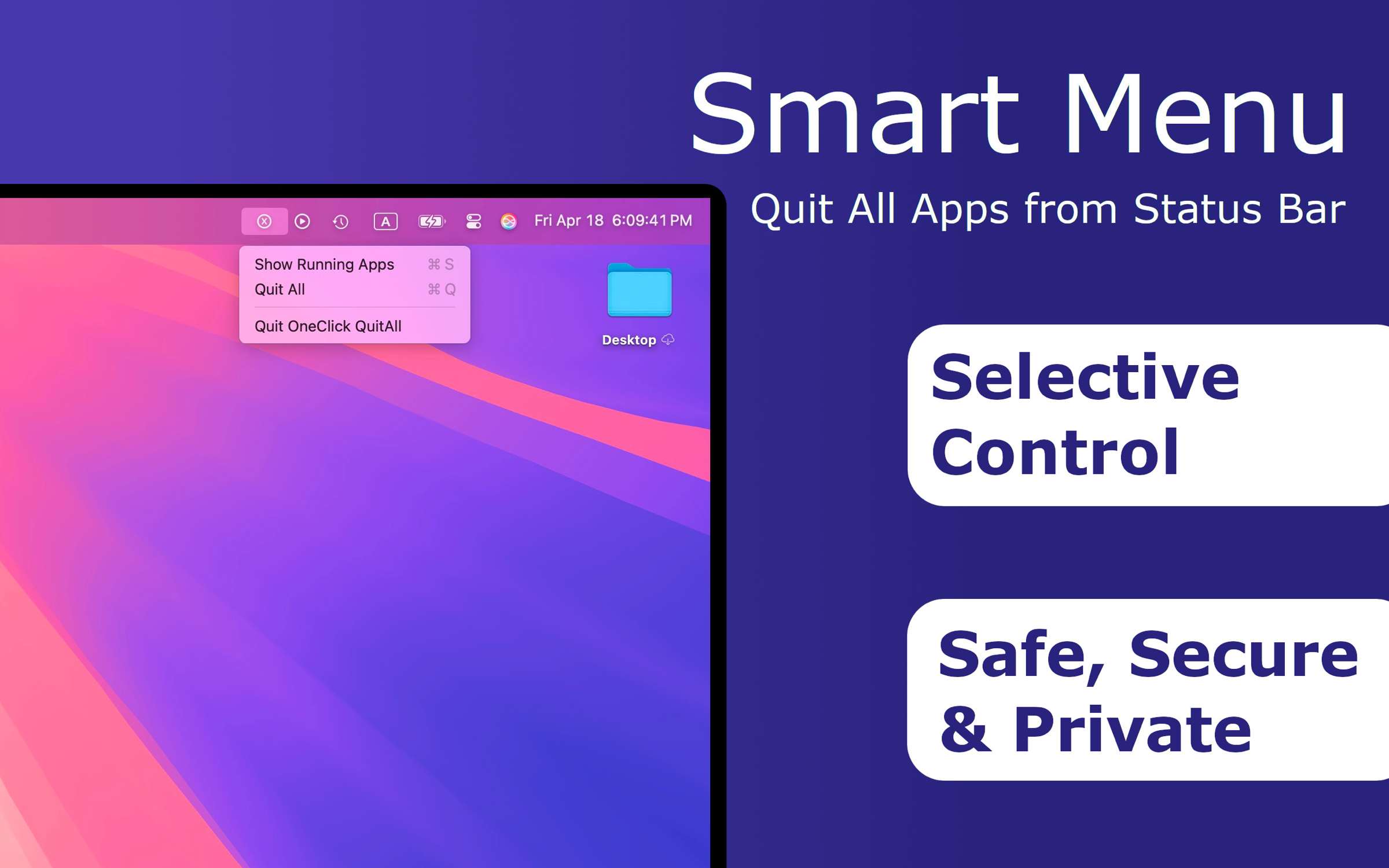
Keep the call app and your slides ticked; everything else quits.
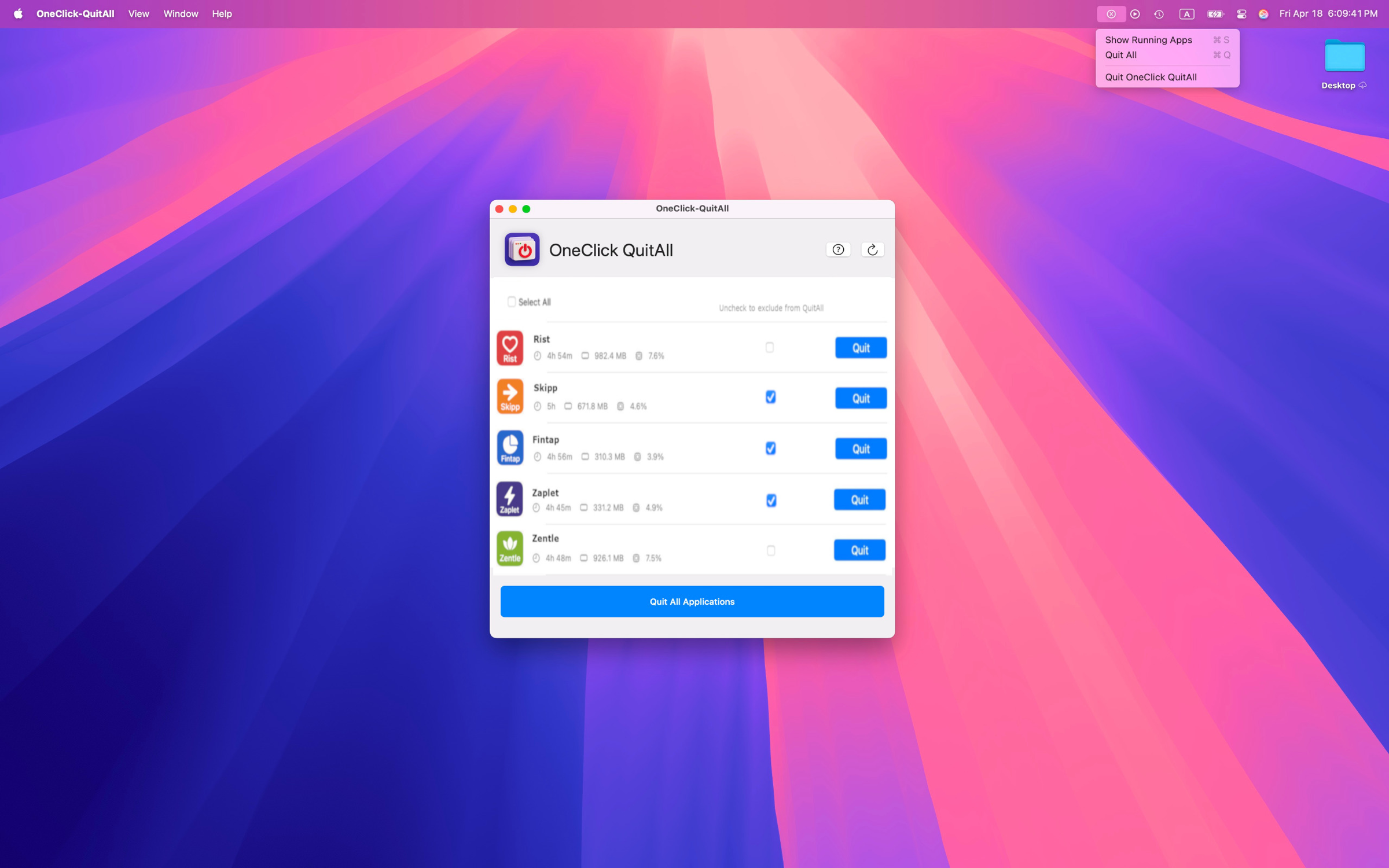
The Quit all button lives in the menu bar, so it is one click before you join.
It is on the Mac App Store and runs on macOS 11.5 or later. Notifications are still Step 3’s job: set “when mirroring or sharing the display” to Notifications Off once and you are done.
After the call
- Click hidden apps in the Dock to bring them back.
- If you added an App schedule to a Focus, it turns off when you close the call app.
- Apps that open at every login can be trimmed for good: see How to stop apps opening at login on Mac.