
To stop apps opening at login on a Mac, open Apple menu > System Settings > General > Login Items & Extensions, select the app under Open at Login and click the Remove (minus) button. That covers most cases. If apps still appear after a restart, two other things are usually responsible: macOS reopening the windows you had open when you shut down, and apps that run helpers in the background. The steps below follow Apple’s Mac User Guide for macOS 27 Golden Gate, and the same settings exist in macOS Tahoe 26.
Why we wrote this: we make OneClick QuitAll, a menu bar app that quits the apps you do not need, and “why are all these apps open again?” is the question that comes right after “how do I close them”. Here is the full answer with the tools that ship with macOS first.
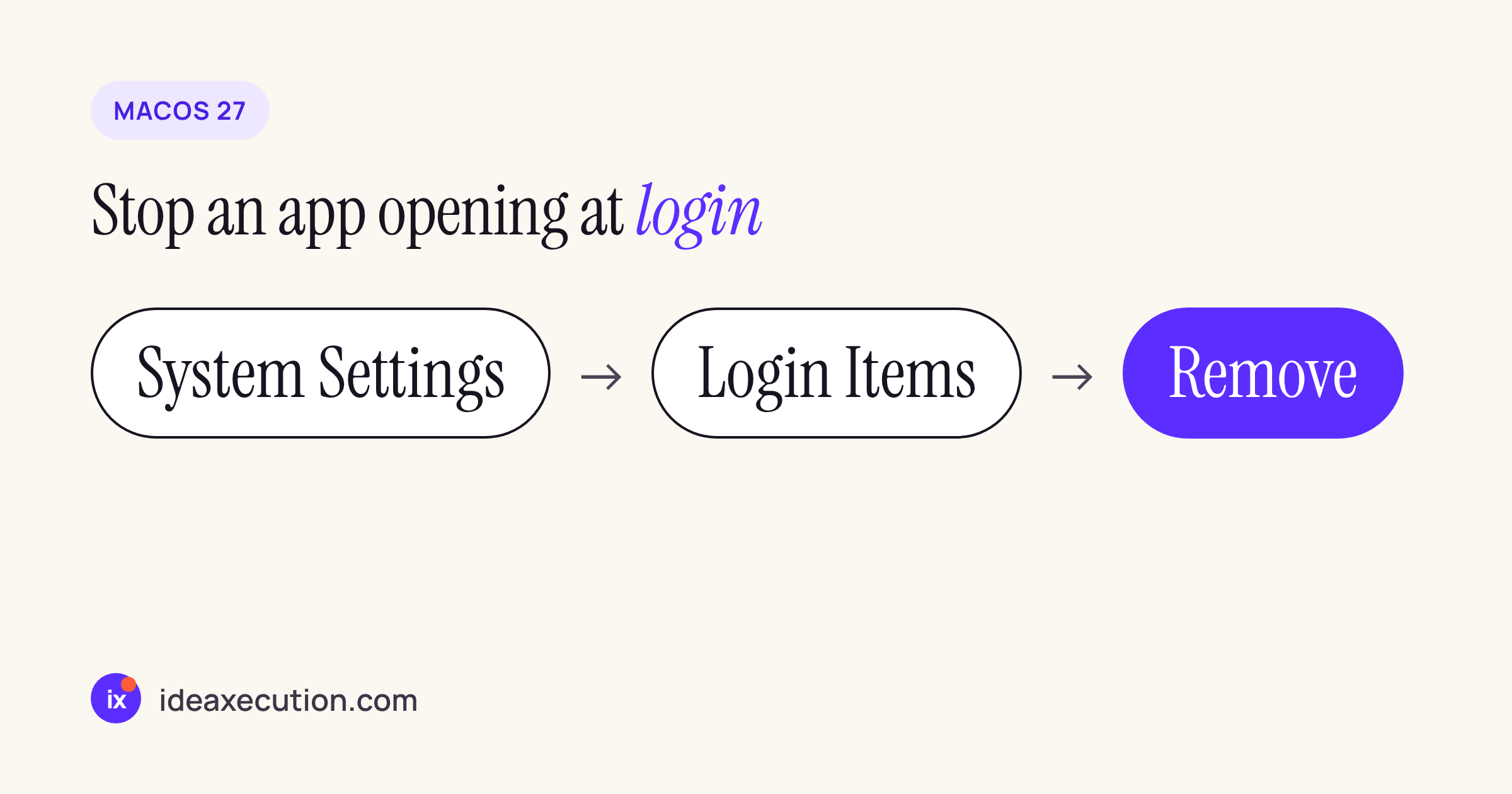
The short path in macOS 26 and 27.
Why apps open at login on a Mac
There are three different reasons an app is already running when you sign in, and each one has its own switch:
- It is a login item. The app (or you) added it to the Open at Login list, so macOS starts it every time you log in.
- macOS reopened it. When you shut down or restart with “Reopen windows when logging back in” selected, every app that was open comes back.
- It runs in the background. Some apps install a helper that works when the app itself is not open, for example to check for updates or sync data. Apple lists these as App Background Activity.
Work through the methods below in order. Most people only need the first one.
Method 1: Remove apps from Login Items (stop apps opening at startup)
Apple’s steps in Open items automatically when you log in on Mac:
- Choose Apple menu > System Settings, then click General in the sidebar.
- Click Login Items & Extensions. You may need to scroll down.
- Under Open at Login, select the app you want to stop.
- Click the Remove (minus) button below the list.
The list can hold apps, documents, folders and server connections, so you may find a shared drive or an old document there too. Apple notes in Change Login Items & Extensions settings on Mac that a yellow warning triangle next to an item means it will not open anyway, because it was moved or deleted. Those are safe to remove.
To add something back later, use the Add (plus) button under the same list and pick the app.
Method 2: Turn off apps that run in the background
On the same Login Items & Extensions page, Apple describes App Background Activity as letting apps “perform tasks when the app isn’t open, such as checking for software updates or syncing data” (Apple).
- Open System Settings > General > Login Items & Extensions.
- Find the app in the list of apps allowed to run in the background.
- Turn its switch off.
Be selective here. Turning off a sync tool, a password manager or a backup app stops the work it does while closed, which may be exactly what you installed it for. Updaters and launchers for apps you rarely use are the usual candidates to switch off.
Method 3: Stop macOS reopening your windows after a restart
If the apps that appear are simply the ones you had open last time, they are not login items at all. macOS is restoring your session. Apple’s steps in Shut down or restart your Mac:
- Choose Apple menu > Shut Down (or Restart).
- Deselect Reopen windows when logging back in.
- Click Shut Down (or Restart).
You come back to an empty desktop, with only your real login items starting.
Method 4: Skip login items just once
Sometimes you only want one quiet start, for example to find out which app is slowing your Mac at login. Apple documents a Shift-key shortcut on the login items page:
- If you see the login window: press and hold Shift while you click Log In, then release Shift when the Dock appears.
- If you do not see a login window: restart the Mac, press and hold Shift when the progress bar appears in the startup window, then release Shift after the desktop appears.
Nothing is removed from your settings; the next normal login starts everything as before.
Method 5: Check the app’s own settings
If an app returns to Open at Login after you removed it, open that app’s own settings and look for an option with a name like “Open at login”, “Launch at startup” or “Start when you log in”, and turn it off. An app with that option switched on can add itself back. Remove it from Login Items again afterwards and restart once to confirm it stays gone.
Already logged in with a dozen apps open? Quit them in one go
Removing login items fixes the next start. It does not help with the apps that are already running right now. You can quit them one by one with Command-Q, or restart with reopening turned off (Method 3). We compared all the built-in options in How to quit all apps on Mac at once: 5 ways.
The faster way is OneClick QuitAll. It lives in the menu bar, lists every running app with its memory and CPU use, and quits the ones you do not tick in one click. It uses the normal quit, so apps get to save their work instead of being force-closed.
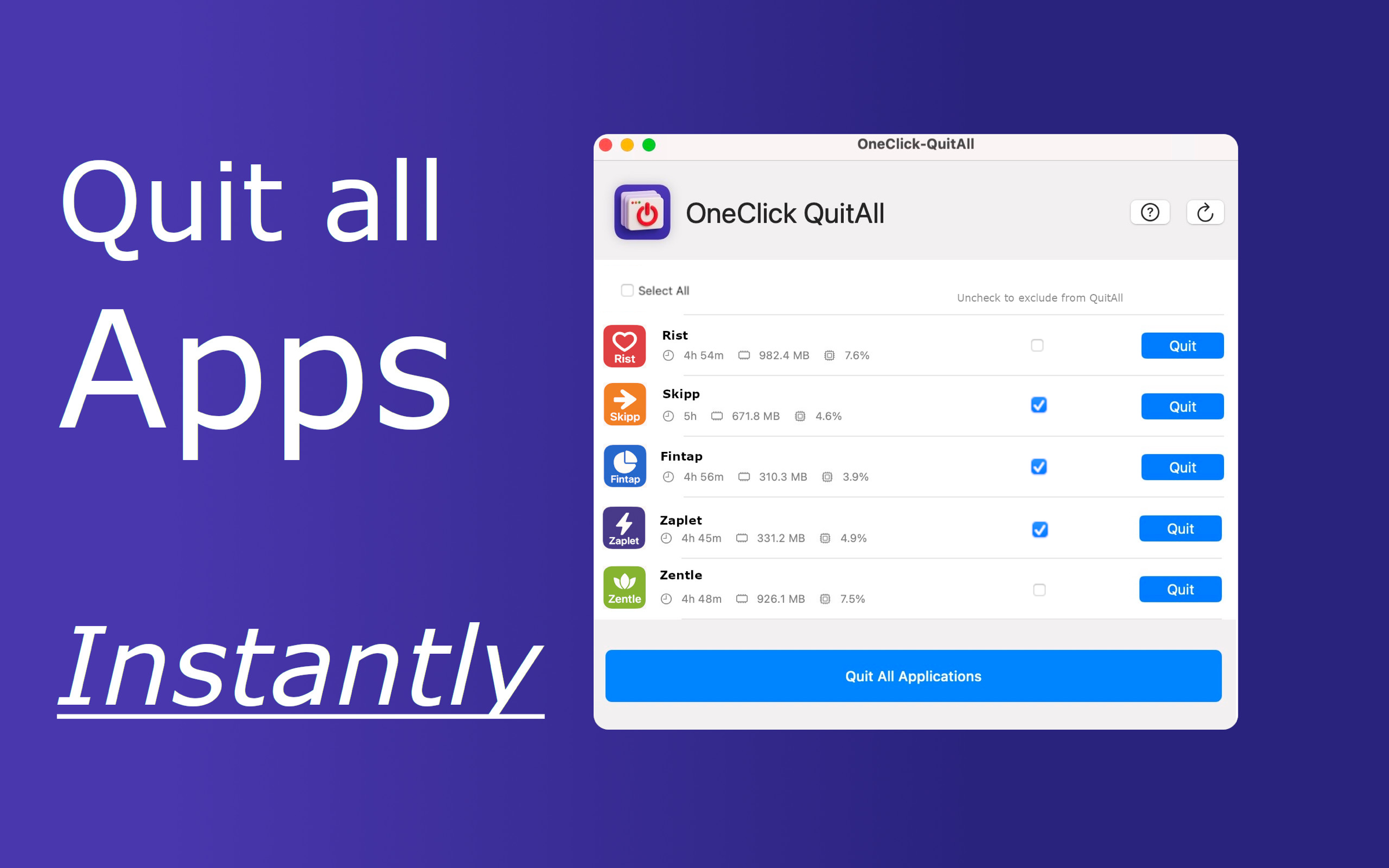
OneClick QuitAll: running apps with their memory and CPU, and one button to quit them.
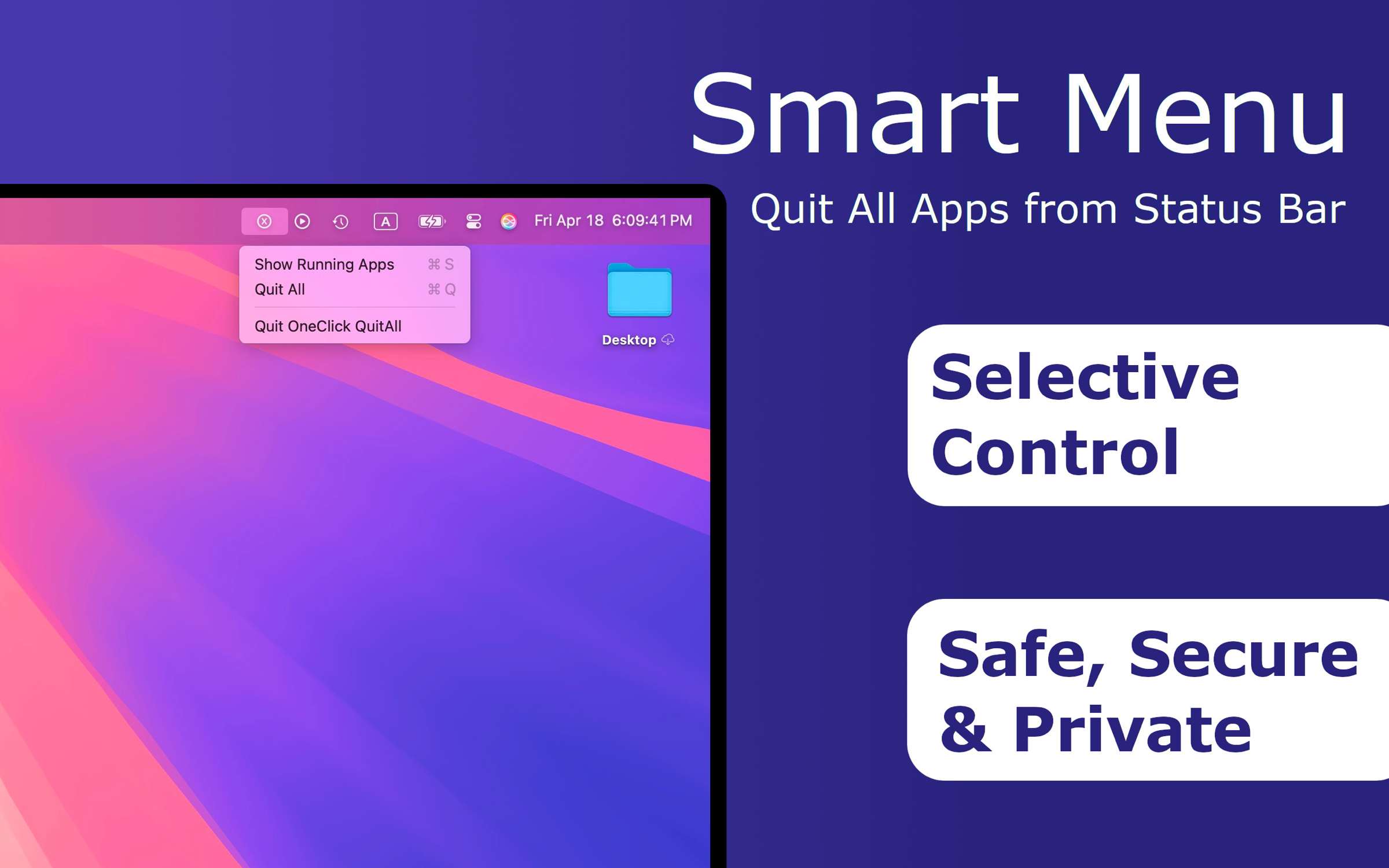
Tick the apps you want to keep; the rest are quit properly.
A sensible routine is Login Items for what starts, and QuitAll for what is left over during the day. You can get it from the OneClick QuitAll page.
Quick checklist
- Open at Login list cleaned in System Settings > General > Login Items & Extensions.
- Background activity switched off for updaters and helpers you do not need.
- “Reopen windows when logging back in” unticked when you want a clean start.
- The app’s own “open at login” option switched off for apps that keep coming back.
- Shift at login when you want one start with nothing extra.