On the iOS 27.1 SDK, a SwiftUI app gets two tools for iPhone Duo: ArrangementView lays out a primary and a secondary view and moves them around the fold, and ReservedRegion tells a view where the hinge, the Dynamic Island or the cameras cover it. The practical takeaway: use ArrangementView at the top of a screen (never inside a ScrollView, grid or navigation split view), and read reserved regions through GeometryReader with proxy.reservedRegions(kind: .division). Both are available from 27.1 on every Apple platform in SwiftUI, while their UIKit twins skip macOS and watchOS.
This is a comparison of Apple’s documentation pages for the four types, read on 20 November 2026 after Apple’s November 2026 Hello Developer issue pointed to them. Code below is a sketch to adapt: compile it against the iOS 27.1 SDK in your own target. Behaviour on the fold itself is outside this post.
Why we did this: Cardigami, our pop-up card app, is a two-page screen by nature: the card on one page, the message on the other. Our UIKit post on arrangements and reserved regions covered the UIKit host of a banking app; this one is for SwiftUI screens.
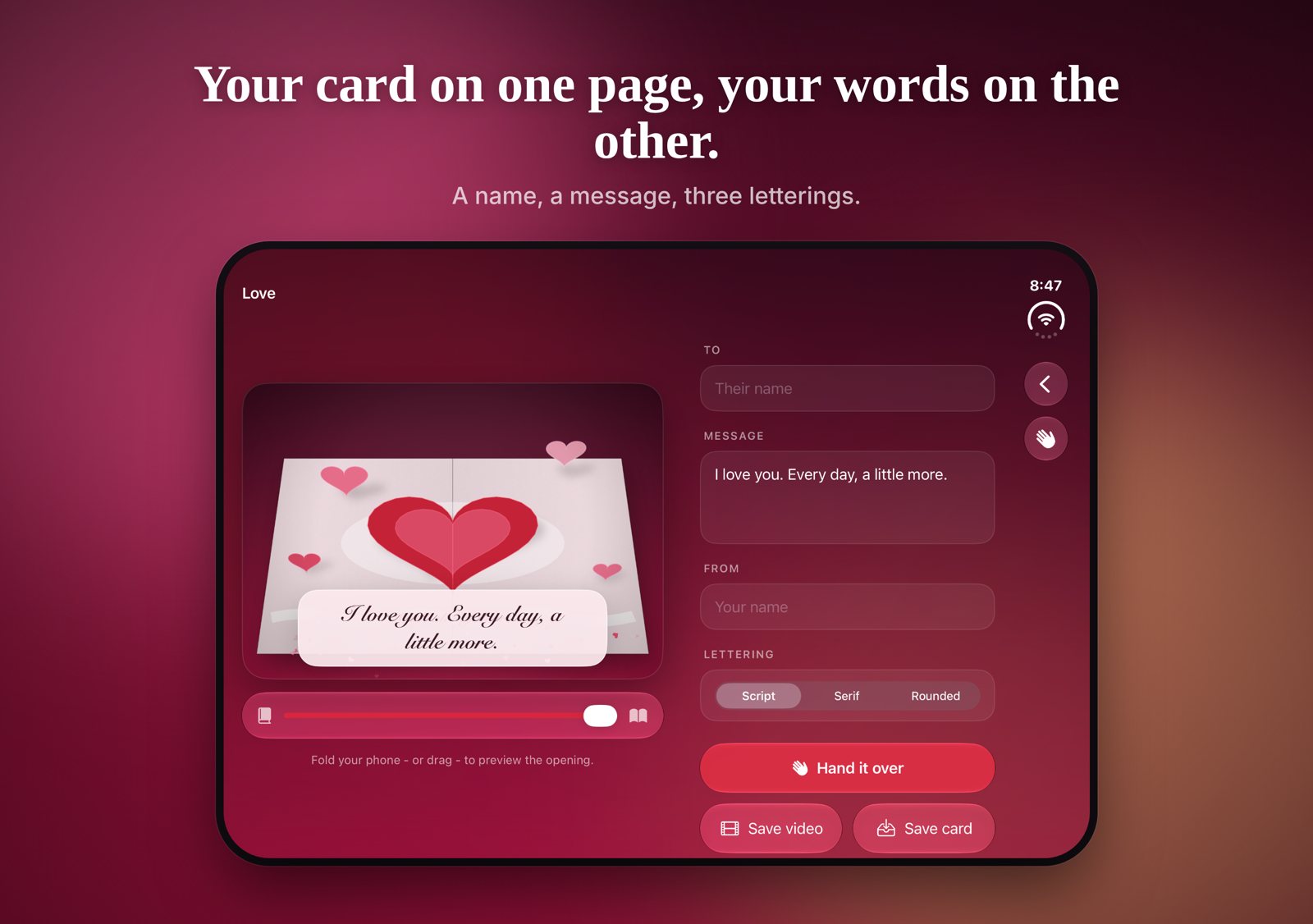
Two related views, one per page: the layout ArrangementView is built for.
ArrangementView: a primary and a secondary view
Apple’s ArrangementView page describes it as “a view that dynamically lays out a primary and secondary view based on size class, orientation, and reserved regions”. You give it two views and a style:
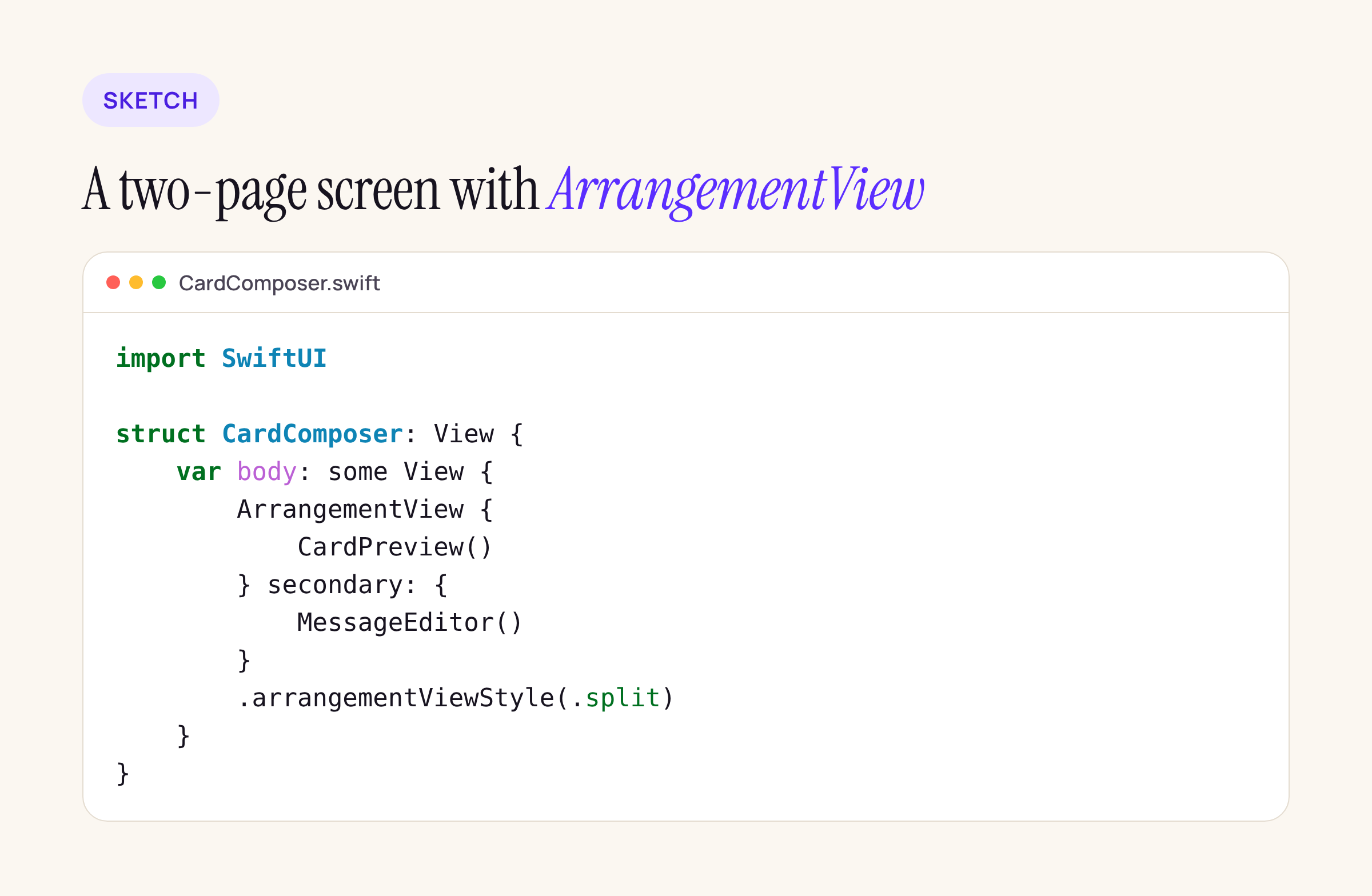
A sketch: CardPreview and MessageEditor stand for your own views.
import SwiftUI

struct CardComposer: View {
    var body: some View {
        ArrangementView {
            CardPreview()
        } secondary: {
            MessageEditor()
        }
        .arrangementViewStyle(.split)
    }
}
The two styles, as the page describes them:
- Overlay (
.arrangementViewStyle(.overlay)) layers the primary view over the secondary on a flat display and places them side by side when the device is folded. Apple’s example puts player controls over a video player. - Split (
.arrangementViewStyle(.split)) keeps the two views in separate spaces. Apple’s example is now playing next to lyrics..split.axes(.vertical)limits the split to one axis.
One detail worth planning for: the page says that when a closed iPhone Duo is held in landscape, “the split arrangement only shows the primary view”. So the primary view has to work alone. For a card app that means the card preview, not the message field, is the primary.
The page also warns against placing ArrangementView inside “a scroll view, navigation split view, grid” or similar containers. Put it at the screen’s root, and let each side scroll on its own if it needs to.
Apple lists more modifiers under the same topic group: overlayArrangementEdge(_:), splitArrangementLayoutRatio(_:), splitArrangementFixedLayoutSize(horizontal:vertical:) and splitArrangementLayoutSize(minWidth:...), for the overlay’s edge and the size or ratio of each side of a split. For a custom look, ArrangementViewStyle takes an ArrangementViewStyleConfiguration, and ArrangementView.init(_ configuration:) builds the view from it.
ArrangementView and UIArrangementViewController, side by side
| SwiftUI | UIKit | |
|---|---|---|
| Type | ArrangementView, a view | UIArrangementViewController, a view controller |
| Content | two view builders: primary, secondary | setViewController for . and . |
| Pick the layout | . or . |
updateArrangement( or . |
| One axis only | . |
. |
| Read the state | no state API listed; custom styles get a configuration | state( returns a view state |
| Platforms (27.1) | iOS, iPadOS, Mac Catalyst, macOS, tvOS, visionOS, watchOS | iOS, iPadOS, Mac Catalyst, tvOS, visionOS |
The overlay and split names and the .axes(_:) call are the same on both sides, so a team with a UIKit host and SwiftUI screens can describe the layout once and implement it twice.
ReservedRegion: where the fold and the cameras are
ReservedRegion is “a region within a view’s coordinate space that another entity reserves”. It comes in two kinds:
- occlusion: “an area where an element, such as the Dynamic Island, a camera, or window controls, covers content”.
- division: “an area where content splits into separate regions, such as at the fold of a hinge”. Apple adds that a division is active only when the device is partially open or closed.
Each region has a frame (a CGRect in your view’s coordinate space), margins (“the extra space around the reserved area that keeps interactive content clear of it”), isActive, a kind and an id.
In SwiftUI you read regions from a GeometryReader proxy. In UIKit you call the same query on the view inside updateConstraints(), and UIKit runs it again when the regions change.
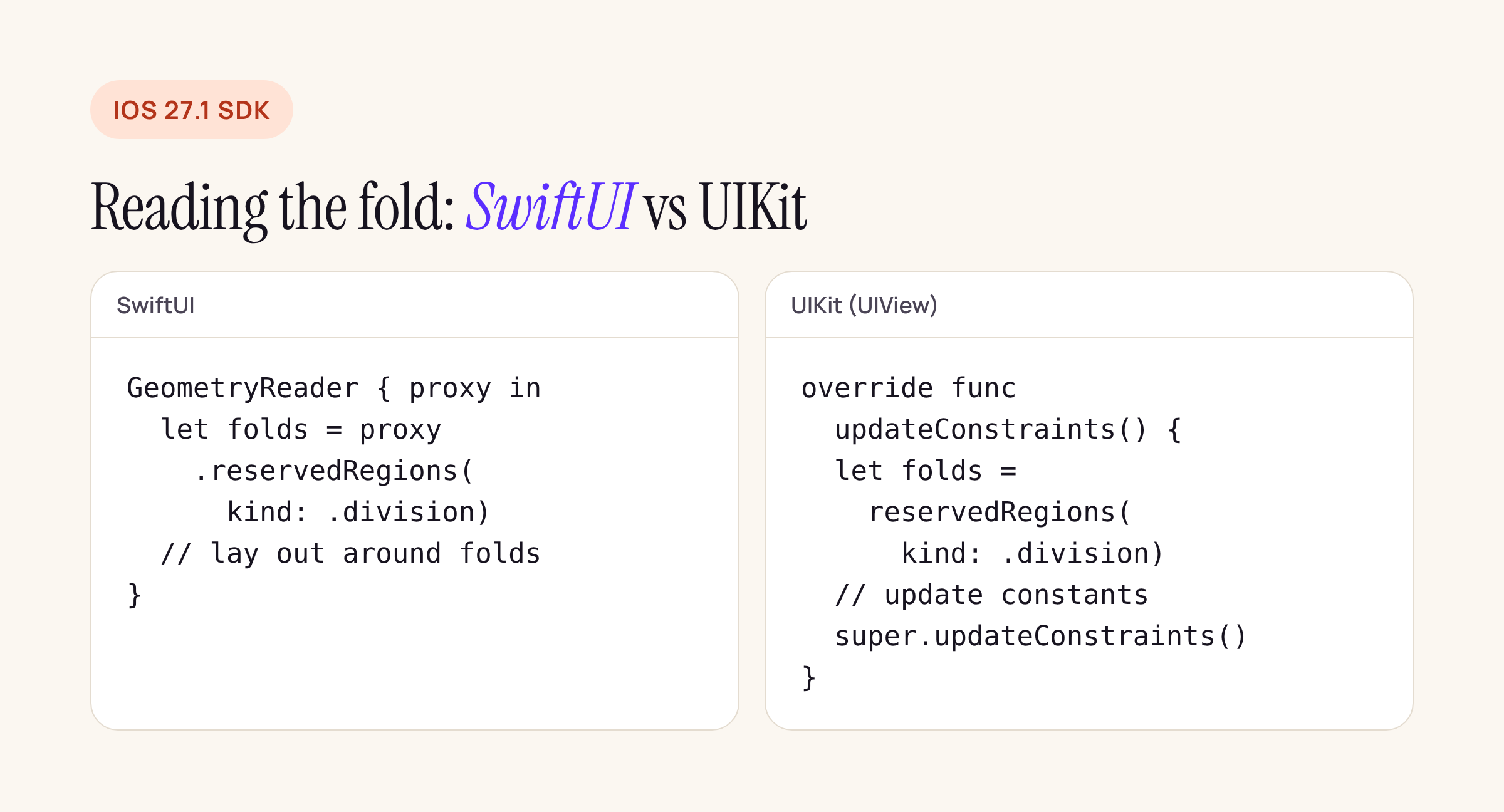
The same query in both frameworks, from Apple’s examples.
A sketch of a keep-out area in SwiftUI. It grows each region by the larger of its margins, so it does not depend on which side is leading:
import SwiftUI

func keepOut(_ region: ReservedRegion) -> CGRect {
    let m = region.margins
    return region.frame.insetBy(
        dx: -max(m.leading, m.trailing),
        dy: -max(m.top, m.bottom))
}

struct PayRow: View {
    var body: some View {
        GeometryReader { proxy in
            let zones = proxy
                .reservedRegions(kind: .division)
                .map(keepOut)
            // Place buttons outside every rect in zones.
            PayButtons(avoiding: zones)
        }
    }
}
PayButtons stands for your own view. If you only need to know whether a fold exists right now, zones.isEmpty is enough, because the query returns active regions by default.
SwiftUI ReservedRegion vs UIView.ReservedRegion
The two types share a name and an idea, but not every detail. From the two reference pages:
| SwiftUI | UIKit | |
|---|---|---|
| How you read it | reservedRegions( on a GeometryReader proxy |
reservedRegions( on the view |
| When it re-runs | not stated on the page | UIKit tracks reads in updateConstraints( |
| Margins type | EdgeInsets |
UIEdgeInsets |
| Default query | active regions only | active regions only |
| Include inactive | . |
QueryOptions |
| Right to left | mirrored by default, . for raw frames |
no layout direction parameter |
| Platforms (27.1) | iOS, iPadOS, Mac Catalyst, macOS, tvOS, visionOS, watchOS | iOS, iPadOS, tvOS, visionOS |
The right-to-left row is worth a second look. The SwiftUI query mirrors frames for right-to-left layouts by default. If you hand those frames to code that thinks in fixed screen coordinates, such as a drawing layer or a hit test written for UIKit, ask for .fixed.
What about UINavigationBar and the vertical bar?
Apple’s November issue also mentions “UINavigationBar docs” and “vertical bar behavior”. The UINavigationBar reference as published on 20 November has no iPhone Duo or vertical bar section yet, so there is nothing to port from it today. On the React Native side, 0.89 rc.2 already adds StatusBar.getVerticalBarEdgeIOS() and a useVerticalBarEdgeIOS() hook; our 0.89 rc.2 native diff covers them.
What to check in your own app
- Search your SwiftUI code for two-pane screens built with
HStackand size-class checks. Those are the candidates forArrangementView. - Make sure the view you pass as primary works alone, since a closed Duo in landscape shows only the primary in a split.
- Move any
ArrangementViewout ofScrollView,List, grids andNavigationSplitView. - Find buttons and text fields near the middle of the screen and keep them out of
.divisionregions plus their margins. - For right-to-left languages, check which coordinate space your reserved region frames are in.
- Gate all of it with
if #available(iOS 27.1, *): every symbol in this post is new in 27.1.