

To completely uninstall Docker Desktop on a Mac, run Docker’s own uninstaller first (Troubleshoot icon, then Uninstall), move Docker.app to the Trash, and then delete two folders the uninstaller leaves behind: ~/Library/Group Containers/group.com.docker and ~/.docker. Dragging Docker.app to the Trash on its own is not enough: the app keeps its data, settings and command-line links outside the Applications folder. Every step below comes from Docker’s documentation and Apple Support, both linked, and works on current macOS releases.
Why we wrote this: we build Nix, a free Mac uninstaller, and Docker Desktop is a textbook case of an app whose files live far outside /Applications. This guide is part of our complete guide to deleting apps on Mac.
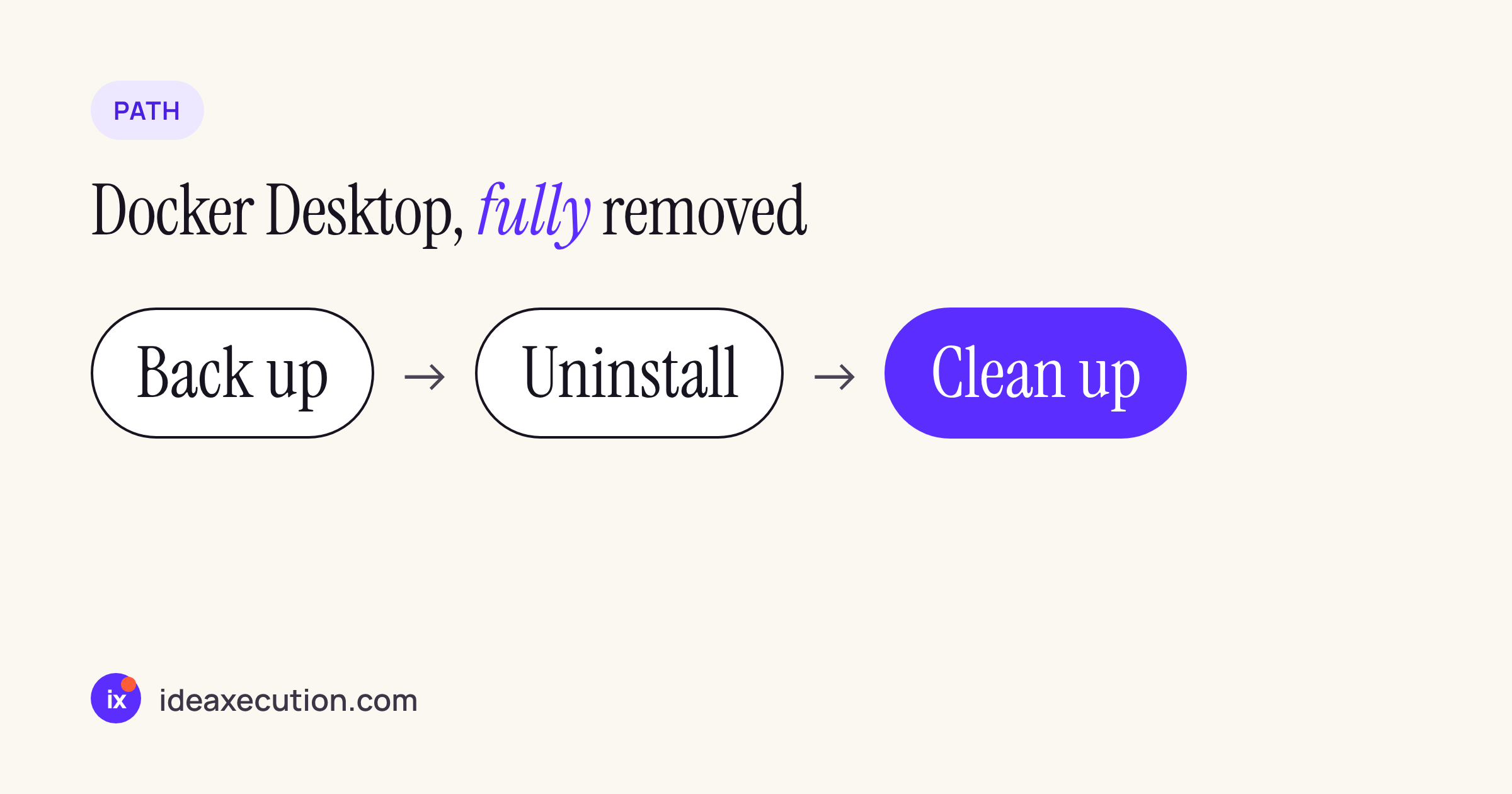
The whole job in three steps. Skip the backup only if you want nothing back.
Before you delete Docker Desktop: back up what you need
Docker is blunt about this in its uninstall guide: “Uninstalling Docker Desktop destroys Docker containers, images, volumes, and other Docker-related data local to the machine.” If anything in Docker matters to you, save it first. Docker’s back up and restore page gives two commands:
# keep a container's changes as an image
docker container commit <container> my-backup:latest

# save the images you want to a .tar file
docker image save -o images.tar my-backup:latest postgres:16
Data in named volumes (a database, for example) is not part of a committed image. Docker covers that separately in back up, restore, or migrate data volumes. If your projects use a Compose file, keep it: it recreates the containers after a reinstall.
Step 1: Uninstall Docker Desktop from the app
Docker Desktop has its own uninstaller. Use it before you touch the Trash, because it removes the files the app generated. From Docker’s Mac instructions:
- Open Docker Desktop.
- In the top-right corner of the Docker Desktop Dashboard, select the Troubleshoot icon.
- Select Uninstall.
- When prompted, confirm by selecting Uninstall again.
If the app will not open, run the same uninstaller from Terminal:
/Applications/Docker.app/Contents/MacOS/uninstall
You may see Error: unlinkat ... Library/Containers/com.docker.docker/... operation not permitted. Docker’s guide says this error can be ignored: the uninstall worked. The folder ~/Library/Containers/com.docker.docker can be removed later once your Terminal app has Full Disk Access (System Settings > Privacy & Security > Full Disk Access).
Step 2: Delete Docker.app from Applications
Now delete the app itself the normal way. Apple’s Uninstall apps on your Mac says: drag the app to the Trash, “or select the app, then choose File > Move to Trash from the menu bar in the Finder.” Do this for Docker in your Applications folder.
Step 3: Remove the leftover Docker files
This is the step most people miss. Docker documents that “some residual files may remain” after uninstalling, and gives these two commands:
rm -rf ~/Library/Group\ Containers/group.com.docker
rm -rf ~/.docker
~/.docker also holds the command-line links: Docker’s permission requirements page says Docker Desktop creates symlinks for its binaries in $HOME/.docker/bin by default. If you changed that location to /usr/local/bin in Settings > Advanced, look for links that now point nowhere:
ls -l /usr/local/bin | grep Docker.app
Delete each line it prints with sudo rm /usr/local/bin/<name>.
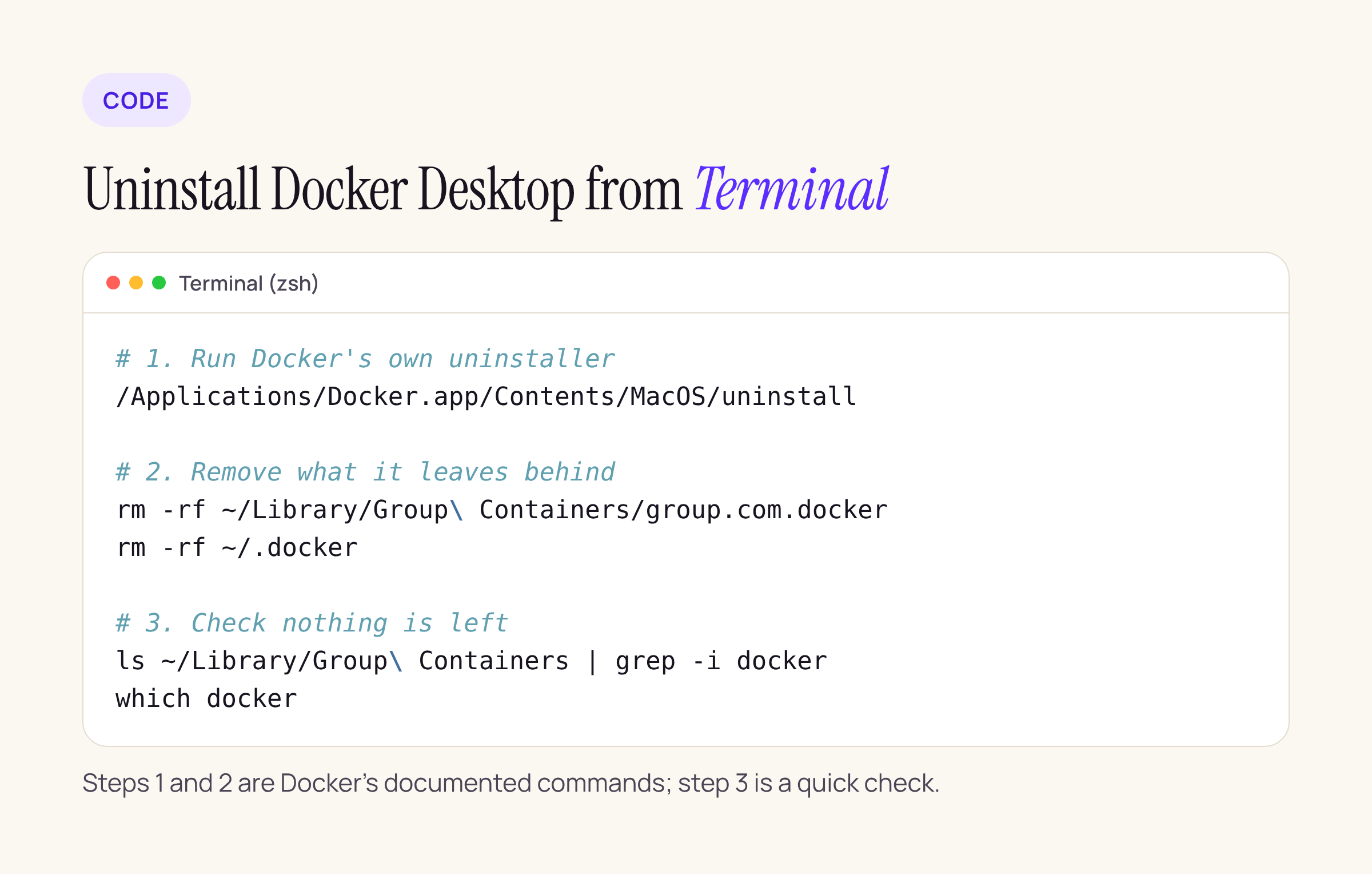
The Terminal route in one place.
The privileged helper (older installs)
Older Docker Desktop versions installed a root helper called com.docker.vmnetd. Docker’s permission page says version 4.97 and later binds privileged ports directly and does not need authorization, but a Mac that has run older versions may still carry the helper. Check and remove it with the commands Docker documents:
ps aux | grep vmnetd
sudo launchctl unload -w /Library/LaunchDaemons/com.docker.vmnetd.plist
sudo rm /Library/LaunchDaemons/com.docker.vmnetd.plist
sudo rm /Library/PrivilegedHelperTools/com.docker.vmnetd
If ps shows only the grep line and the two files do not exist, there is nothing to remove.
Step 4: Empty the Trash and check
Choose Finder > Empty Trash (Apple’s same support page) to free the space. Then confirm Docker is gone:
which docker
ls ~/Library/Group\ Containers | grep -i docker
Both commands should print nothing. If which docker still prints a path, that path is a leftover link from Step 3.
The faster way: let Nix find the leftovers
The steps above are everything Docker documents. If you would rather not hunt through ~/Library by hand, Nix is our free Mac uninstaller. It shows the files the Trash misses (caches, logs, preferences, containers and saved states) with their real paths, moves them to the Trash so you can still restore them, and keeps a history of what it removed.
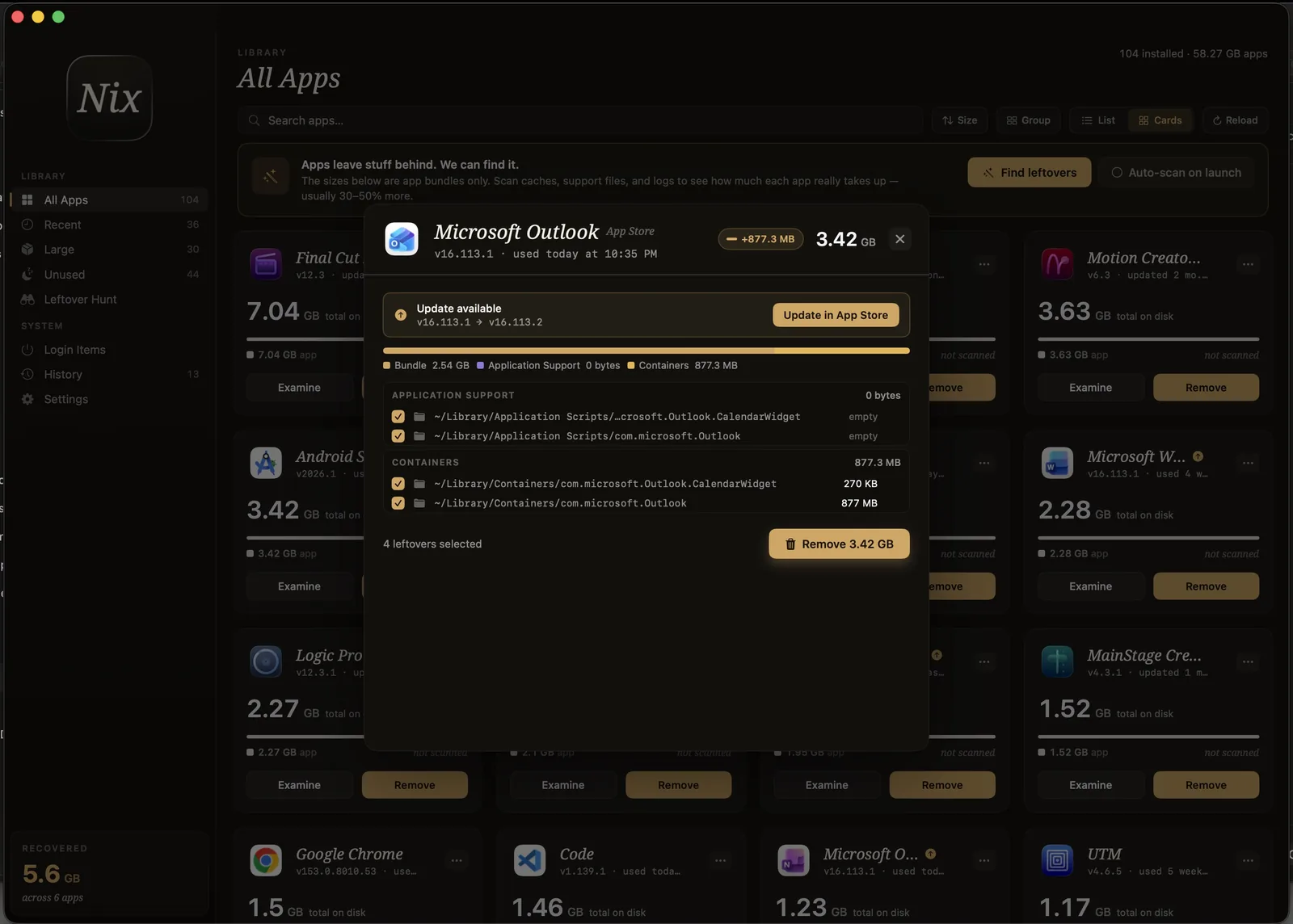
Nix’s Examine view lists each leftover with its path before anything is moved.
Whichever way you go, run Docker’s own uninstaller first (Step 1), and check the root helper by hand (the commands above).
FAQ
Does uninstalling Docker Desktop delete my images and containers?
Yes. Docker’s guide says uninstalling “destroys Docker containers, images, volumes, and other Docker-related data local to the machine.” Save images with docker image save and back up volumes before you start.
Is dragging Docker to the Trash enough?
No. The Trash removes Docker.app, but ~/Library/Group Containers/group.com.docker, ~/.docker and, on some Macs, the com.docker.vmnetd helper stay behind. Steps 1 and 3 remove them.
Why do I get “operation not permitted” when running the uninstaller?
macOS protects app container folders. Docker says the error on ~/Library/Containers/com.docker.docker can be ignored; give Terminal Full Disk Access if you want to delete that folder afterwards.
How do I delete other apps on Mac completely?
The same pattern applies to most apps: the app’s own uninstaller if it has one, then the Trash, then the leftovers in ~/Library. Our guide to deleting apps on Mac covers every method.