

The short version for an AppKit app: AppKit already turns a single-finger tap or drag into mouse events, so ordinary clicks keep working on a Mac with a touch display. What does not carry over is anything built on hover (NSTrackingArea, mouseEntered, mouseMoved), because, in Apple’s words, “a touch display has no hover”, and multi-finger gestures such as pinch, which need gesture recognizers. Start by searching your code for mouseEntered and NSTrackingArea, and give every hover-only control a second way to appear. This post is a review of Apple’s Touch on Mac pages as published on 16 November 2026 (the resources page lists Xcode 27.3 beta) plus a source audit of two open-source Mac utilities. Runtime behaviour on touch hardware is outside this post.
Why we did this: Nix and QuitAll are AppKit utilities with list rows, menu bar UI and small controls, the kind of interface this change touches first. Apple runs two Touch on Mac Group Labs on 18 and 19 November, and we wanted the checklist written before them.
What Apple published
The Get ready for Touch on Mac page collects the material: three tech talks (Bring Touch to your Mac app, Design for Touch on Mac, Bring Live Activities to Mac), the article Adopting gesture recognizers in your app, the sample code Supporting drag and drop through file promises, and the design pages for macOS, gestures and pointing devices. The Group Labs are on November 18, 9 to 10 a.m. PT, and November 19, 6 to 7 p.m. PT. The November Hello Developer sums it up as “Make sure your apps have the touch.”
Apple’s gestures guidelines frame touch on the Mac as “a secondary input mode”, available “on a Mac with a touch display, or on an iPad connected with Sidecar”. The page’s change log dates that guidance to 28 October 2026. Apple’s pages we read do not name which Mac models have a touch display, so neither do we.
The checklist, from Apple’s docs
| What to check | What Apple says | API involved | Source |
|---|---|---|---|
Clicks and drags in mouseDown / mouseDragged overrides |
AppKit emulates mouse events from a single finger tapping or dragging; Apple recommends replacing mouse-event overrides and tracking loops with gesture recognizers to support both | NSClickGestureRecognizer, NSPanGestureRecognizer |
Adopting gesture recognizers |
| Pinch, rotate, long press | AppKit does not deliver direct touches (NSTouch) through the responder chain, so multi-finger gestures belong in recognizers |
NSMagnificationGestureRecognizer, NSRotationGestureRecognizer, NSPressGestureRecognizer |
Adopting gesture recognizers |
| Which touches a recognizer accepts | Recognizers must include direct in allowedTouchTypes; on macOS 27 and later this is the default |
allowedTouchTypes, NSTouch.TouchTypeMask.direct |
TN3216 |
| A recognizer that should ignore the mouse | Apple’s sample sets buttonMask = 0 on a pan recognizer so it reacts to touch only |
buttonMask |
Adopting gesture recognizers |
| Hover effects and hover-only controls | Hover tracking “applies to pointer input only, because a touch display has no hover”; controls that appear on hover need another way to appear under touch | NSTrackingArea, mouseEntered, mouseMoved |
Adopting gesture recognizers, Pointing devices |
| Touch as the only path | “Don’t use touch as the only way to access controls or features.” | Any gesture | Gestures HIG |
| Hit target size | “Make tap targets bigger, not the controls themselves.” macOS control sizes: default 28×28 pt, minimum 20×20 pt | Layout, hitTest |
Gestures HIG, Accessibility HIG |
| Drag and drop | Apple lists its file-promise drag and drop sample among the Touch on Mac resources | NSFilePromiseProvider |
Touch on Mac |
| Games and custom input | Games get touch through mouse emulation; NSIsTouchNative opts out of it for apps that handle touch themselves |
NSIsTouchNative, GCMouse |
TN3216 |
NSTouch.TouchType itself is not new: Apple’s reference lists .direct (“A direct touch from a user’s finger on a screen”) and .indirect (“An indirect touch that is not on a screen, like a digitizer touch”) as available since macOS 10.12.2. What changed is that direct touches now come from the display itself.
What we found in two open-source Mac utilities
To see how much real code this touches, we searched the Swift sources of two popular open-source utilities on GitHub: Stats, a menu bar system monitor, and Rectangle, a window manager. We counted the pointer overrides, tracking areas and gesture recognizers on each project’s default branch.
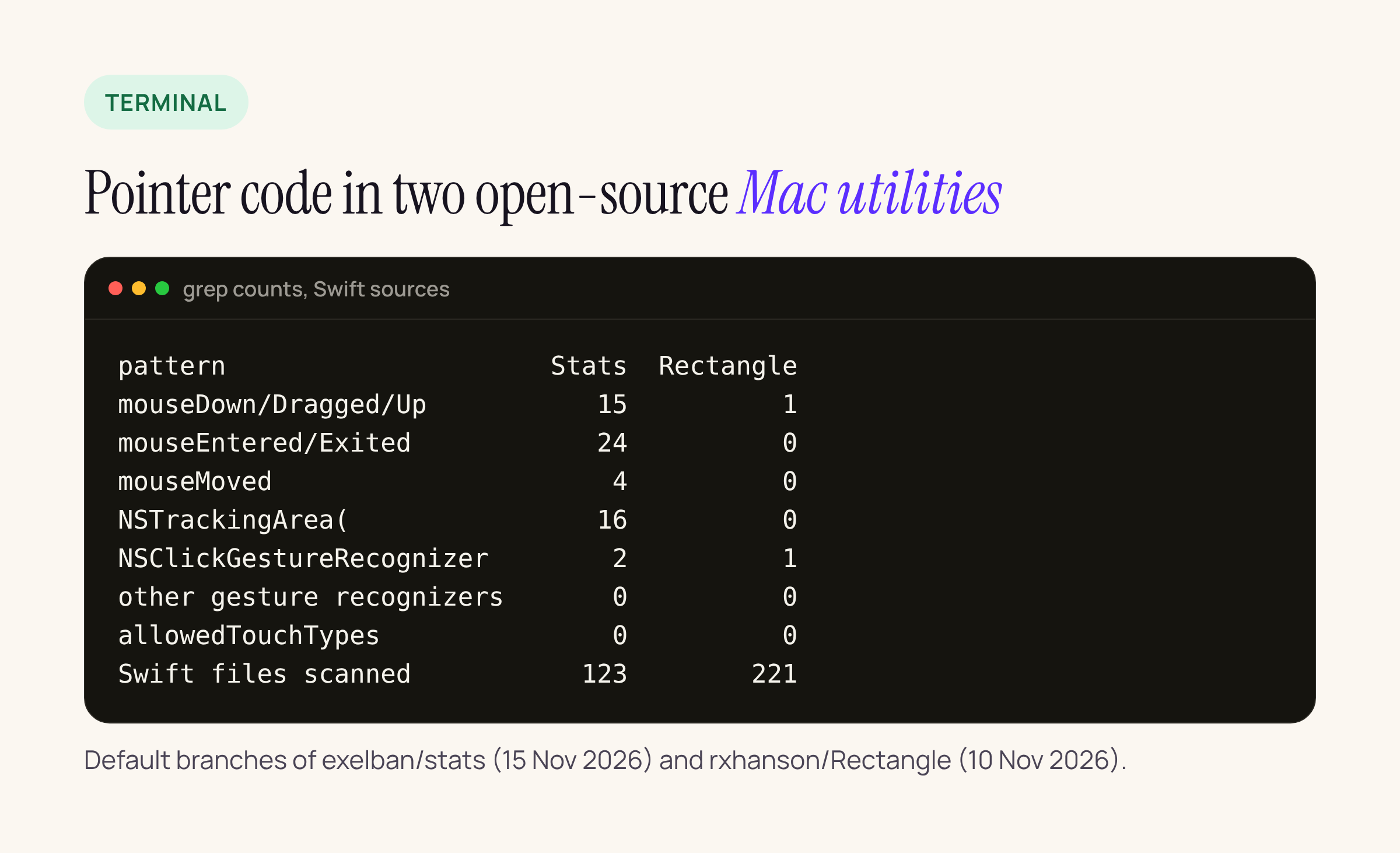
Real counts from the two repositories, taken on 16 November 2026.
The two apps sit at opposite ends. Rectangle is driven by keyboard shortcuts and window snapping: one mouseUp override and one click recognizer in 221 Swift files. Stats builds custom popups, charts and process lists, and has 24 mouseEntered/mouseExited overrides and 16 tracking areas in 123 files. Neither sets allowedTouchTypes or uses a pinch or pan recognizer yet.
Most of Stats’ hover code is cosmetic (a pointing-hand cursor, a highlighted background, a chart tooltip that follows the pointer), and losing a hover highlight under touch costs little. One case is not cosmetic. In the process list, a row you click becomes locked, and the button that ends the process replaces the app icon only while the pointer is over the locked row:
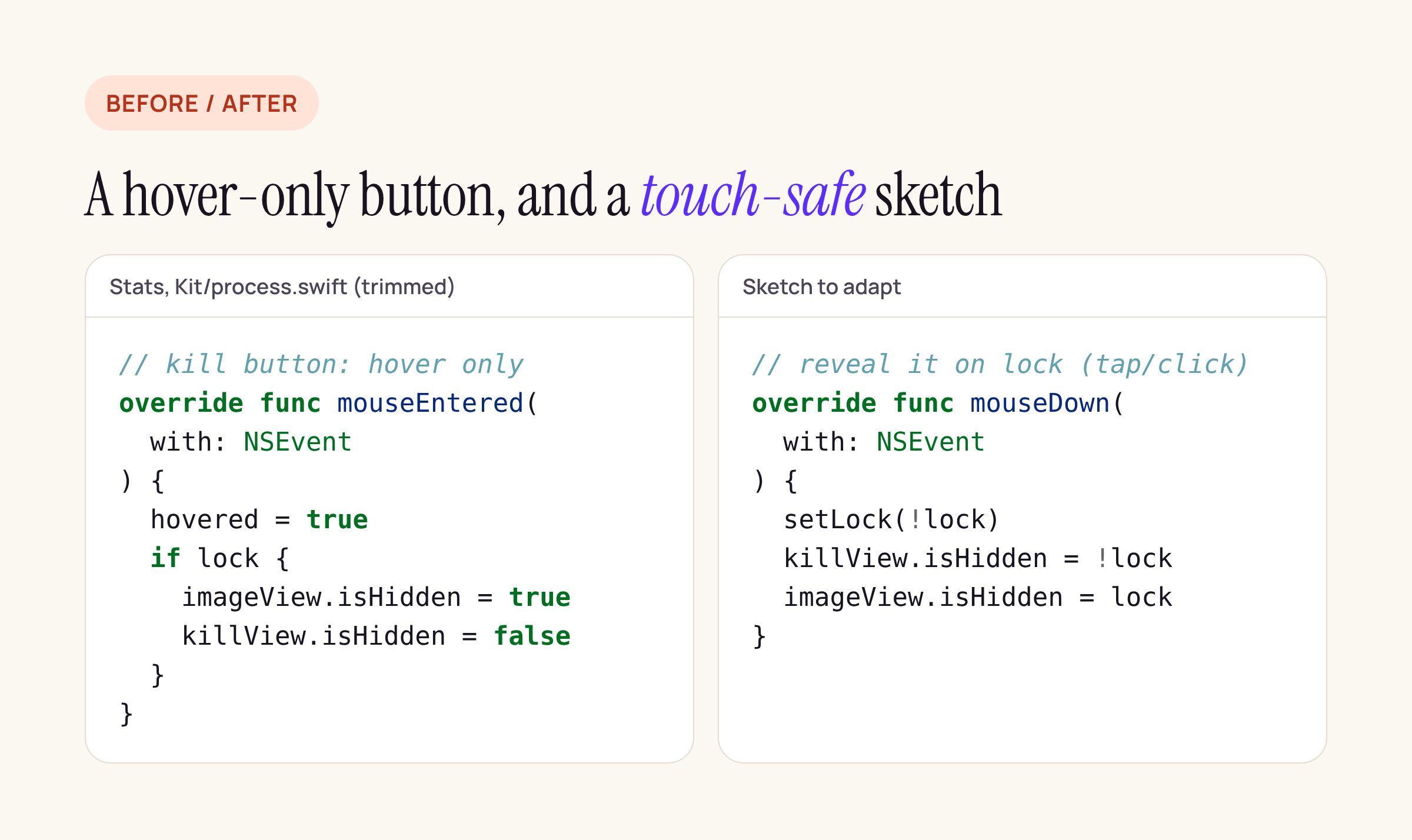
Left: trimmed from Stats’ Kit/process.swift. Right: a sketch to adapt.
By Apple’s rule that hover tracking applies to pointer input only, nothing in this code path shows that button to someone using touch: the tap that locks the row arrives, the hover that reveals the button does not. The fix follows Apple’s guidance for hidden controls: give the button a second trigger, here the lock itself. Treat the sketch on the right as a starting point and compile it against your own target.
Moving a gesture to a recognizer
Apple’s article walks through replacing overrides with recognizers. A pinch-to-zoom on a chart or preview, written as a sketch to adapt:
let pinch = NSMagnificationGestureRecognizer(
    target: self, action: #selector(zoom(_:)))
pinch.allowedTouchTypes = .direct  // default on macOS 27
chartView.addGestureRecognizer(pinch)

@objc func zoom(_ r: NSMagnificationGestureRecognizer) {
    chartView.scale = 1 + r.magnification
}
Setting allowedTouchTypes to .direct only states the default on macOS 27; Apple’s article says doing so “states that intent explicitly.” Keep the trackpad and menu paths: the HIG’s rule that touch is never the only way to reach a feature applies here too.
What to check on your own app
Start by finding hover and pointer code. From the root of your project:
grep -rn --include=*.swift -E \
  'override func (mouseEntered|mouseExited|mouseMoved)' .
grep -rn --include=*.swift 'NSTrackingArea(' .
Then work through the hits:
- For each hit, decide whether hover only decorates (fine to leave) or reveals a control or information (needs a second trigger: selection, a tap, a context menu or an always-visible button).
- List your
mouseDownandmouseDraggedoverrides. Single-finger taps and drags keep working through emulation, so these are lower priority; move them toNSClickGestureRecognizerandNSPanGestureRecognizerwhen you touch that code. - Look for gestures you only support through trackpad events, such as zoom and rotate, and add the matching recognizer.
- Measure your smallest controls against the macOS sizes in the HIG (default 28×28 pt, minimum 20×20 pt) and enlarge the hit area rather than the control. Apple’s own tech talk sample pads a target to 36 points per axis, which shows the direction, though it is sample code and not a rule.
- Bring the hard cases to the Group Labs on 18 or 19 November.
Sources
- Get ready for Touch on Mac, Apple, read 16 November 2026
- Adopting gesture recognizers in your app, AppKit documentation
- TN3216: Supporting touch input for games on macOS
- Human Interface Guidelines: Gestures, Pointing devices, Accessibility
- Hello Developer, November 2026