The quickest Valentine’s card on iPhone is already in Messages: write your message, touch and hold the Send button, tap Screen and pick a full-screen effect, or send it in your own handwriting. To have it arrive first thing on Sunday 14 February 2027, write it the night before and use Send Later, which Apple allows up to 14 days ahead, so the window opens on 31 January. If you want a card that opens like paper, a pop-up card app such as Cardigami raises a heart from the fold as the card opens, and on iPhone Duo the hinge itself opens it.
This guide covers iOS 26 and iOS 27, with every built-in step taken from Apple’s support pages and linked where it is used. Why we wrote it: we make Cardigami, and after our Christmas and New Year guides, Valentine’s Day is the next date when people want something more personal than a forwarded image.
Way 1: a Valentine’s message with a full-screen effect
Messages can play an effect across the whole screen when your message arrives. Apple’s steps, from Use message effects with iMessage on your iPhone and iPad:
- Open Messages and start a new message or open the conversation.
- Type your Valentine’s message.
- Touch and hold the Send button, then tap Screen.
- Swipe left to see the full-screen effects and stop on the one you want.
- Tap the Send button.
For something quieter, stop after touching and holding the Send button and tap the grey dot next to a bubble effect to preview it. Apple’s page shows Invisible Ink as one of the effects, which suits a message that should only be read when they choose to reveal it. They can watch any effect again with the Replay button under the message.
Two limits from the same Apple page: message effects need iMessage, and if someone cannot see effects, Apple suggests checking their Reduce Motion setting.
Way 2: a handwritten Valentine in Messages
A note in your own handwriting is the closest thing to a paper card, and Messages plays it back on their phone as if it is being written in front of them. Apple’s steps, from the same support page, under “Send a doodle or handwritten message”:
- In the conversation, tap the More button.
- Tap Drawing.
- Write your message or draw a heart with your finger.
- Tap Done, then tap Send.
You can also style typed words. Apple’s Format text and animate messages on iPhone guide covers bold, italic, underline and strikethrough plus animated text effects: select a word such as “Valentine”, tap the text formatting button above the keyboard and pick an effect.
Way 3: schedule it for the morning of 14 February
A message that is there when they wake up beats one sent late at night “so you don’t forget”. Apple’s steps, from Schedule a text message on iPhone to send later:
- Open the conversation in Messages.
- Tap the Add button (+), then tap Send Later.
- Tap the time and pick 14 February and the hour you want.
- Type your message, then tap the Send button.
The text field gets a dashed border so you can tell the message is scheduled. To change the wording, touch and hold the scheduled bubble and tap Edit; to cancel it, touch and hold and tap Delete. Apple notes that scheduling works with iMessage and that you need to be online to edit or delete a scheduled message. Because the limit is 14 days, the earliest day you can schedule a message for 14 February is 31 January.
Way 4: a pop-up Valentine’s card that opens on screen
The first three ways are text with decoration. If you want the card itself, with a fold and a scene that stands up as it opens, that is what we built Cardigami for. It is an iPhone app for any iPhone on iOS 27.1 or later, including iPhone Duo, with nine pop-up cards and more arriving through the winter. For Valentine’s Day the Love card is the obvious pick: one big heart in two halves that rises from the fold while smaller hearts float up. Love is one of the three free cards, along with Birthday and Christmas. Two more Valentine’s cards, Love Letter and Two Swans, arrive in the app on 1 February.
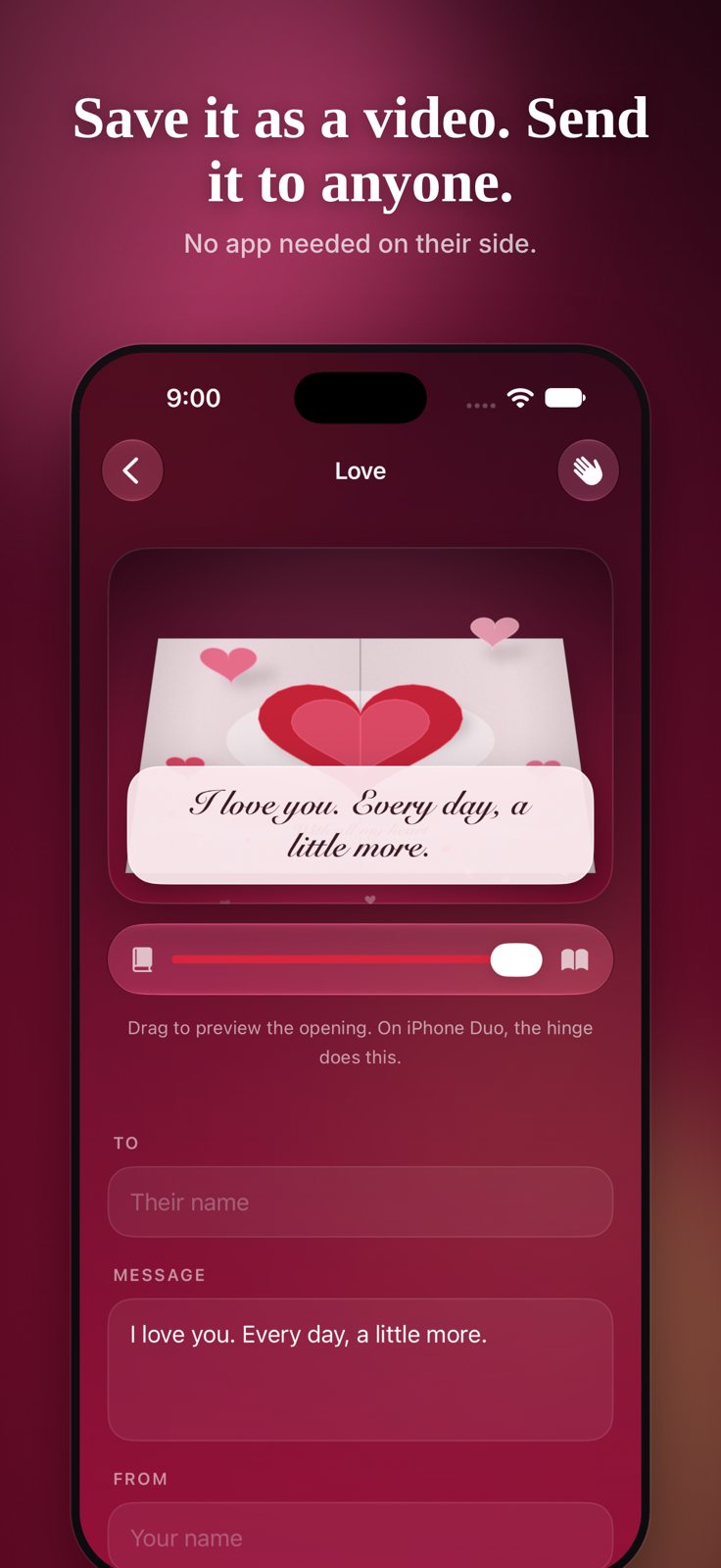
The Love card in Cardigami’s editor on iPhone: the heart on the page, your words underneath.
How to make one:
- Open Cardigami and pick Love.
- Write a “to”, a “from” and your message, and choose a lettering style.
- Drag the slider in the editor to preview the fold.
- Hand the phone over, tap Share link to send a link that opens in Cardigami or in their browser, or tap Save video and send the video in Messages, WhatsApp or any other app.
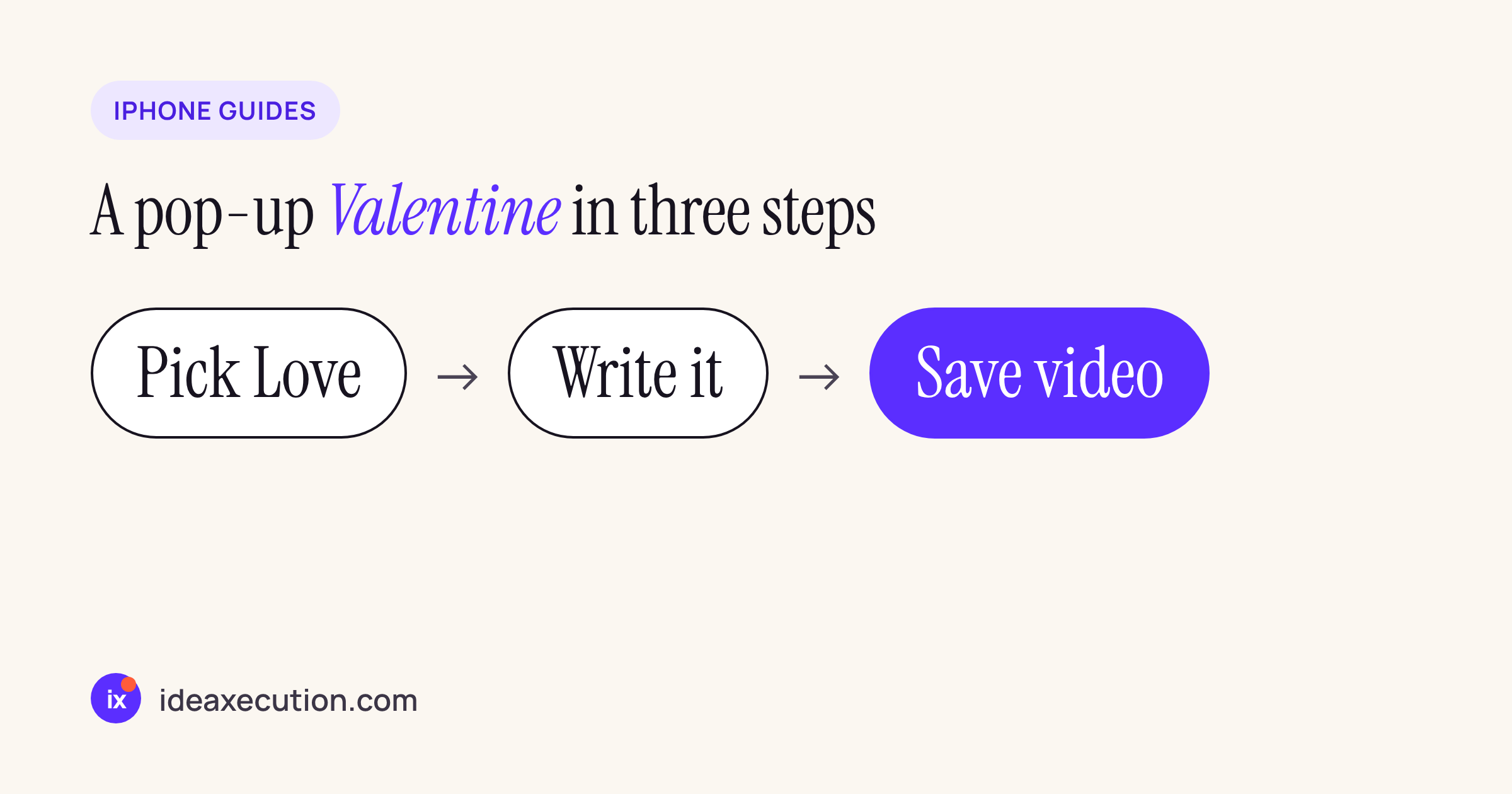
The whole flow, from picking the card to a video you can send anywhere.
On iPhone Duo, the hinge opens the card
This is where iPhone Duo earns its fold. On other iPhones the person drags the card open. On iPhone Duo the card follows the hinge: hand them the closed phone, and as they unfold it the heart, in two halves, rises from the fold with hearts floating up and your message inside. The fold of the phone becomes the fold of the card.
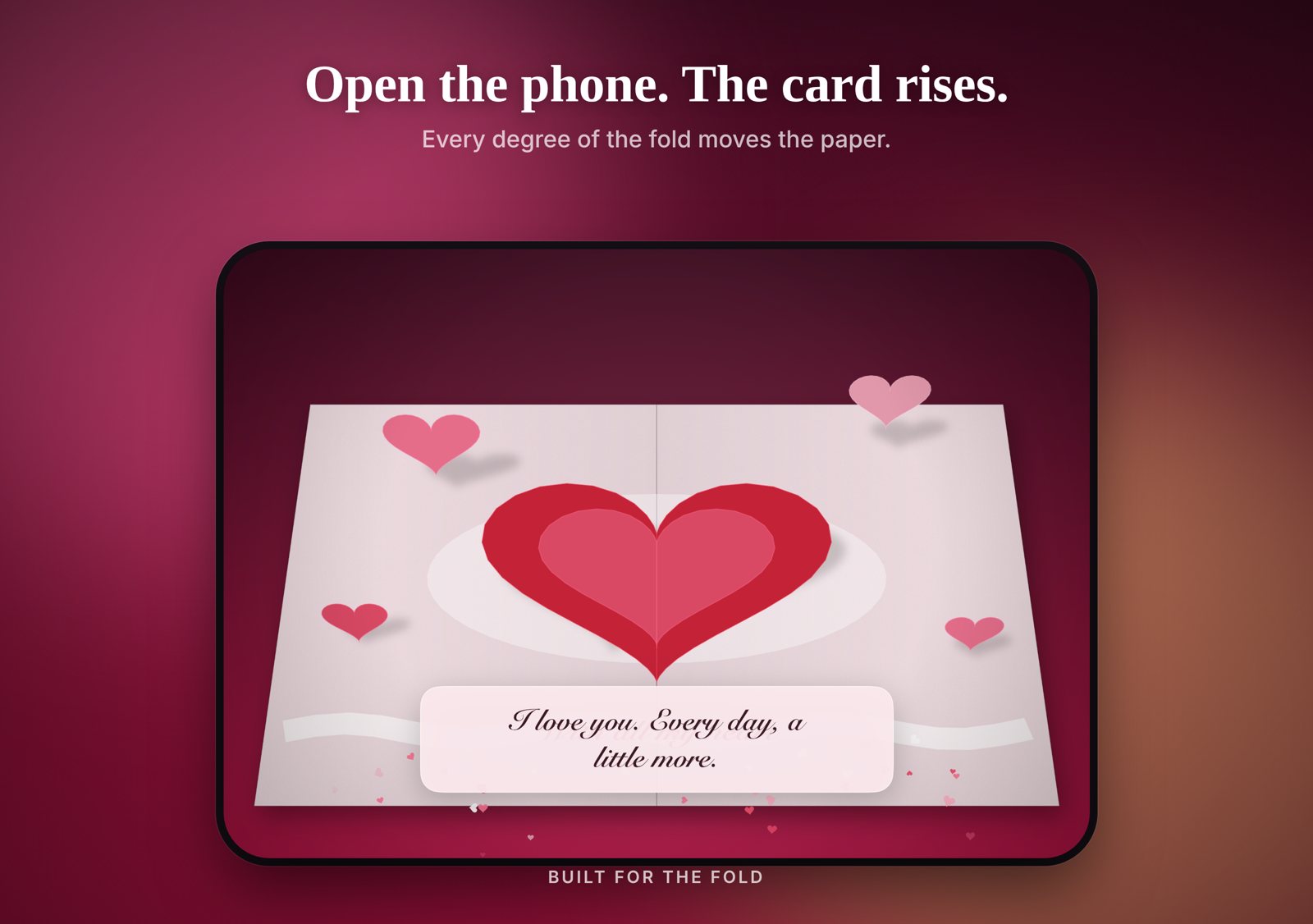
The Love card on iPhone Duo: the heart rises as the phone opens.
For someone far away: send it as a video
If you are not together on the day, save the card as a vertical video. It shows the envelope, the opening and your message, and it plays on any phone with no app and no account on their side, so it also works for someone on Android. Pair it with Way 3: schedule a short message for the morning and send the video with it.
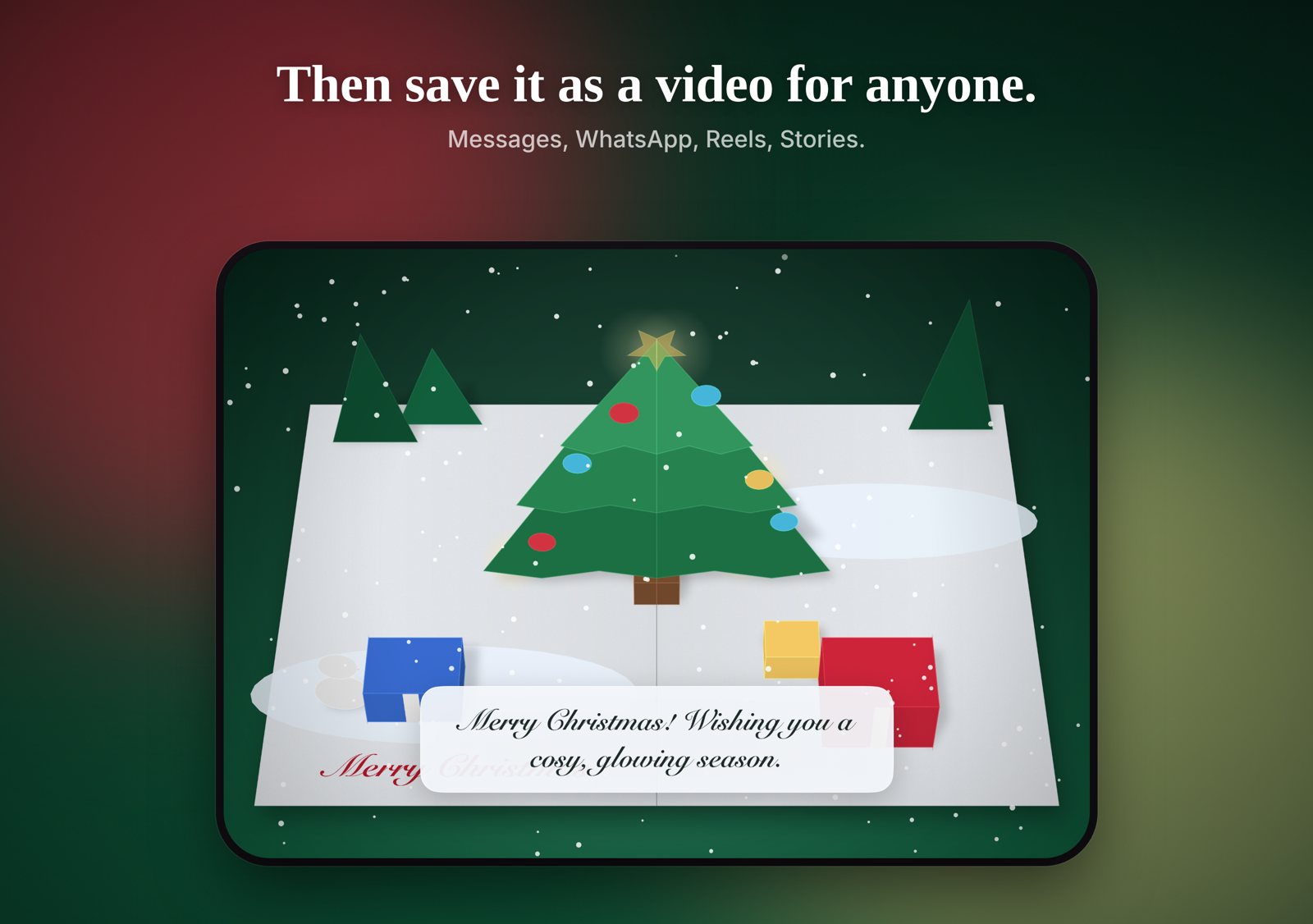
Saving the card as a video to send in any messaging app.
Cardigami has no account, no ads and no analytics, and it collects no data. What you write leaves your phone only when you share the card, as a link or a video.
Which way to pick
| You want | Use | Needs |
|---|---|---|
| Something quick with a bit of drama | Way 1, a full-screen effect | iMessage |
| Your own handwriting | Way 2, a drawing in Messages | iMessage |
| It to arrive on the morning of 14 February | Way 3, Send Later | iMessage, up to 14 days ahead |
| A card that opens like paper | Way 4, Cardigami | iOS 27.1 on your iPhone |
| Someone on Android or WhatsApp | Way 4, saved as video | Any phone that plays video |
Common questions
Can I send a Valentine’s card from iPhone to an Android phone?
Message effects, handwritten messages and Send Later rely on iMessage, so they do not reach Android phones the same way. A video does: save the card as a video and send it in WhatsApp or another messaging app.
When can I schedule a Valentine’s message?
Apple allows Send Later up to 14 days ahead, so for 14 February the window opens on 31 January. Before that, make the card or write the message now and send it closer to the day.
Do I need an iPhone Duo for a pop-up card?
No. Cardigami runs on any iPhone with iOS 27.1 or later. On other iPhones you drag the card open; on iPhone Duo the hinge opens it.