The quickest digital Christmas card on iPhone is already in Messages: type your wish, touch and hold the Send button, tap Screen and pick a full-screen effect. If you want it to land on Christmas morning, schedule it with Send Later (up to 14 days ahead, so from 11 December). If you want something that feels like a paper card, a pop-up card app such as Cardigami builds a Christmas tree that stands up as the card opens, and you can save it as a video for people who are not in the room.
This guide covers iOS 26 and iOS 27, with every built-in step taken from Apple’s own support pages (linked at each step). Why we wrote it: we make Cardigami, and the question we hear most since launch is “how do I send a Christmas card from my phone that doesn’t look like a forwarded image?” Here are all the options, the free built-in ones first.
Way 1: a Christmas message with a full-screen effect
Messages can play an effect across the whole screen when your card arrives. Apple’s steps, from Use message effects with iMessage on your iPhone and iPad:
- Open Messages and start a new message or open the conversation.
- Type your Christmas wish.
- Touch and hold the Send button.
- Tap Screen, then swipe left through the full-screen effects.
- Tap the Send button.
For a smaller effect on the message bubble itself, stop at step 3 and tap the grey dot next to a bubble effect to preview it before sending. The person on the other side can replay the effect with the Replay button under the message.
Two limits from the same Apple page: effects need iMessage on both ends, and someone with Reduce Motion turned on may not see bubble effects. So this works best for family on iPhone, iPad or Mac.
Way 2: animated words and a handwritten note
Since iOS 18, Messages can animate the words themselves. Apple’s Format text and animate messages on iPhone lists effects such as Big, Shake, Explode and Bloom, plus bold, italic, underline and strikethrough. Select a word you have typed (for example “Merry”), tap the text formatting button above the keyboard, and choose an effect. Apple notes that the recipient needs iOS 18, iPadOS 18, macOS 15 or later, and iMessage.
A handwritten note feels closer to a real card. The message effects page also covers sending a drawing from the More (+) menu, which animates on the other phone as if it is being written. Write “Happy Christmas” with your finger and sign it.
Way 3: schedule it for Christmas morning
A card that arrives at 7 am on the 25th beats one sent on the 23rd “just in case”. Apple’s steps from Schedule a text message on iPhone to send later:
- Open the conversation in Messages.
- Tap the Add button (+), then tap Send Later.
- Tap the time and pick 25 December and the hour you want.
- Type your message, then tap the Send button.
The border of the text field turns dashed so you can tell it is scheduled. Apple allows up to 14 days in advance, so you can set a Christmas-morning message from 11 December onwards. Scheduling also needs iMessage.
Way 4: a pop-up Christmas card that opens on screen
The first three ways are text with decoration. If you want the card itself, the kind with folds and a scene that rises as it opens, that is what we built Cardigami for. It is an iPhone app (iOS 27.1 or later) with eight pop-up cards, and Christmas is one of the three that are free.
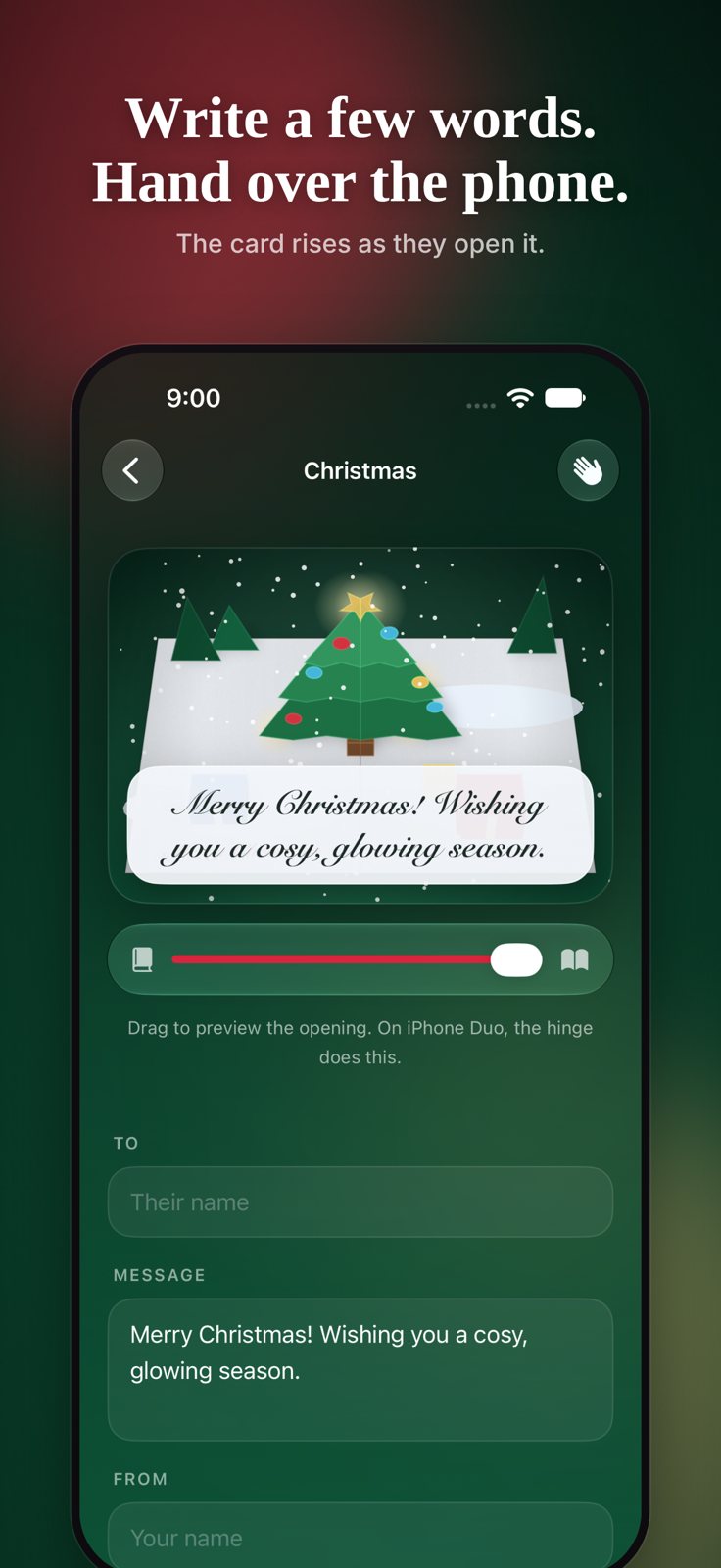
The Christmas card in Cardigami’s editor on iPhone: the tree on the page, your words underneath.
How to send one:
- Open Cardigami and pick Christmas.
- Write a “to”, a “from” and your message, and choose a lettering style.
- Preview the fold with the slider in the editor.
- Either hand the phone over, or tap Save video and send the video in Messages, WhatsApp or any other app.
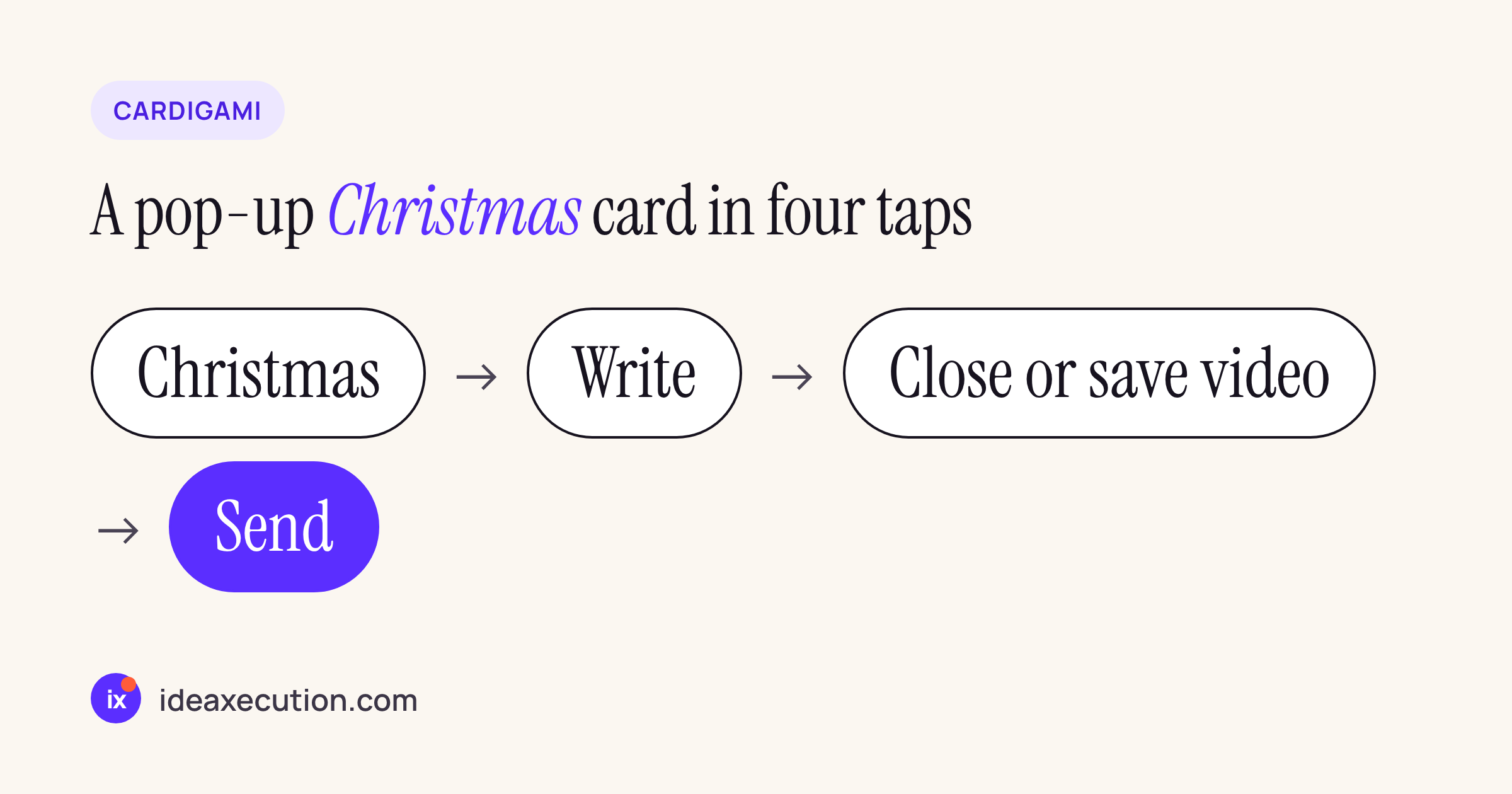
The whole flow, from picking the card to sending it.
Handing the phone over is the nicer version when you are in the same room: they drag the card open (or, on iPhone Duo, unfold the phone) and the tree stands up in falling snow with your words in the middle. The video is for family in another city. It shows the envelope, the opening and your message, and it plays on any phone, with no app or account on their side.
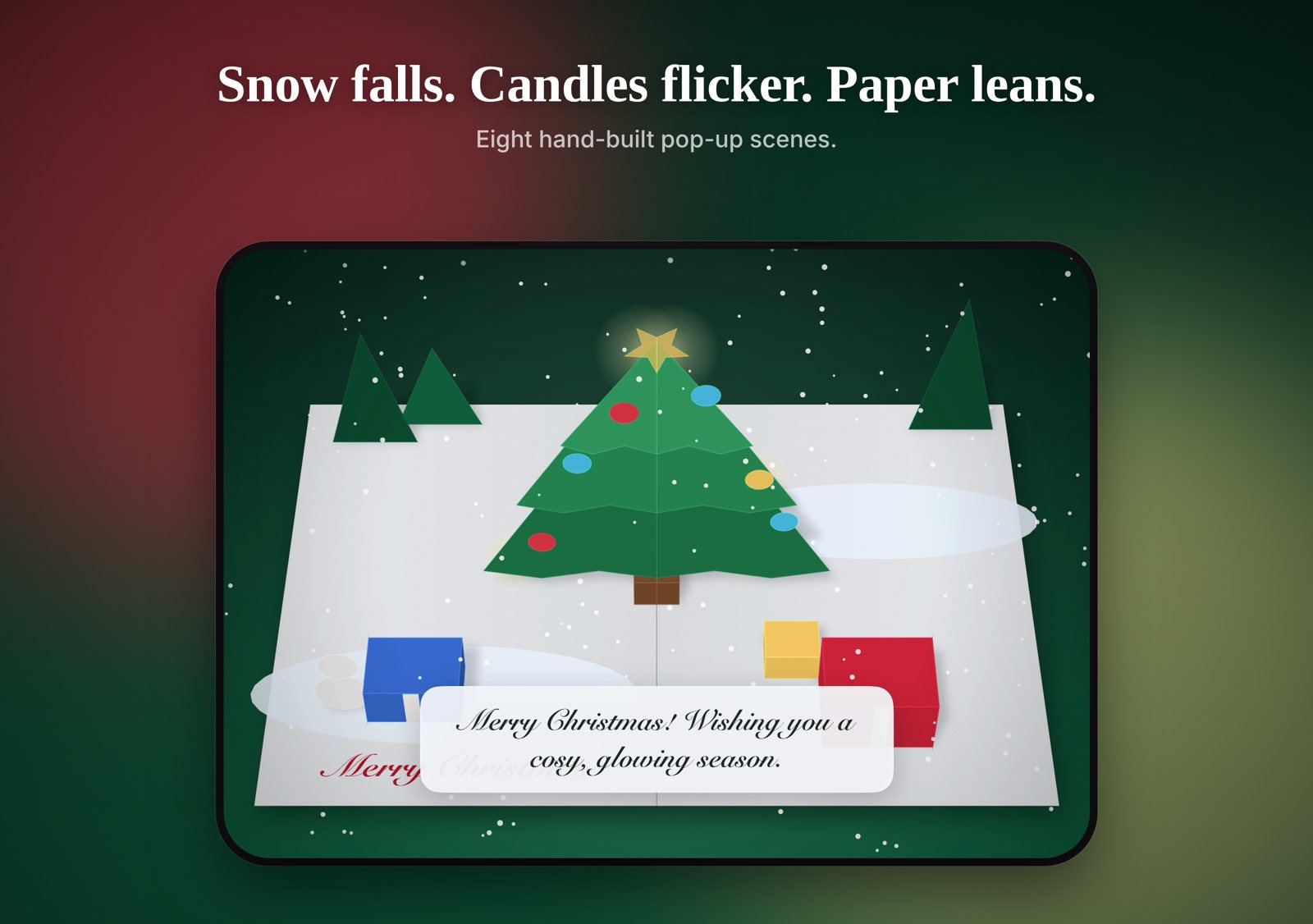
On iPhone Duo the hinge opens the card: the tree follows the fold as the phone opens.
Cardigami has no account, no tracking and no network access, so your message stays on your phone unless you send the video yourself.
Which way to pick
| You want | Use | Needs |
|---|---|---|
| Something fast for many people | Way 1, full-screen effect | iMessage on both ends |
| Your own handwriting | Way 2, drawing in Messages | iMessage |
| It to arrive on Christmas morning | Way 3, Send Later | iMessage, up to 14 days ahead |
| A card that opens like paper | Way 4, Cardigami | iOS 27.1 on your iPhone; nothing on theirs for the video |
| Family on Android or WhatsApp | Way 4, saved as video | Any phone that plays video |
Common questions
Can I send a digital Christmas card from iPhone to an Android phone?
Messages effects and Send Later need iMessage, so they do not reach Android phones. A video does: save the card as a video and send it in WhatsApp or another messaging app.
Do I need an iPhone Duo for a pop-up card?
No. Cardigami works on any iPhone with iOS 27.1 or later. On other iPhones you drag to open the card; iPhone Duo adds the hinge opening and a sealed envelope on the cover screen while the phone is closed.
Can I schedule a Christmas card weeks in advance?
Messages lets you schedule up to 14 days ahead, according to Apple. For anything earlier, write the card now, save it, and send it closer to the day.