To send a Lunar New Year card from your iPhone, you have three built-in options in Messages and one card option. Write your greeting and add a full-screen effect, write it by hand, or schedule it with Send Later so it arrives on the morning of Saturday 6 February 2027 (Apple allows scheduling up to 14 days ahead, so the window opens on 23 January). For a card that opens like paper, the pop-up card app Cardigami gets a Lunar New Year card on 27 January, with red lanterns and plum blossom rising under a gate as the card opens.
This guide covers iOS 26 and iOS 27. Every built-in step comes from Apple’s support pages, linked where it is used. Why we wrote it: we make Cardigami, and after our Makar Sankranti and New Year guides, Lunar New Year is the next date in the winter run of cards we built the app around.
When is Lunar New Year in 2027?
Lunar New Year falls on Saturday 6 February 2027, the start of the Year of the Goat, according to Royal Museums Greenwich and the Hong Kong Observatory’s 2027 calendar. The same steps work for a Chinese New Year, Tết or Seollal greeting; if your family keeps the holiday on a different day, schedule for that day instead.
Way 1: a New Year message with a full-screen effect
Messages can play an effect across the whole screen when your greeting arrives. Apple’s steps, from Use message effects with iMessage on your iPhone and iPad:
- Open Messages and start a new message or open the conversation.
- Type your greeting, for example “Happy Lunar New Year! Wishing you a calm and lucky Year of the Goat.”
- Touch and hold the Send button, then tap Screen.
- Swipe left to see the full-screen effects and stop on the one you want (fireworks suit the night before, and the celebration effect suits the morning).
- Tap the Send button.
For a quieter greeting, touch and hold the Send button and tap the grey dot next to a bubble effect instead. They can watch the effect again with the Replay button under the message. Apple notes two limits on the same page: message effects need iMessage, and if someone cannot see effects, their Reduce Motion setting is the first thing to check.
Way 2: a handwritten greeting
A greeting in your own hand is the closest thing to a card written at the table. Apple’s steps, from the same support page, under sending a doodle or handwritten message:
- In the conversation, tap the More button (+).
- Tap Drawing.
- Write your greeting, or the character for spring or good fortune if your family writes one at New Year.
- Tap Done, then tap Send.
Messages plays it back on their phone as if it is being written in front of them.
Way 3: schedule it for New Year’s morning
Many families stay up on New Year’s Eve and visit relatives the next morning. A greeting that is already waiting when they wake up fits the day well. Apple’s steps, from Schedule a text message on iPhone to send later:
- Open the conversation in Messages.
- Tap the Add button (+), then tap Send Later.
- Tap the time and choose 6 February and the hour you want.
- Type your message, then tap the Send button.
The text field gets a dashed border so you can see the message is scheduled. To change the words, touch and hold the scheduled bubble and tap Edit; to cancel it, touch and hold and tap Delete. Scheduling works with iMessage, and you need to be online to edit or delete a scheduled message. Because of the 14-day limit, the earliest day you can schedule a greeting for 6 February is 23 January.
Way 4: a pop-up Lunar New Year card that opens on screen
The first three ways are text with decoration. If you want the card itself, with a fold and a scene that stands up as it opens, that is what we built Cardigami for. It is an iPhone app for any iPhone on iOS 27.1 or later, including iPhone Duo. Nine pop-up cards are in the app today, and six more arrive through the winter, each on its day. Lunar New Year is one of them: it arrives in the app on 27 January, ten days before the festival.
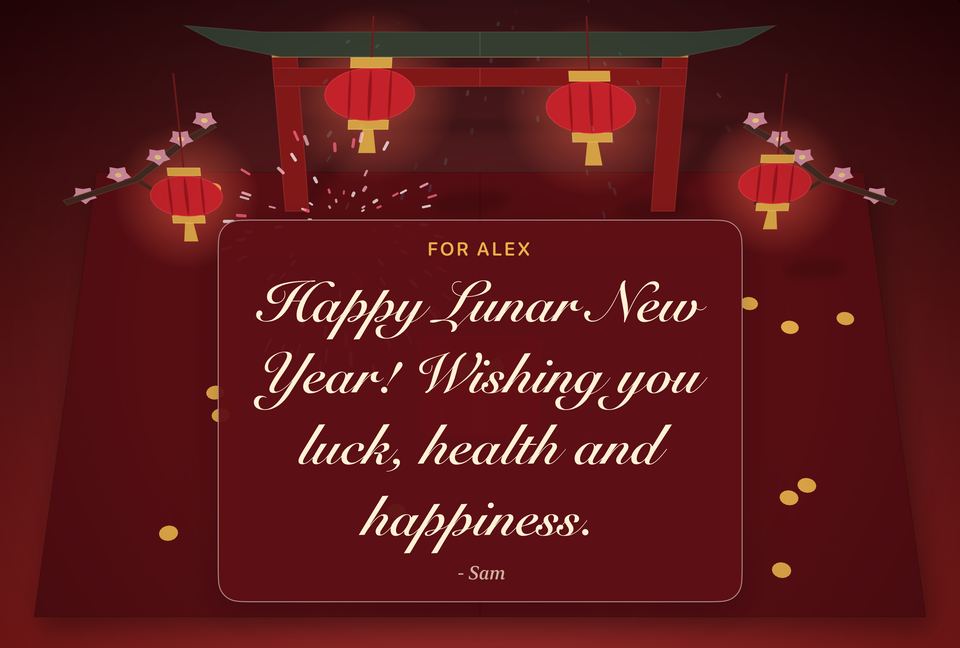
The Lunar New Year card, which arrives in Cardigami on 27 January.
Until 27 January the card sits under “Coming soon” in the app, with a “Remind me” button. Tap it and your phone shows a notification on the day the card arrives, which leaves you more than a week to write it.
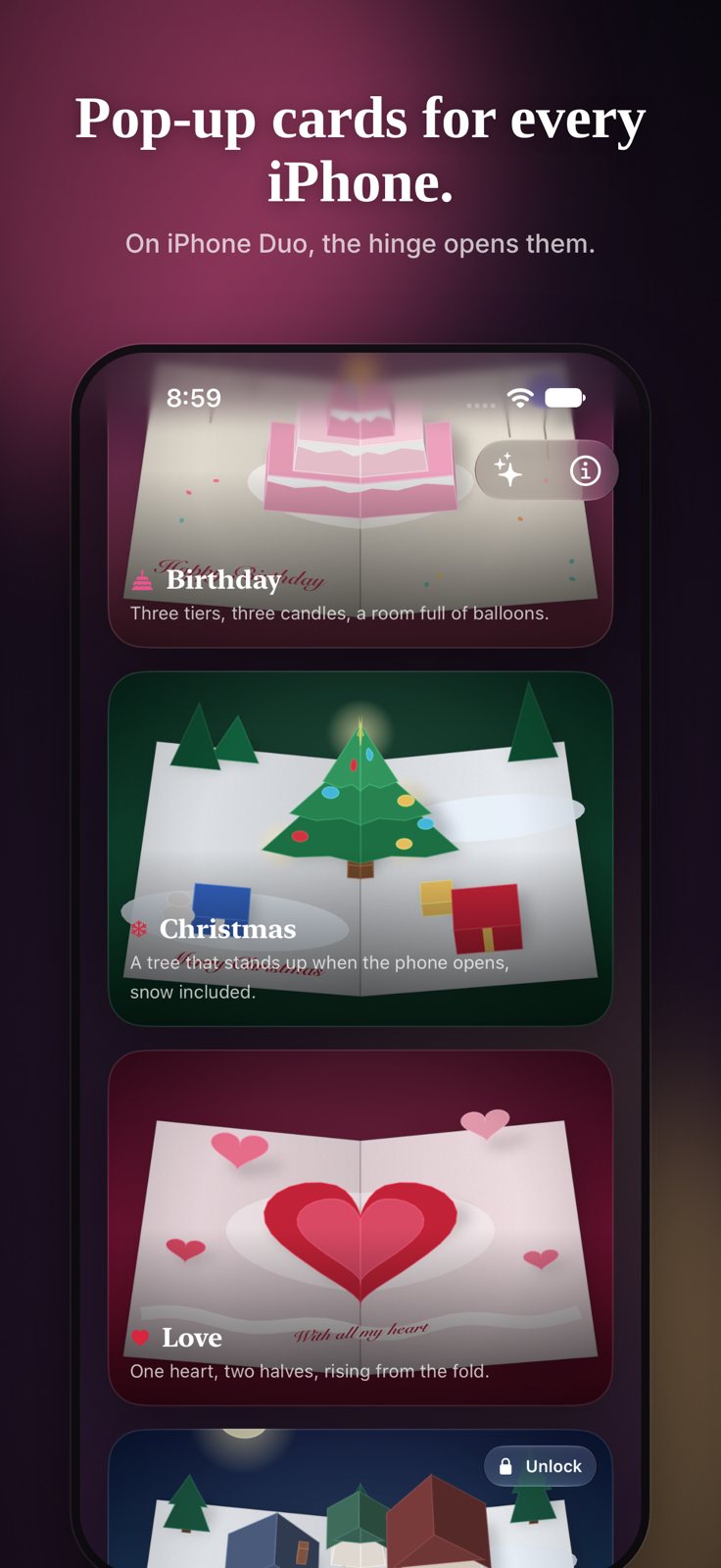
The card picker in Cardigami on iPhone.
How to make the card:
- Before 27 January: open Cardigami, find Lunar New Year under “Coming soon” and tap “Remind me”.
- From 27 January: open the Lunar New Year card and write a “to”, a “from” and your message.
- Drag the slider in the editor to preview the fold.
- Give it one of three ways: hand the closed phone over, tap “Share link” (the link opens in Cardigami, or plays in their browser if they do not have the app), or tap “Save video” and send the video in Messages, WhatsApp or any other app.
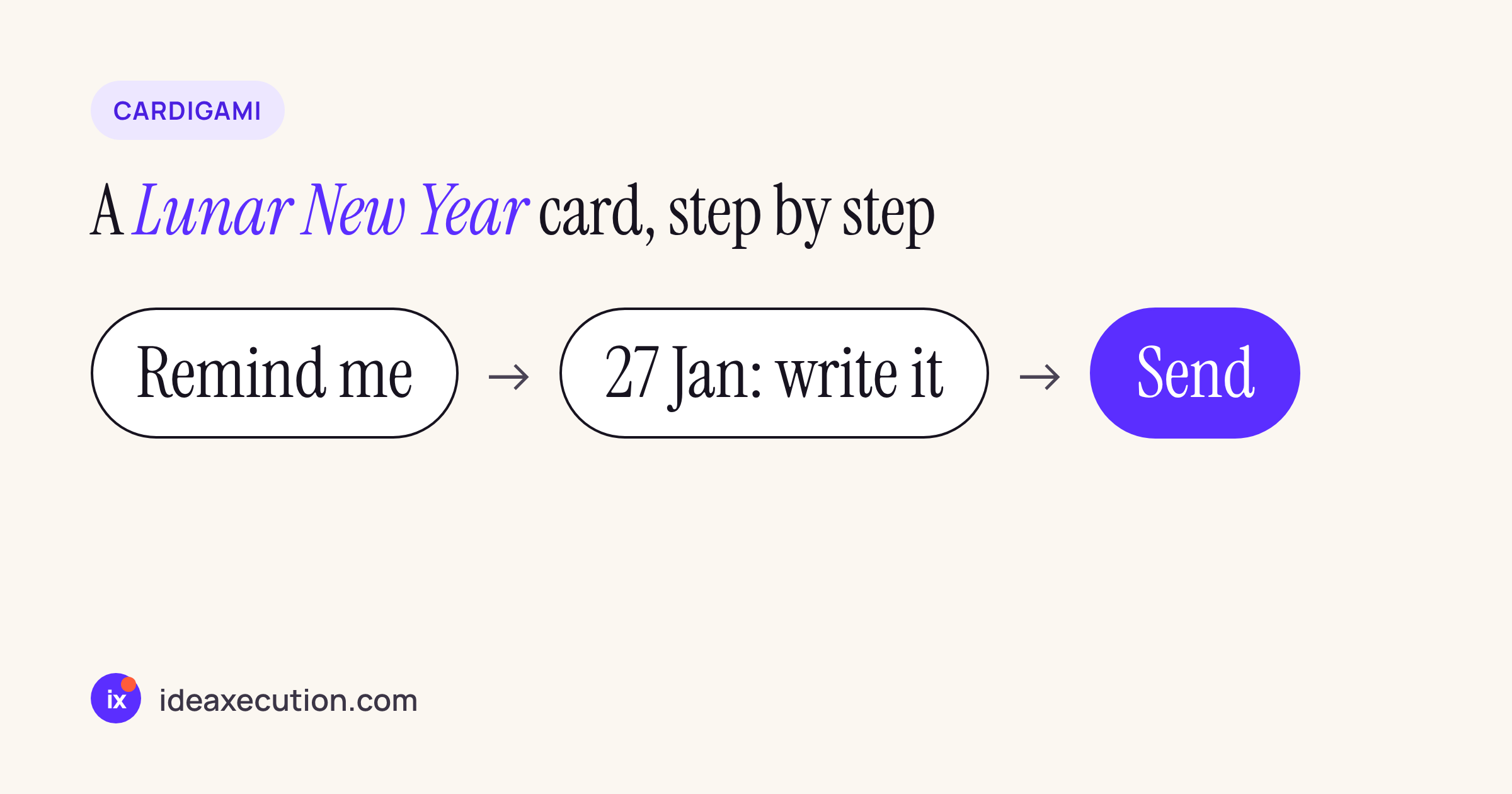
The whole flow, from the reminder to a card you can share.
The Lunar New Year card is part of the one purchase that unlocks every card in the app, including the six arriving this winter, with no subscription. Birthday, Christmas and Love are the three free cards, so you can try how a pop-up card feels before then.
For family on Android or other chat apps: send a link or a video
Family groups rarely sit on one platform. Ways 1 to 3 rely on iMessage, so they do not reach Android phones the same way, and many families greet each other in WhatsApp, WeChat, Zalo or KakaoTalk. Cardigami covers both cases: “Share link” sends the card itself, which plays in their browser if they do not have the app, and “Save video” makes a vertical video of the card opening that plays on any phone and in any messaging app.
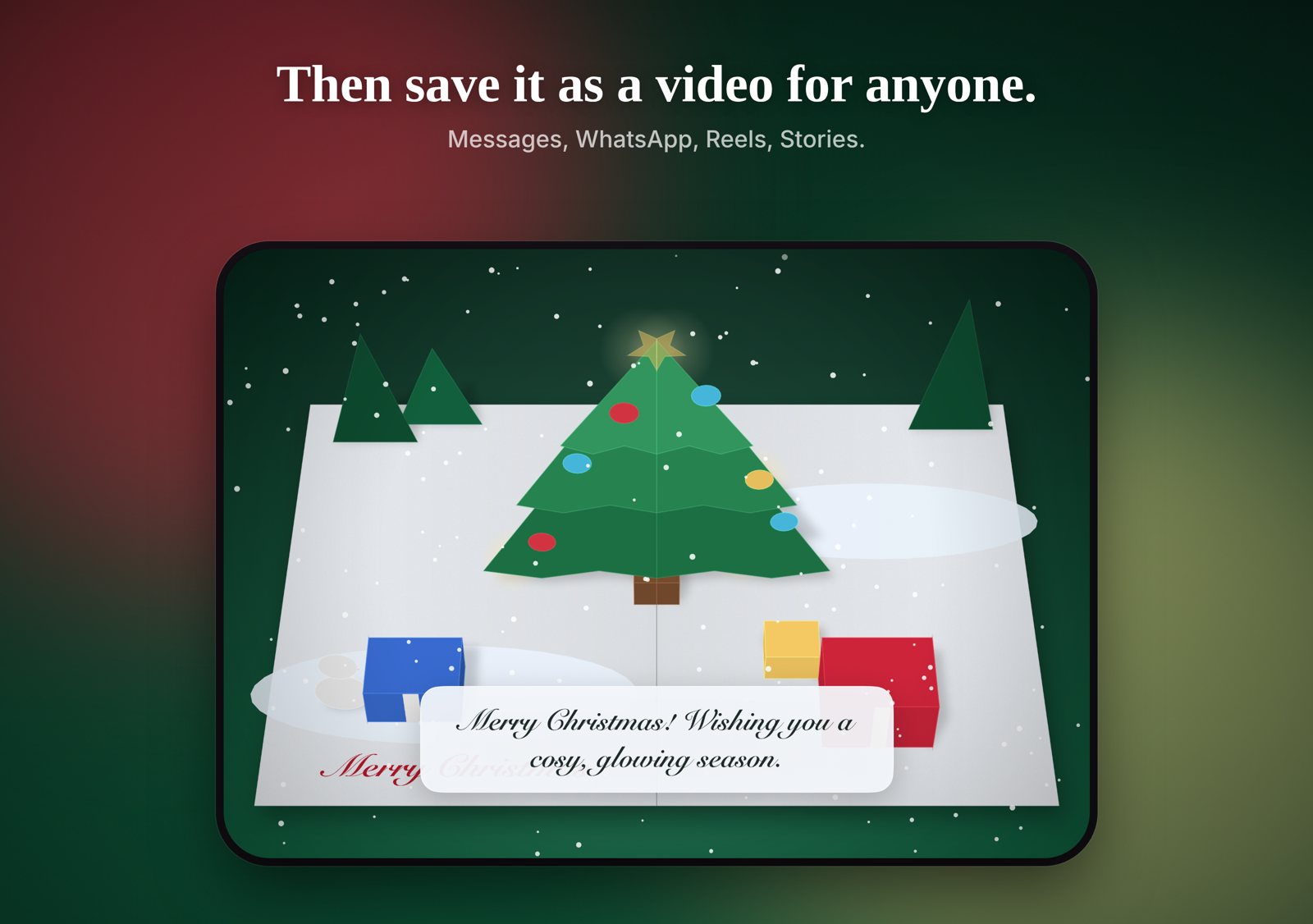
Saving a card as a video to send in any messaging app.
Cardigami has no account, no ads and no tracking, and the app collects no data. A card leaves your phone only when you share it, as a link or a video, and a link carries only the card and its words.
On iPhone Duo, the hinge opens the card
On other iPhones, the person drags the card open. On iPhone Duo the card follows the hinge: hand someone the closed phone at the reunion dinner, and as they unfold it the lanterns rise from the fold with your message inside. That is the closest a phone gets to handing over a paper card.
Which way to pick
- Something quick with a bit of drama: Way 1, a full-screen effect (needs iMessage).
- Your own handwriting: Way 2, a drawing in Messages (needs iMessage).
- Arriving on the morning of 6 February: Way 3, Send Later (iMessage, up to 14 days ahead, so from 23 January).
- A card that opens like paper: Way 4, Cardigami’s Lunar New Year card (iOS 27.1 on your iPhone, from 27 January).
- Family on Android or another chat app: Way 4 as a link or a saved video.
Common questions
Can I send a Lunar New Year card from iPhone to an Android phone?
Message effects, handwritten messages and Send Later rely on iMessage, so they do not reach Android phones the same way. A Cardigami link plays in their browser, and a saved video plays in WhatsApp or any other messaging app.
When does the Lunar New Year card arrive in Cardigami?
On 27 January 2027. Until then it shows under “Coming soon”; tap “Remind me” to get a notification on the day.
Does the person receiving the card need Cardigami?
No. A shared link plays in their browser if they do not have the app, and a video plays anywhere.
Can I schedule a greeting in WhatsApp or WeChat the same way?
Send Later is a Messages feature and works with iMessage only. For other apps, save the card as a video ahead of time and send it on New Year’s morning.