

To uninstall Xcode completely, do it in this order: open Xcode and delete its simulator runtimes in Xcode > Settings > Components, quit it, drag Xcode from Applications to the Trash, then delete the folders it leaves in ~/Library/Developer (DerivedData, Archives and the simulator folders) and empty the Trash. The order matters: simulator runtimes are stored outside the app, and Apple’s documented way to remove them is from inside Xcode, so once the app is gone that button is gone too. This guide follows Apple’s own pages for Xcode 26 and 27 on macOS 26 and 27, current on 19 November 2026.
Why we wrote this: we build our Mac and iPhone apps in Xcode, and Xcode is the app our Mac uninstaller Nix gets asked about most, because deleting the app frees only part of what it took. For every other app, see our main guide to deleting apps on a Mac completely.
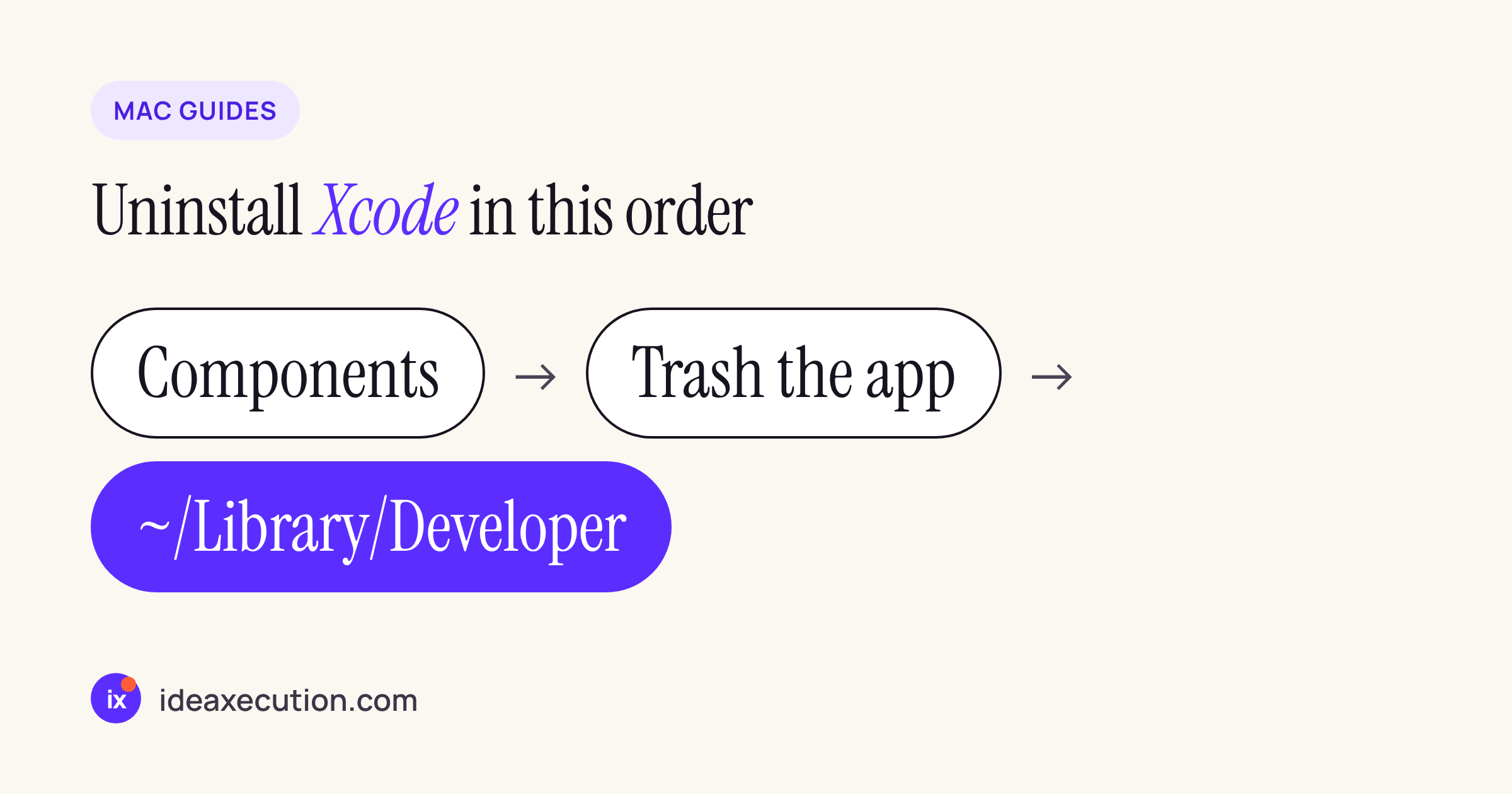
The order that frees the most space and leaves nothing stuck.
Before you delete Xcode: keep what you need
Two things inside Xcode’s folders cannot be rebuilt from your source code:
- Archives. Every Product > Archive you made is kept in
~/Library/Developer/Xcode/Archives, according to Apple’s page on project-generated file locations. An archive holds the exact build you shipped, including its debug symbols. If you may need to read a crash report from an old release, copy that folder somewhere safe first. - Your projects. Xcode never stores your source in its own folders, but check that nothing you care about sits inside
~/Library/Developerbefore you delete it.
Everything else is rebuilt on demand. Apple says it directly about DerivedData: “The derived data folder is often large and can be re-created at any time from your source files.”
Step 1: Delete simulator runtimes from inside Xcode
Simulator runtimes (the iOS, watchOS, tvOS and visionOS systems the Simulator boots) are not stored inside Xcode.app, and Xcode shows how much space each one frees. Apple documents removing them in Downloading and installing additional Xcode components:
- Open Xcode and choose Xcode > Settings, then click Components in the sidebar. Apple: “Xcode shows the installed and enabled components along with the amount of storage you can recover if you remove them.”
- Under Other Installed Platforms, click the information button next to a runtime.
- In the dialog, click Delete (or Turn Off, depending on the component). Repeat for each runtime and platform you no longer need.
Do this before you delete the app. On Apple’s developer forums, Apple’s DTS engineer Quinn “The Eskimo!” confirms that “When everything is working correctly you can indeed delete simulator runtimes using Xcode > Settings > Components” (thread 810415, April 2026). The same thread shows why the other route fails: people who tried sudo rm -rf on the runtime folder got “Operation not permitted”, because the system protects it.
If a runtime still shows after you delete it, or will not delete, that is the bug discussed in that thread, not something to fix with Terminal. Reinstall Xcode, delete it from Components, and remove Xcode again.
Step 2: Quit Xcode and move it to the Trash
Apple’s steps in Delete or uninstall apps on Mac (published 8 June 2026) apply to Xcode like any other app:
- Quit Xcode, and quit Simulator if it is open. Apple: “If the app is currently open, quit the app before continuing.”
- Open a Finder window and click Applications in the sidebar.
- Drag Xcode to the Trash, or select it and choose File > Move to Trash.
- If you installed betas or older versions (for example
Xcode-beta.app), move each one to the Trash too. They are separate apps.
Apple’s current page no longer mentions Launchpad: Finder is the documented way.
Step 3: Remove what Xcode leaves in your Library
Dragging Xcode to the Trash removes the app only. Its working files stay in your user Library. In Finder, choose Go > Go to Folder, type ~/Library/Developer and press Return.
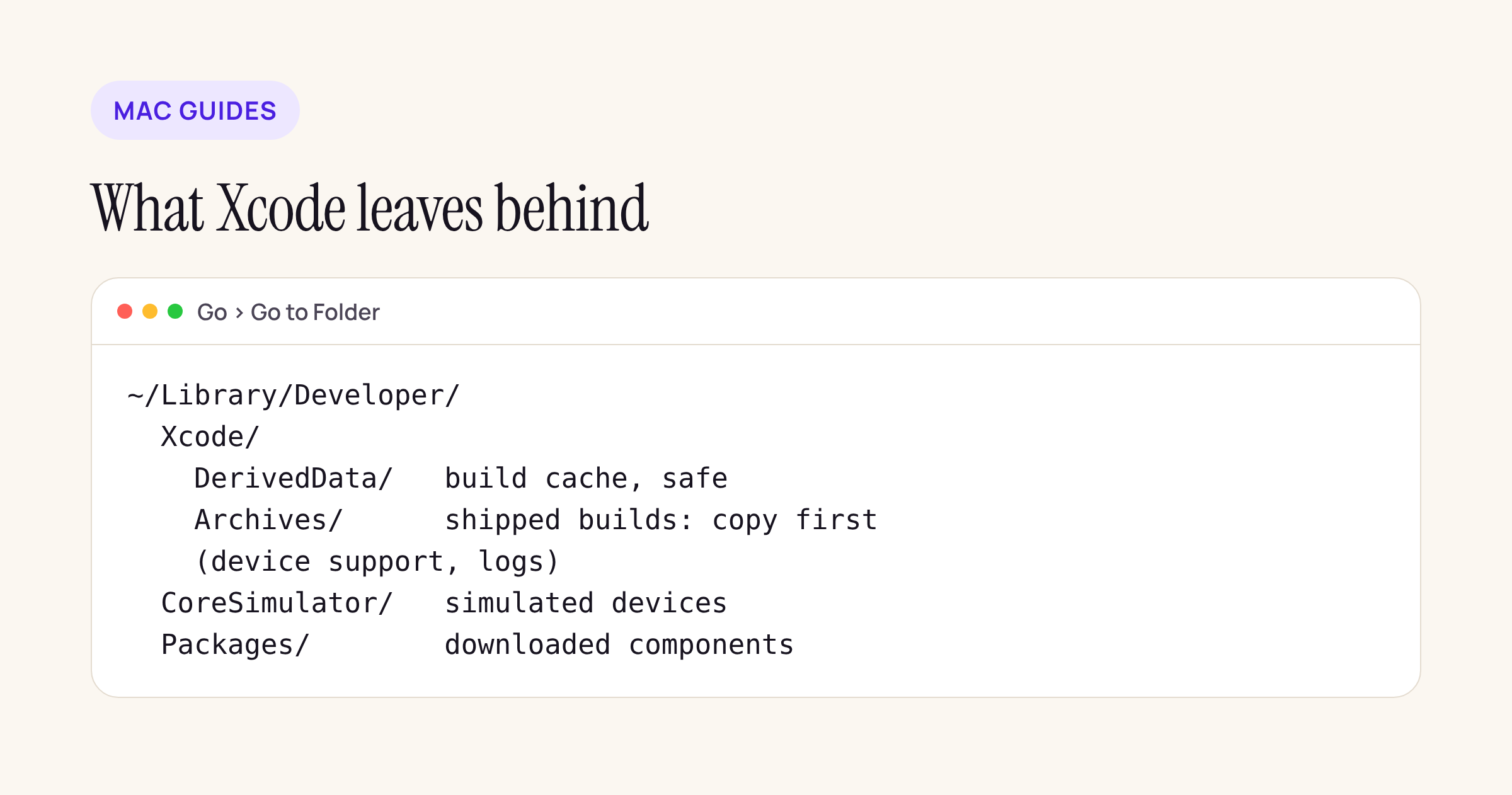
What you will find in ~/Library/Developer after Xcode is gone.
| Folder in ~/Library/ |
What it holds | Safe to delete? |
|---|---|---|
Xcode/ |
Build products and indexes for every project. Apple names this the default location (source). | Yes: Apple says it “can be re-created at any time from your source files”. |
Xcode/ |
Your Product > Archive builds (source). | Only after you copy any archive you still need (see above). |
Xcode (the rest) |
Other per-user Xcode data, such as support files for devices you connected and logs. | Yes, once Xcode is removed. |
CoreSimulator |
The simulated devices you created and their app data. | Yes, once you no longer use Simulator. |
Packages |
Components Xcode downloaded with -checkForNewerComponents, per Apple’s components page. |
Yes. |
To remove everything Xcode left for your user account, drag the whole Developer folder to the Trash. If other developer tools on your Mac also write there, open it first and delete only the folders above.
If you also changed where DerivedData or Archives are kept (Apple’s page explains the Custom and Relative options in the Locations settings), those folders are wherever you pointed them, often inside your project folders. Check there too.
Step 4: Empty the Trash
Choose Finder > Empty Trash, as Apple’s uninstall page says. Until you do, the space is not freed. Then open System Settings > General > Storage to see the result.
The faster way: Nix
Steps 2 to 4 are the part most people get wrong: they drag Xcode to the Trash and never open ~/Library. Nix, our free Mac uninstaller, shows the files an app leaves behind, with their real paths and sizes, before you remove anything.
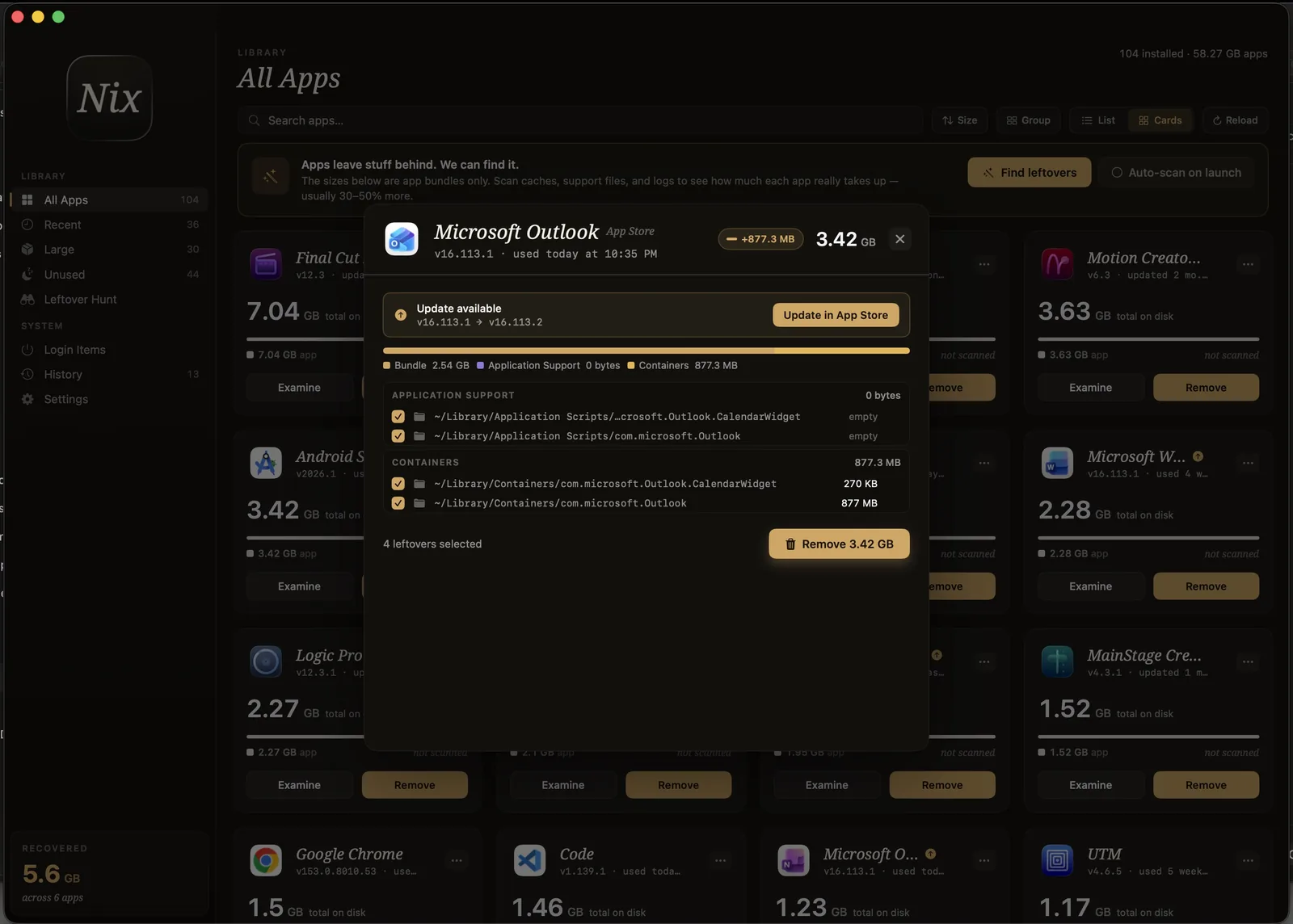
Nix lists each leftover with its path, so you can see what goes before it goes.
Nix moves what you choose to the Trash rather than deleting it, so you can still restore a folder (your Archives, say) if you change your mind, and it keeps a history of what it removed. Do Step 1 in Xcode first either way: simulator runtimes are managed by the system, and Apple’s supported way to remove them is Xcode’s Components settings.

Everything Nix removed stays in its History until you empty the Trash.
Common questions
Does deleting Xcode delete the simulators?
No. Simulator runtimes are stored outside Xcode.app and managed by the system, and your simulated devices live in ~/Library/Developer/CoreSimulator. Delete runtimes in Xcode > Settings > Components before you delete Xcode, and remove the CoreSimulator folder afterwards.
Can I delete DerivedData without uninstalling Xcode?
Yes. It is a build cache. Quit Xcode, delete ~/Library/Developer/Xcode/DerivedData, and Xcode rebuilds what it needs on the next build, which will take longer than usual once.
I deleted Xcode and the runtimes are still there. What now?
Reinstall Xcode from the App Store, open Xcode > Settings > Components, delete the runtimes, then follow Steps 2 to 4 again. Apple’s DTS engineer describes runtimes that will not delete from Components as things “not working correctly” (thread 810415); if that happens, report it with Feedback Assistant.
Is this different on Apple silicon or Intel Macs?
No. The locations and steps are the same on both.