On 23 November 9to5Mac reported that JPMorgan Chase changed its terms to ban third-party agents that log in with a customer’s credentials, Bank of America warned customers not to share logins with agents, and Wells Fargo, Citi and PNC added warnings. The takeaway for an app team: terms of service are not a control. In the app you can decide which actions you expose to assistants, require device authentication for the ones you do expose, keep secrets out of autofill, screenshots and accessibility readers, and ask iOS 27 for an impersonation risk level before a transfer. You cannot switch off an assistant reading your screen: on iOS 27.2 that is the user’s Excluded Apps setting, and we found no developer API for it.
This post is a review of Apple and Google documentation and the Google Play policy of 29 October 2026, plus the native sources of React Native 0.88.1 and expo-screen-capture 58.0.6, which we unpacked to see what the common props really call. Runtime behaviour of Siri or Gemini inside a specific app is outside this post.
Why we did this: we build Beacon-type banking apps in React Native for clients, and the first question after this week’s news was “what can we block in the app?”
The short table
- Actions an assistant can run. iOS: only the App Intents you declare. Android: only the AppFunctions you declare.
- Running a sensitive action. iOS: an intent’s authentication policy. Android: Google Play policy forbids AppFunctions that bypass security controls.
- Reading the screen. iOS 27.2: the user’s Excluded Apps list, no developer switch. Android:
FLAG_SECUREfor capture,accessibilityDataSensitivefor non-tool accessibility services. - Autofill and passwords. Both: mark fields secure and set autofill hints or opt out.
- Social engineering during a payment. iOS 27: Impersonation Risk Detection, if the user has turned on sharing.
The sections below link each row to its source.
iOS: decide what Siri can run
Apple describes App Intents as the way to “make content and actions discoverable by Apple Intelligence and support system experiences like Siri, Spotlight, Shortcuts, and widgets” (App Intents). The reverse also holds: an action you never declare as an intent is not offered to Siri as an action. For a bank, that means a balance intent may be fine, while a transfer intent needs a hard look.
If you do expose a sensitive intent, require the device to be unlocked with the owner’s authentication. Treat this as a starting point and compile it against your target:
import AppIntents

struct ShowRecentPayments: AppIntent {
    static var title: LocalizedStringResource = "Show recent payments"
    // Face ID, Touch ID or passcode before it runs
    static var authenticationPolicy: IntentAuthenticationPolicy =
        .requiresLocalDeviceAuthentication
    // keep it out of Shortcuts and suggestions
    static var isDiscoverable: Bool = false

    func perform() async throws -> some IntentResult {
        .result()
    }
}
A second, smaller tool is SwiftUI’s privacySensitive(), which “marks the view as containing sensitive, private user data” so the system can redact it, for example in a widget on a locked device. Use it on balances and account numbers in widgets and Live Activities.
iOS 27.2 Excluded Apps: a user setting only
iOS 27.2 added Settings > Siri > Excluded Apps. TheTechHacker’s walkthrough describes it as stopping Siri AI from reading the excluded apps and turning off onscreen awareness in them. It mentions no developer API or entitlement, and we found none in Apple’s developer documentation. So a bank app cannot add itself to the list. What it can do is tell customers the setting exists, in the app’s security help screen.
iOS 27: Impersonation Risk Detection before a payment
Apple Support 127906 describes Impersonation Risk Detection, available from iOS 27 and iPadOS 27 in apps that support it. It returns a risk level of Unknown, Medium or High, and “the app receives only the risk level, not the underlying information used to generate it.” The user turns it on under Settings > Privacy & Security > Impersonation Risk Detection > Share with App Developers, so plan for Unknown on most devices. Apple’s developer page, Assessing fraud risk, places the request in DeviceCheck with server-to-server calls, so the decision belongs on your backend.
A decision table we would start a banking app with:
- High at the start of a new payee, a transfer or a password change: hold the action, show a plain warning, and offer a call back from the bank.
- Medium: add friction, such as a cooling-off delay for new payees or a second confirmation screen.
- Unknown: your existing fraud rules apply. Unknown is not a pass.
This is about a person being pressured by a scammer, not about agents. But it is the one new iOS 27 signal aimed at exactly the moment banks are worried about.
Android: AppFunctions under the new Play policy
Android’s equivalent of App Intents is AppFunctions, an experimental API on Android 16 and higher, declared with @AppFunctionDeclaration in the androidx.appfunctions library. Callers need the EXECUTE_APP_FUNCTIONS permission, which the FAQ says Android “grants only to authorized system assistants.” As on iOS, what you do not declare is not callable.
The Google Play policy update of 29 October 2026 added an AppFunctions policy: functions “are strictly prohibited from deceiving or manipulating AI agents, bypassing security controls, or interfering with other applications.” Apps get at least 30 days from 29 October, so the window closes around 28 November. In practice: an AppFunction must not skip your app’s own PIN, biometric or step-up check. If a transfer needs authentication in the UI, it needs it in the function too. The same update clarified the isAccessibilityTool rules for accessibility services.
Android: what an assistant or accessibility service can see
FLAG_SECUREon the window keeps its content out of screenshots, screen recordings and the recents preview.setAccessibilityDataSensitive()(Android 14, API 34) hides a view from accessibility services that do not declareisAccessibilityTool. Screen readers for blind users still see it, an automation app does not. Use it on the PIN pad and the confirm-transfer button.importantForAutofillset tonokeeps one-time codes and card fields out of autofill services.
In Kotlin, on a transfer screen:
override fun onCreate(savedInstanceState: Bundle?) {
    super.onCreate(savedInstanceState)
    window.addFlags(WindowManager.LayoutParams.FLAG_SECURE)
    setContentView(R.layout.activity_transfer)
    if (Build.VERSION.SDK_INT >= 34) {
        findViewById<View>(R.id.confirm_transfer)
            .setAccessibilityDataSensitive(
                View.ACCESSIBILITY_DATA_SENSITIVE_YES)
    }
}
What React Native gives you, from the sources
Most bank apps we see are React Native, so we unpacked react-native@0.88.1 and read what the TextInput props call on each platform.
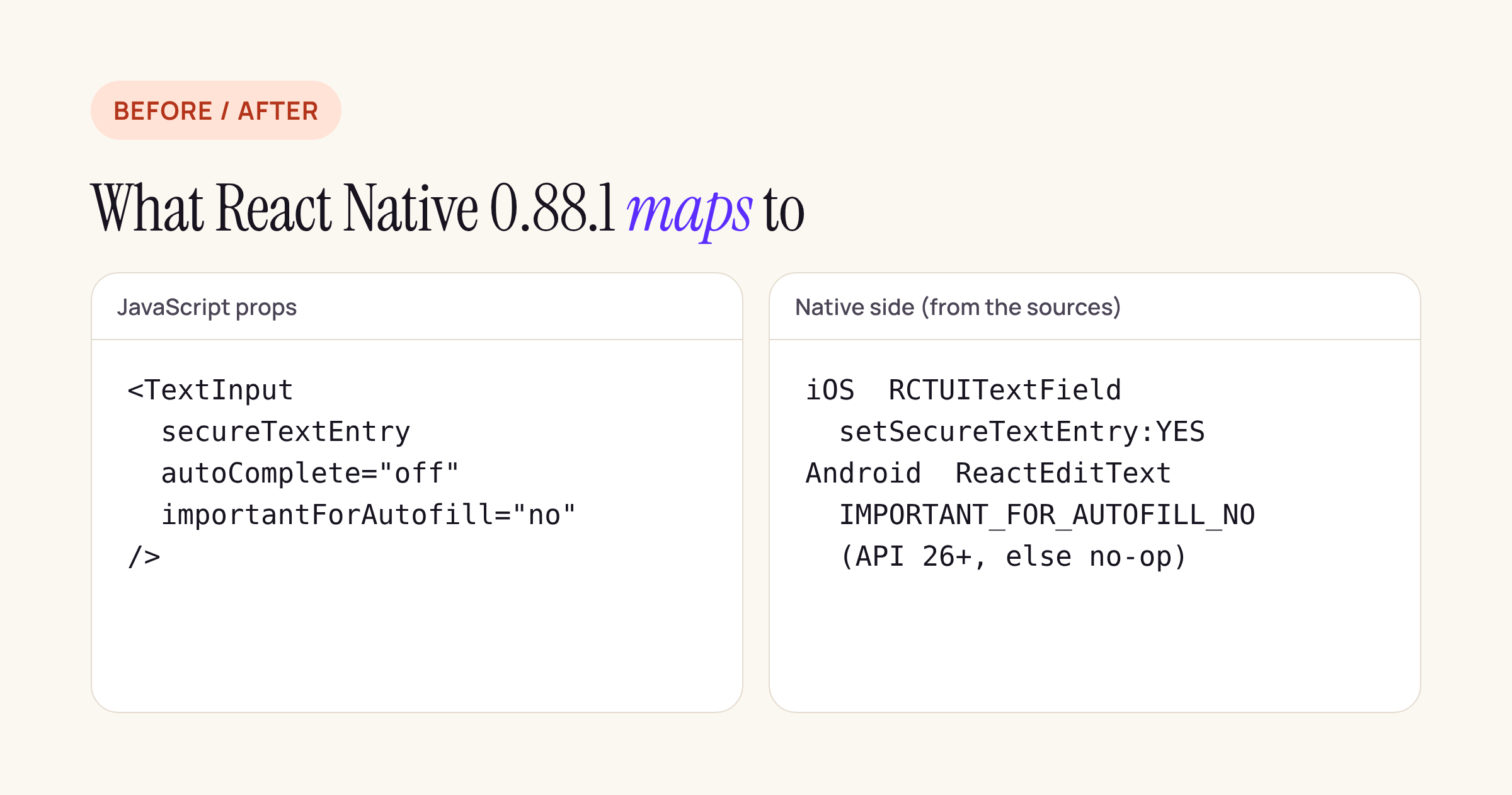
From the React Native 0.88.1 sources: RCTUITextField.mm and ReactTextInputManager.kt.
secureTextEntryreachessetSecureTextEntry:on the iOS text field.importantForAutofill="no"andautoComplete="off"both end inView.IMPORTANT_FOR_AUTOFILL_NOinReactTextInputManager.kt, and the setter returns early below API 26.- We found no prop for
accessibilityDataSensitive, and React Native never setsFLAG_SECUREon its own. It only reads it:ReactModalHostView.ktcopies the flag from the activity to a<Modal>‘s dialog window when the activity already has it. So set the flag on the activity before showing a modal, or the modal’s confirm sheet is capturable. Both need a few lines of native code or a library.
For screen capture, we read the native side of expo-screen-capture@58.0.6:
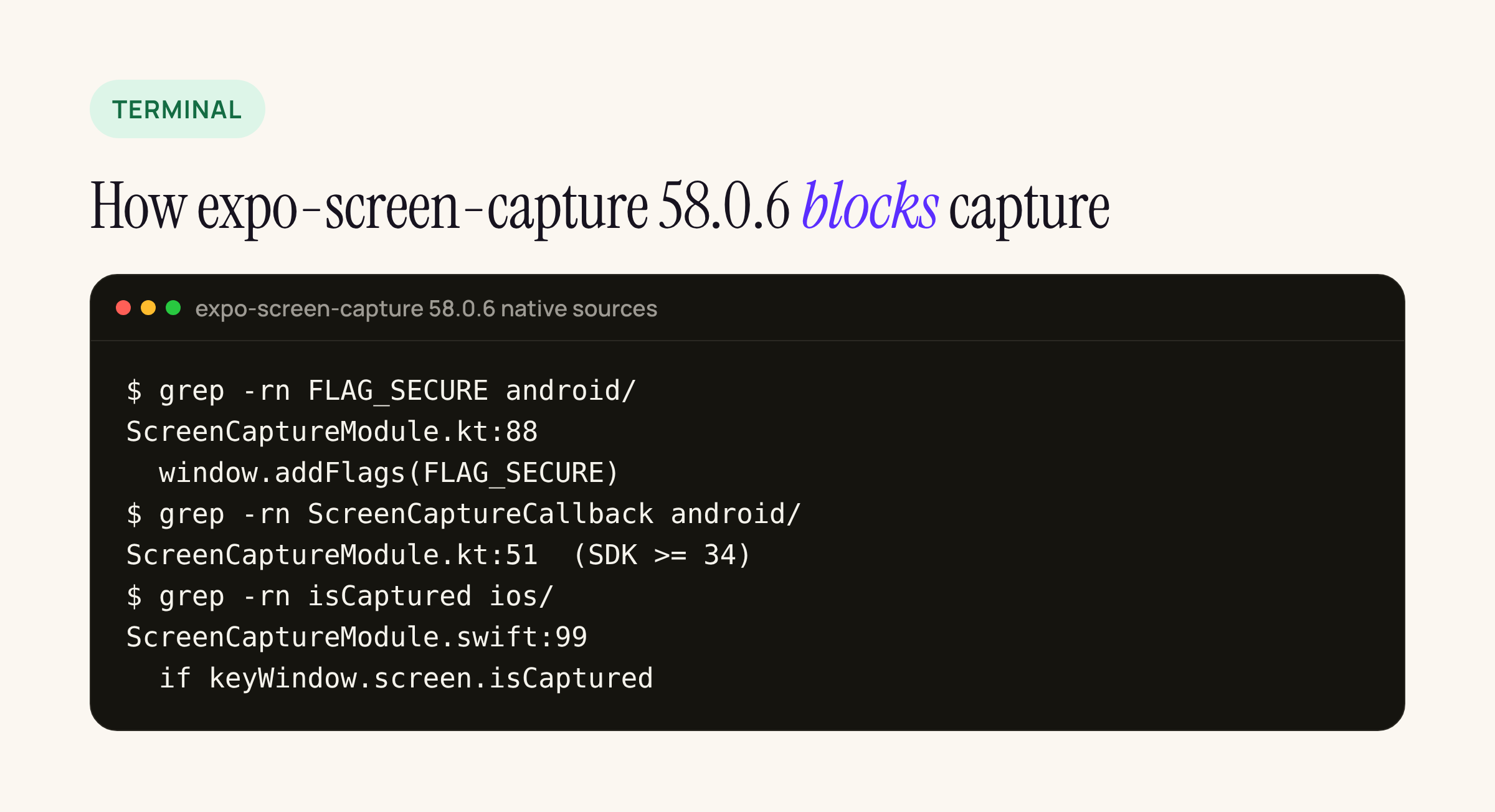
Lines found in the expo-screen-capture 58.0.6 package.
On Android it sets FLAG_SECURE on the current activity’s window to prevent capture, and on Android 14 and later it registers Activity.ScreenCaptureCallback to report screenshots (with the DETECT_SCREEN_CAPTURE permission, minSdkVersion="34" in its manifest). On iOS there is no flag to set: it listens for UIScreen.capturedDidChangeNotification, checks screen.isCaptured and covers the window with a blocking view while recording or mirroring is on. That is the honest iOS limit: you can react to capture, not forbid it.
Checklist for a banking login and transfer flow
- List every App Intent and AppFunction you ship. Remove anything that moves money, adds a payee or changes credentials, or put
requiresLocalDeviceAuthentication(iOS) and your own step-up check (Android) in front of it. - Make sure no AppFunction path skips a check the UI enforces. That is now a Play policy question, not only a security one.
- Add
FLAG_SECUREto the login, PIN, OTP and transfer screens; on iOS, cover the window whenisCapturedturns true. - Mark the PIN pad and confirm buttons
ACCESSIBILITY_DATA_SENSITIVE_YESon Android 14 and later. - Set
secureTextEntryand autofill opt-outs on OTP and card fields. - On iOS 27, request the impersonation risk level at payment start from your backend, and log Unknown separately so you can see adoption.
- Add a line to the in-app security help about Siri’s Excluded Apps and Gemini’s connected apps setting, since only the user can change those.
None of this stops a customer from handing an agent their password on a website. That part stays with your server: device binding, passkeys and step-up checks on new devices.