Short version: from January 2027 Google starts rolling out Android developer verification worldwide, beginning with seven app distributors (Google Play, Galaxy Store, Honor, Oppo, Xiaomi, Transsion and Vivo) and then all countries and all install sources on certified devices running Android 8 or later. If you only ship on Google Play, most of the work is already done for you. If you ship any APK outside Play, register each package name and its signing key in the Android Developer Console now, while there is no deadline pressure. Builds you install with adb are exempt.
This post is built from Google’s announcement of 19 Nov 2026 and the developer verification guides on developer.android.com (overview, Play Console, Android Developer Console, limited distribution, status API, Console API, open source and FAQ, the newest updated 17 Nov 2026), checked on 20 Nov 2026. Every row in the tables links its source.
Why we did this: we ship Android apps through more than one route. Peepal and Shopkeeper go through Google Play, our BMDB.fun app runs on Android TV, and client banking apps go out as test builds to QA phones before they reach Play. Each route needs a different answer, so we mapped them.
The timeline, as Google states it
| When | What | Source |
|---|---|---|
| August 2026 | Developer APIs, limited distribution accounts and the “advanced flow” for users launched | Overview |
| 30 Sep 2026 | Protections live for participating stores in Brazil, Indonesia, Singapore and Thailand, Android 8 (API 26) and higher | Blog, 19 Nov 2026 |
| January 2027 | Global rollout begins with Google Play, Galaxy Store, Honor, Oppo, Xiaomi, Transsion and Vivo | Blog, 19 Nov 2026 |
| Following months | “Gradually expand to all countries to cover all installation sources” | Blog, 19 Nov 2026 |
Google gives no exact day in January and no end date for the expansion. We will update this post when it does.
What to do, by how you distribute
- Google Play only: For most developers no new identity step; new apps are registered when you create them, apps using Play App Signing are claimed automatically. Where: Play Console. Source: Play Console guide, FAQ
- Google Play plus APKs outside Play: Register the outside packages from Play Console too; status shows on the Android developer verification page. Where: Play Console. Source: Play Console guide
- Outside Play only: Create an account, verify identity, register each package name with its SHA-256 signing certificate fingerprint. Where: Android Developer Console. Source: Developer Console guide
- Open-source registries: Registries that use the Console API can register for you, but you still need your own account; if the registry re-signs the app, add its key’s fingerprint too. Where: Android Developer Console or Play Console. Source: Open-source guide
- Students, hobbyists, small test groups: A free limited distribution account, no government ID, shares apps with a fixed number of devices whose owners opt in. Where: Android Developer Console. Source: Limited distribution guide
- Installed with
adb: Nothing: “Apps installed using ADB won’t require verification”. Source: FAQ - Managed enterprise store: No verification needed, registering still recommended. Source: FAQ
Identity for full distribution: individuals verify with a government ID; organisations need a D-U-N-S number (free from Dun & Bradstreet, the FAQ warns it can take up to 28 days) and a website verified in Google Search Console. The FAQ lists a one-time $25 fee for full distribution accounts in the Android Developer Console. If you are an organisation without a D-U-N-S number, start that request first: it is the slowest step.
Registering a package outside Play
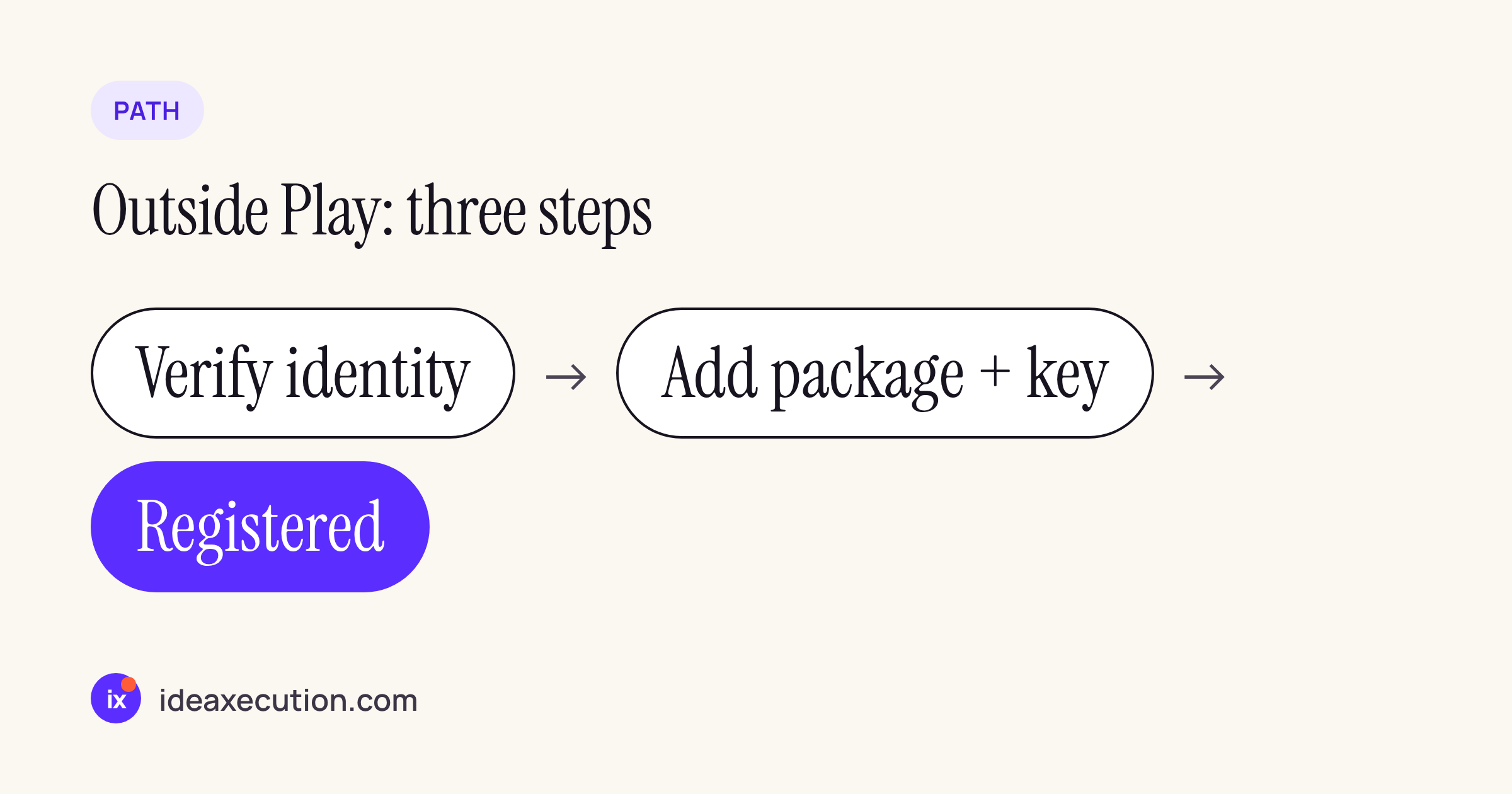
The Android Developer Console flow for apps that never touch Play.
The Developer Console guide describes the flow on the Packages page:
- Enter the package name.
- Add the SHA-256 fingerprint of the signing certificate. Status changes to “In review”.
- For a package that already exists in the wild, prove you own it: sign an APK that contains an
adi-registration.propertiesfile in its assets folder, with the snippet the console gives you. - Status changes to “Registered” and you get an email.
When two developers claim the same package name, the guide’s rule is: a key that holds more than 50% of known installs wins; if none does, keys with 50 or more installs are eligible; otherwise first come, first served. If you have ever let an old package name lapse, register it now.
Getting the fingerprint right
The fingerprint you register is the one of the key that signs what users install. For a Play app with Play App Signing that is Google’s app signing key (shown in Play Console), not your upload key. For an APK you sign yourself, it is your release key. We wrote a small script so nobody copies the SHA-1 line by mistake:
#!/bin/sh
# Usage: KS_PASS=... fingerprints.sh <keystore> <alias>
ks="$1"; alias="$2"
fp=$(keytool -list -v -keystore "$ks" -alias "$alias" \
  -storepass:env KS_PASS 2>/dev/null \
  | awk '/SHA256:/ {print $2}')
[ -z "$fp" ] && { echo "no SHA-256 found"; exit 1; }
echo "alias:    $alias"
echo "sha256:   $fp"
echo "hex:      $(echo "$fp" | tr -d ':' | tr 'A-F' 'a-f')"
The password comes from an environment variable, so it never lands in shell history.
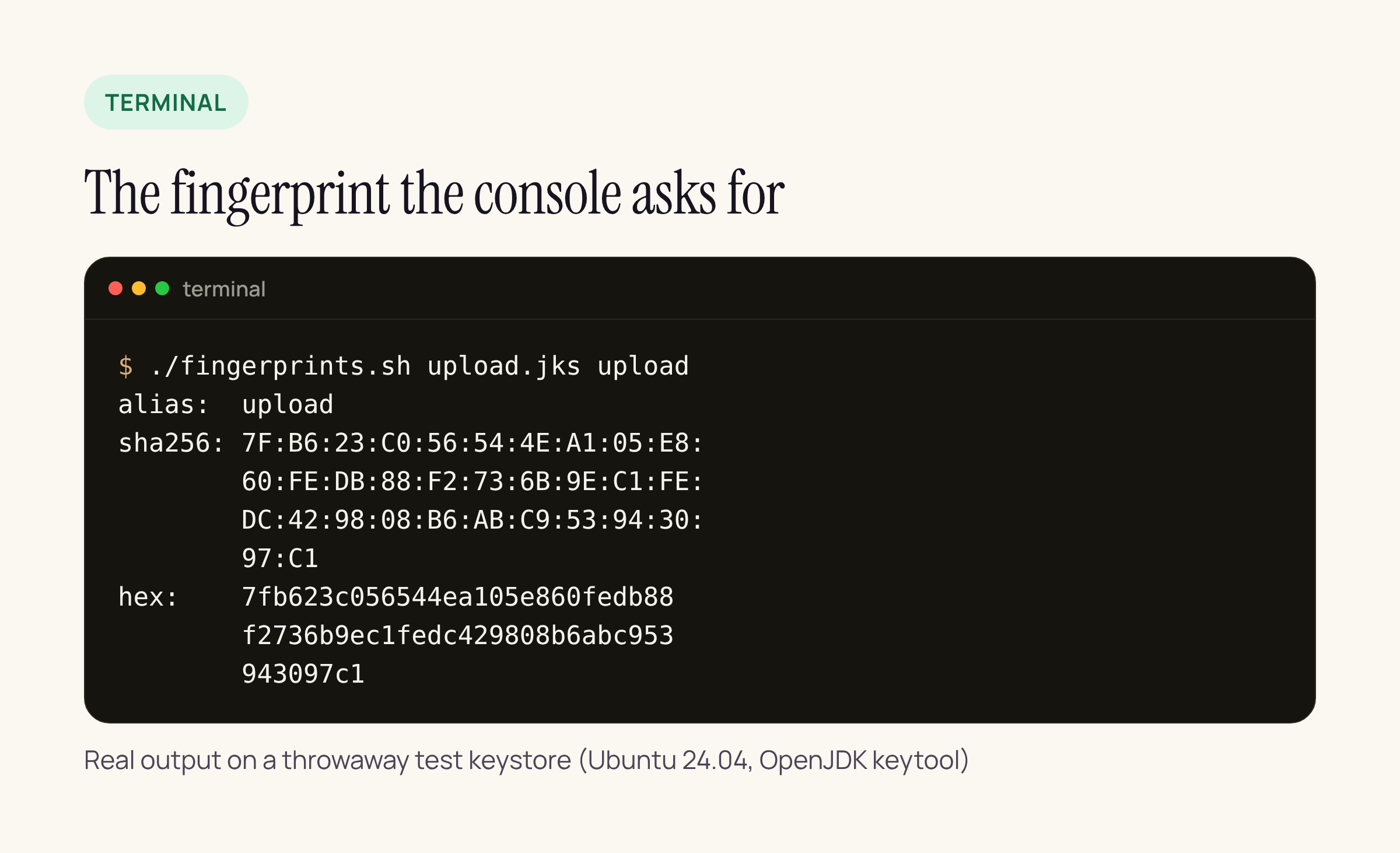
Real output on a throwaway test keystore (Ubuntu 24.04, OpenJDK keytool), lines wrapped to fit the card.
The colon form is what keytool prints; the plain hex form is handy for the status API below. For a store that re-signs your app (some open-source registries do), download the APK the store serves and read the fingerprint from that file, not from your keystore.
Checking status from a script
Google documents a read-only Android Developer ID Status API. It needs an API key from a Google Cloud project with the API enabled, sent in the X-Goog-Api-Key header, and allows 1,000 requests a day per project.
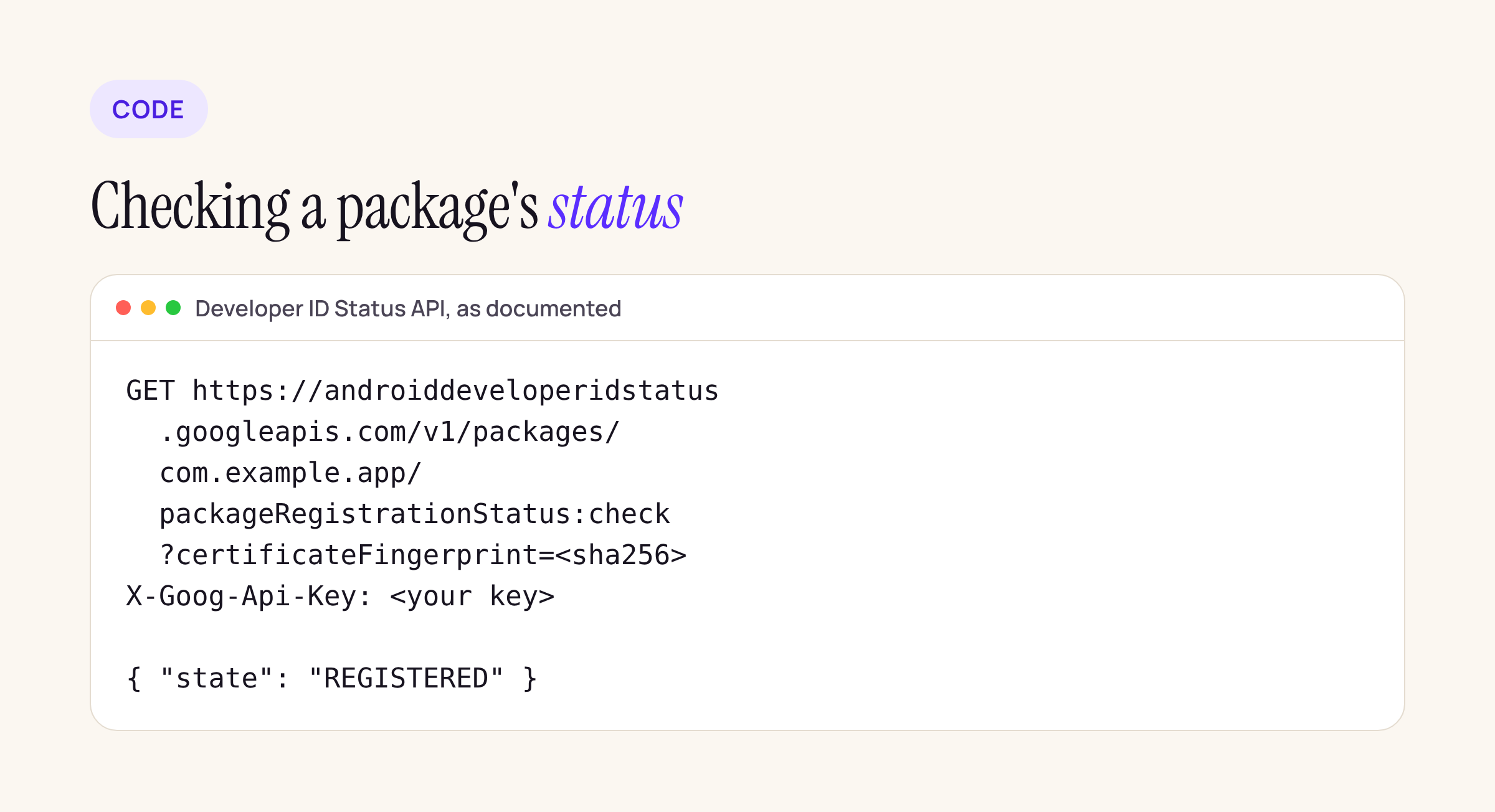
The request and response shape from Google’s guide.
GET https://androiddeveloperidstatus.googleapis.com/v1/packages/com.example.app/packageRegistrationStatus:check?certificateFingerprint=<sha256 hex>
X-Goog-Api-Key: <your API key>
The documented state values are REGISTERED, NOT_REGISTERED and REGISTERED_WITH_ANOTHER_CERTIFICATE_FINGERPRINT. The third one is the one to alert on in CI: it means the package name is registered, but not with the key you are about to ship. Treat the request above as a starting point and confirm field names against the guide on the day you wire it up.
For registering many packages, the Developer Console API has methods such as ListAndroidPackages, CreateAndroidPackage and CreateAndroidPackageKey. It accepts OAuth 2.0 user credentials only: the guide says service accounts, Workload Identity Federation and API keys “cannot be used”, so it does not fit an unattended CI job.
What users see for an unregistered app
Registered apps install as they always have. For an app with no registered developer, the FAQ describes an “advanced flow” the user has to set up once: turn on developer options, go through a short explanation, restart and sign in again, wait one day, confirm with biometrics or PIN, and then tap “Install Anyway” past a warning. The setting can last 7 days or stay on. Without it, unregistered apps can be installed or updated only over adb, and updates of an already installed unregistered app fail.
For a consumer app that ships outside a store, a one-day wait in the install path is a lost user. That is the practical reason to register even before enforcement reaches your country.
Where Google’s pages still disagree
Two points to watch, both as of 20 Nov 2026:
- Device limit for limited distribution. The blog and the limited distribution guide (updated 28 Oct 2026) say 50 devices; the overview page and an older FAQ answer still say 20. Plan for 50, check before you rely on it.
- What is enforced in the first four countries. The limited distribution guide says unregistered packages “will no longer be installable” there; the FAQ says the 30 September enforcement applies only to the participating stores, and covers phones and tablets.
That last point matters for TV: the FAQ scopes the current enforcement to mobile and tablet form factors. For a TV app like our BMDB.fun that ships through a store this changes little; if you sideload TV builds, keep an eye on the guides as the rollout widens.
Our checklist
- List every package name you have ever shipped, including test flavours with suffixes like
.staging. - For each, note who signs what users install (Play App Signing key or your own key) and run the fingerprint script.
- Play apps: open Play Console’s Android developer verification page and confirm every package shows as registered.
- Non-Play apps: create the Android Developer Console account (start the D-U-N-S request first for an organisation) and register each package with its fingerprint.
- Internal QA builds installed with
adbneed nothing; builds shared by link or QR code to testers need registration or a limited distribution account. - Add a status API call to the release pipeline and fail on anything but
REGISTERED.