A UIKit login screen for a banking app (logo, customer ID, password, a Face ID button, an error alert, keyboard handling and VoiceOver labels) can be written entirely in SwiftUI with an iOS 16 deployment target, and nothing on it needs a UIViewRepresentable. The takeaway: set the floor at iOS 16 if you can, because scrollDismissesKeyboard(_:) starts there, as do the alert and accessibilityLabel overloads we link below, and treat iOS 27’s new .bordered text field style as an opt-in behind if #available(iOS 27, *) rather than a reason to raise the floor.
This post maps each UIKit piece to SwiftUI using Apple’s SwiftUI reference pages and the iOS and iPadOS 27 release notes (read on 18 November 2026), then checks the SwiftUI side against two of Apple’s open-source sample apps on GitHub: Food Truck and Backyard Birds. The code below is a sketch to adapt; compile it against your own target.
Why we did this: the login screen is the first screen we touch when a Beacon-type banking client asks to move an iOS app from UIKit to SwiftUI, and it is also the screen where a mistake costs the most.
The screen, piece by piece
Minimum versions are from the Availability section of each linked Apple page.
| UIKit piece | SwiftUI counterpart | Min iOS |
|---|---|---|
UITextField with isSecureTextEntry |
SecureField |
13 |
textContentType = |
|
see below |
becomeFirstResponder(, next-field logic |
@FocusState and |
15 |
returnKeyType = |
|
15 |
textFieldShouldReturn( |
|
15 |
autocapitalizationType = |
|
15 |
autocorrectionType = |
|
13 |
borderStyle = |
|
13, |
| keyboard notifications to dismiss on scroll | |
16 |
UIAlertController for a failed login |
|
16 |
accessibilityLabel on the Face ID button |
|
16 (this overload) |
| bottom bar pinned above content | |
15 |
LAContext with a reply block |
the async form from a Task |
8 (API) |
Two notes on the table. The SwiftUI page Apple serves for textContentType(_:) is the macOS overload (macOS 11); the iOS overload that takes UITextContentType is the one Food Truck uses on its password field (.textContentType(.newPassword) on iOS, .password on macOS, in SignUpView.swift). And LocalAuthentication is not a view at all: the same LAContext call works from SwiftUI, and Apple’s page shows the async throws -> Bool form next to the reply-block one.
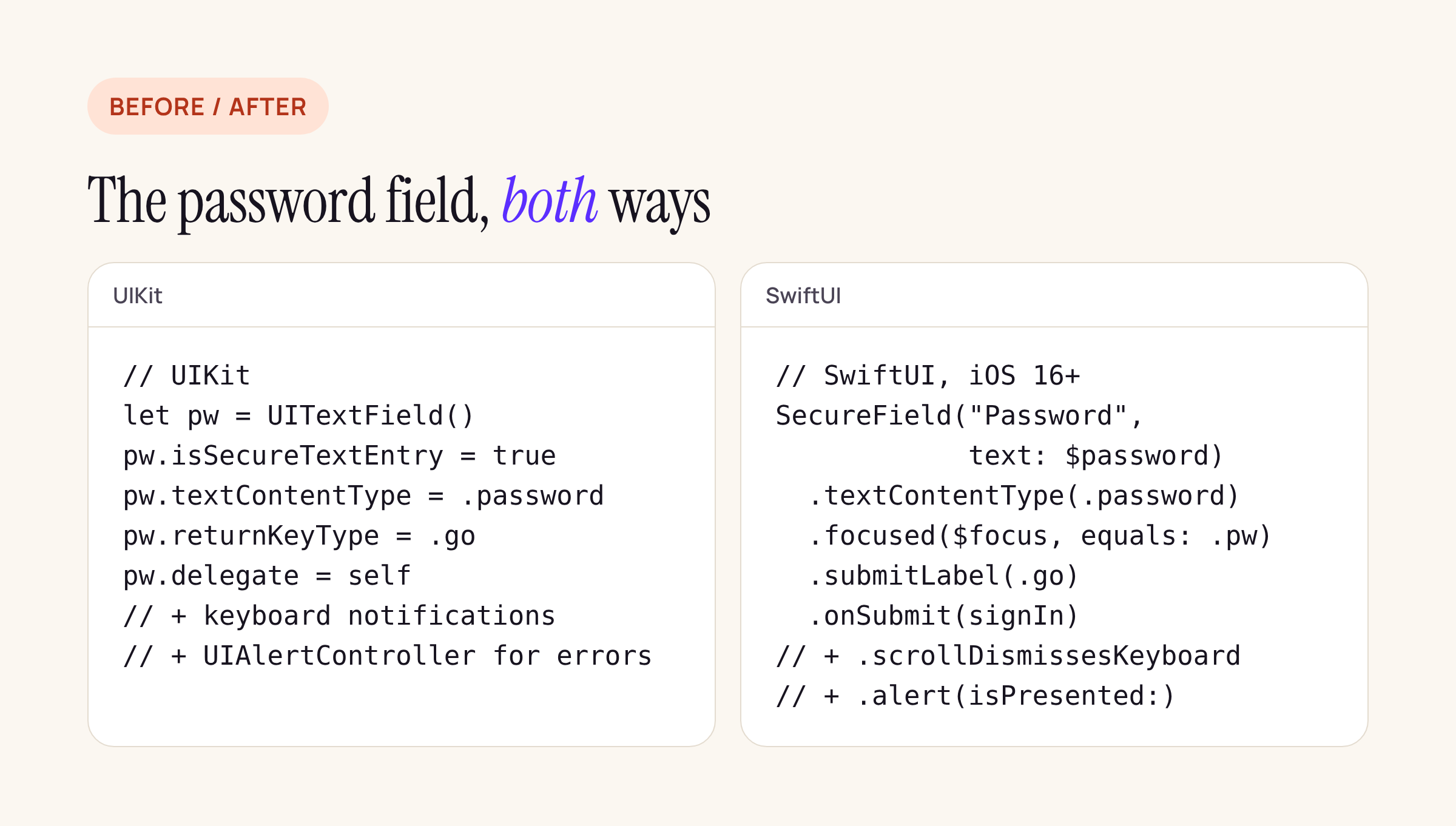
The same password field in UIKit and in SwiftUI. Keyboard dismissal and the error alert become one modifier each.
What iOS 27 adds for this screen
From the SwiftUI section of the iOS and iPadOS 27 release notes, three items touch a login screen:
- A new text field border style. “You can now use the
TextInputBorderShapetype to customize the border shape of text input controls likeTextFieldwith thetextInputBorderShape(_:)view modifier.” The same note says the.squareBorderand.roundedBorderstyles “are soft deprecated” in favour of the new.borderedstyle. Both.borderedandtextInputBorderShape(_:)are iOS 27.0 and later. Soft deprecated means no warning yet, so.roundedBorderis still the right choice for an iOS 16 floor. - Data-driven alerts reach back to iOS 15. “The new data item or error object based
alertandconfirmationDialogmodifiers can now be used by projects targeting iOS 15.0″. For a login screen that is the natural shape: an optional error drives the alert, and there is no separateBoolto keep in sync. - A keyboard fix for full-screen covers. Fixed in 27: presenting a
fullScreenCoverwith a navigation transition and setting@FocusStatetotrueinonAppeardid not animate the keyboard together with the cover. If your login is a full-screen cover that focuses the customer ID field on appear, that is your case.
Nothing in the 27 notes mentions SecureField, LocalAuthentication, UIHostingController or UIViewRepresentable.
Where you still might reach for UIKit
On this screen, nowhere. In the two Apple samples, the only representable is Food Truck’s map: DetailedMapView wraps a map view controller with UIViewControllerRepresentable on iOS and NSViewControllerRepresentable on macOS. Neither sample wraps a text field.
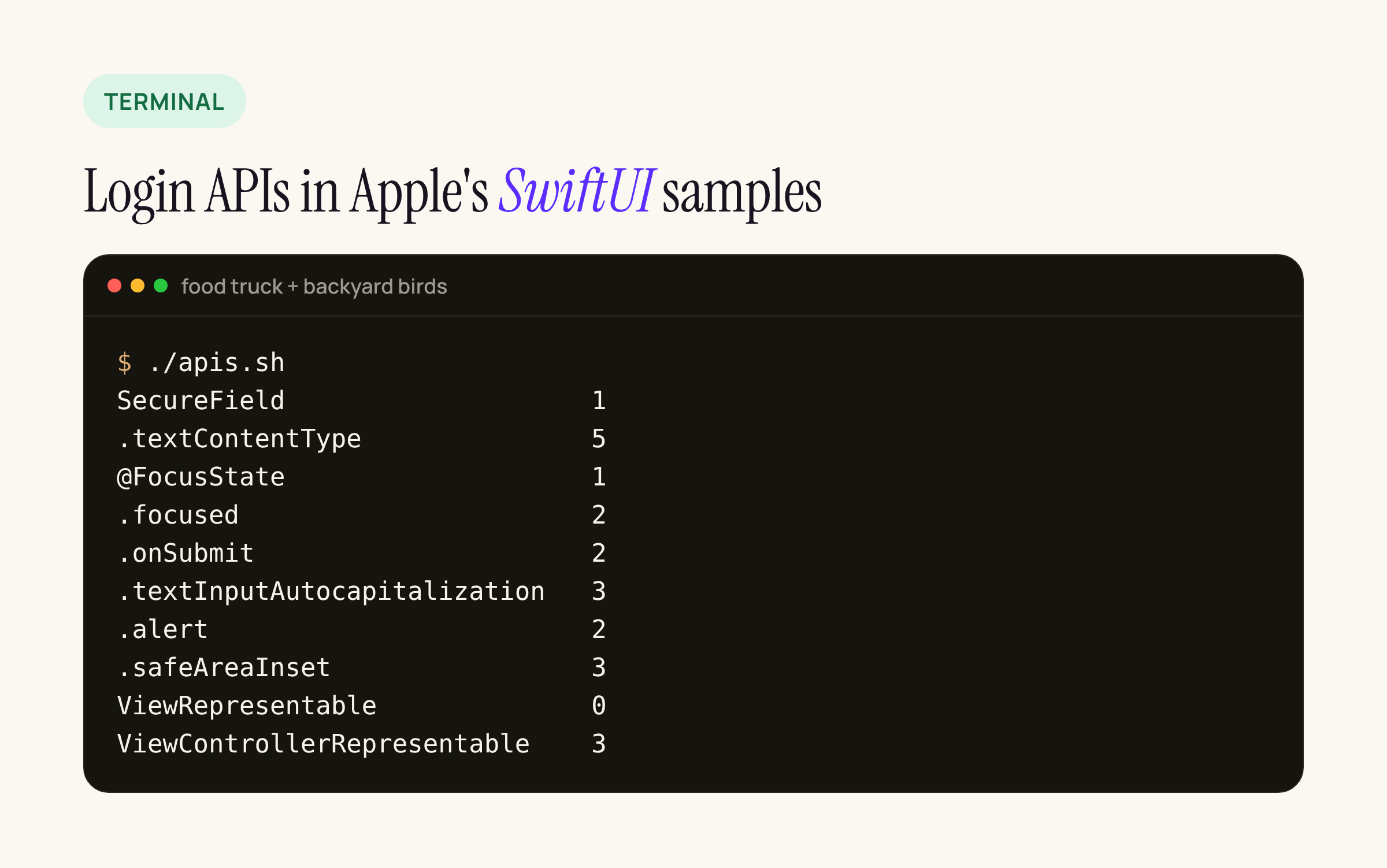
Real output of a ten-line counter run over both sample repositories.
#!/bin/sh
# count login-screen APIs in Apple's SwiftUI sample apps
for api in SecureField .textContentType @FocusState .focused .onSubmit \
           .textInputAutocapitalization .alert .safeAreaInset \
           ViewRepresentable ViewControllerRepresentable; do
  n=$(grep -rF --include='*.swift' -- "$api" sample-food-truck sample-backyard-birds | wc -l)
  printf '%-30s %s\n' "$api" "$n"
done
Food Truck’s sign-up form is the closest thing Apple publishes to a login screen, and it reads like the right-hand column of our table: TextField with .textContentType(.username), .textInputAutocapitalization(.never) and .keyboardType(.emailAddress); a SecureField; one @FocusState enum shared by both fields; and focusedElement = .username in onAppear. It also offers passkeys through @Environment(\.authorizationController). Backyard Birds’ EditAccountForm.swift uses .onSubmit to save each field and still calls the older disableAutocorrection(true); the current reference page is autocorrectionDisabled(_:).
The case for UIKit inside a SwiftUI login is a third-party view you cannot replace, typically a vendor’s captcha or a custom PIN pad shipped as a UIView. Wrap that one view in UIViewRepresentable and keep the rest native.
Keyboard avoidance: check it, do not assume it
The UIKit version of this screen usually listens to keyboardWillShowNotification and adjusts a scroll view’s insets by hand. The SwiftUI reference pages we read do not describe automatic keyboard avoidance for TextField or SecureField. What they document is dismissal: the FocusState page says you can “remove focus from a TextField and thereby dismiss the keyboard”, and scrollDismissesKeyboard(_:) can dismiss it “when a scroll drag gesture begins”.
So the port keeps the fields inside a ScrollView, uses .scrollDismissesKeyboard(.interactively), and puts the sign-in button in the scroll content rather than in a safeAreaInset bar. Then check it on the smallest phone you support with the largest Dynamic Type size, because that is where a covered password field shows up.
The ported screen, as a sketch
import SwiftUI

struct LoginView: View {
    enum Field { case customerID, password }

    @State private var customerID = ""
    @State private var password = ""
    @State private var errorText = ""
    @State private var showError = false
    @FocusState private var focus: Field?

    let signIn: (String, String) async throws -> Void
    let unlockWithBiometrics: () async throws -> Void

    var body: some View {
        ScrollView {
            VStack(spacing: 16) {
                Image("BankLogo")
                    .accessibilityHidden(true)

                TextField("Customer ID", text: $customerID)
                    .textContentType(.username)
                    .textInputAutocapitalization(.never)
                    .autocorrectionDisabled()
                    .focused($focus, equals: .customerID)
                    .submitLabel(.next)
                    .onSubmit { focus = .password }

                SecureField("Password", text: $password)
                    .textContentType(.password)
                    .focused($focus, equals: .password)
                    .submitLabel(.go)
                    .onSubmit(submit)

                Button("Sign in", action: submit)
                    .buttonStyle(.borderedProminent)

                Button {
                    Task { await run(unlockWithBiometrics) }
                } label: {
                    Label("Sign in with Face ID", systemImage: "faceid")
                }
            }
            .textFieldStyle(.roundedBorder)
            .padding()
        }
        .scrollDismissesKeyboard(.interactively)
        .alert("Sign-in failed", isPresented: $showError) {
            Button("OK", role: .cancel) { }
        } message: {
            Text(errorText)
        }
        .onAppear { focus = .customerID }
    }

    private func submit() {
        Task { await run { try await signIn(customerID, password) } }
    }

    private func run(_ action: () async throws -> Void) async {
        do {
            try await action()
        } catch {
            errorText = error.localizedDescription
            showError = true
        }
    }
}
unlockWithBiometrics is where the existing LAContext code goes, unchanged apart from moving to try await context.evaluatePolicy(.deviceOwnerAuthenticationWithBiometrics, localizedReason: ...). Keeping it outside the view also keeps the view free of LocalAuthentication in previews. On iOS 27 you can swap .roundedBorder for .bordered inside an availability check; with an iOS 15 floor, the 27 notes say the error-driven alert overload is available too.
What to check on your own app
- List every
UITextFieldproperty your login screen sets, and find each one in the table above. Anything left over is your representable list. - Decide the floor: iOS 16 covers every row of the table with the overloads linked; for iOS 15, find another way to dismiss the keyboard and check the other
alertandaccessibilityLabeloverloads on Apple’s pages. - Keep
textContentTypeexactly as in UIKit (.username,.password, or.newPasswordon sign-up) so password AutoFill keeps offering the saved login. - Test focus order with a hardware keyboard and with VoiceOver: customer ID, password, Sign in, Face ID.
- Check the error alert’s text with VoiceOver, and that the password field is cleared or kept the way your security team expects after a failure.