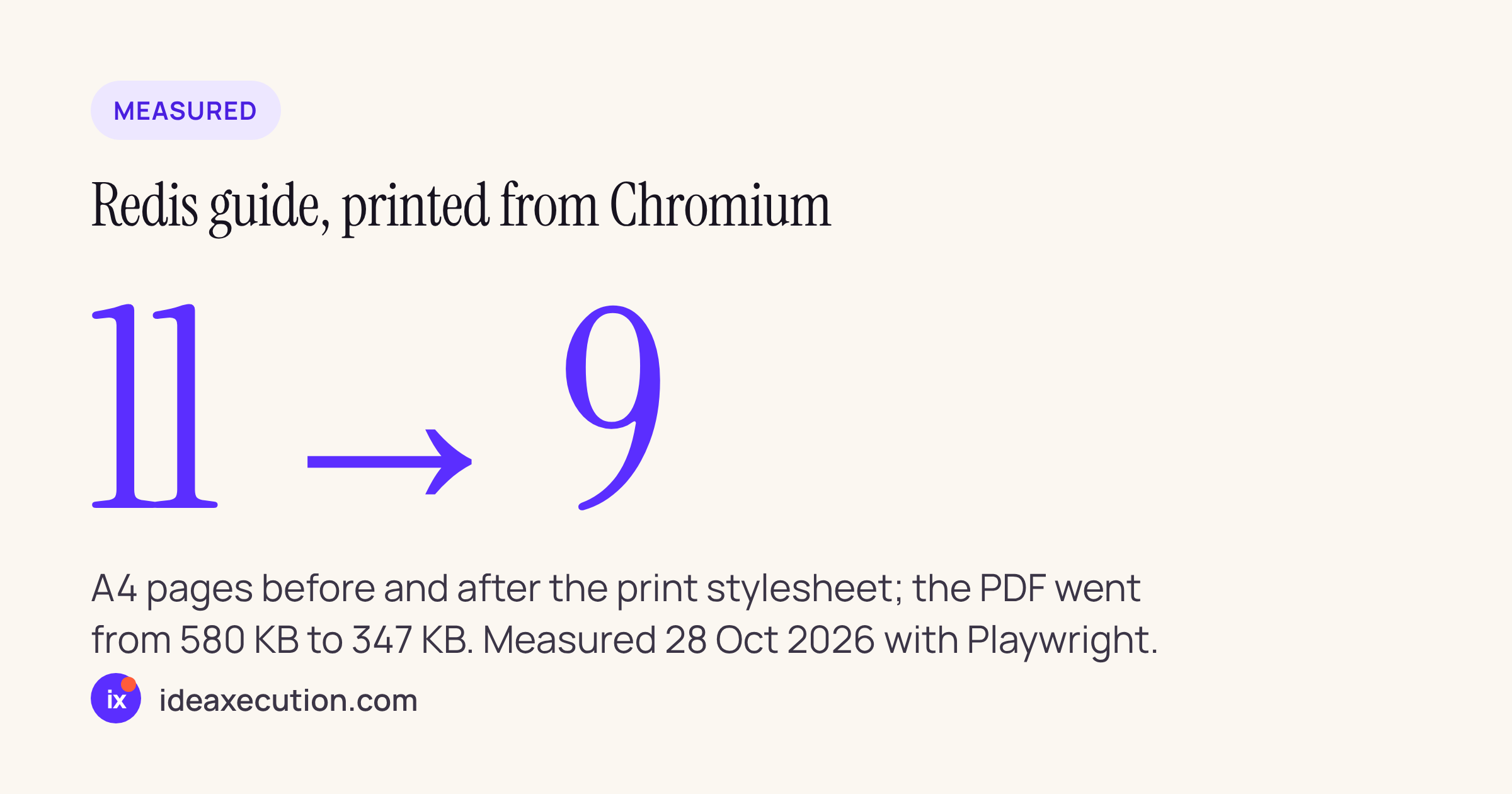
If you want your long-form posts to print or save-to-PDF cleanly, the fix is about 30 lines of @media print CSS, and most of the work is hiding chrome and stopping code blocks from splitting across pages. We added it to the Paperkite block theme and measured the result on two of our own posts: the Redis guide went from 11 printed A4 pages to 9, and the exported PDF shrank from 580 KB to 347 KB. Tested on our live site on 27 October 2026, rendered with headless Chromium via Playwright.
“Websites Should Be Printable” spent a day on the Hacker News front page this week, and the thread was full of developers whose sites print as a wall of navigation bars and cookie banners. Our journal is long technical content that people do print or save, so this was worth doing properly rather than guessing. The honest scope first: everything below was verified in Chromium’s print-to-PDF. We did not re-test in Safari or Firefox for this post, so treat the exact page counts as Chromium’s; the CSS itself uses standard properties those browsers support.
What the theme did before
Our theme already drops to a light background in print media, which is more than many do. But in Chromium’s print preview a normal post still carried the full site header and nav, the “In this post” table-of-contents box, and underlined links with no visible destinations. Here is the first printed page of our Redis post before any print CSS:
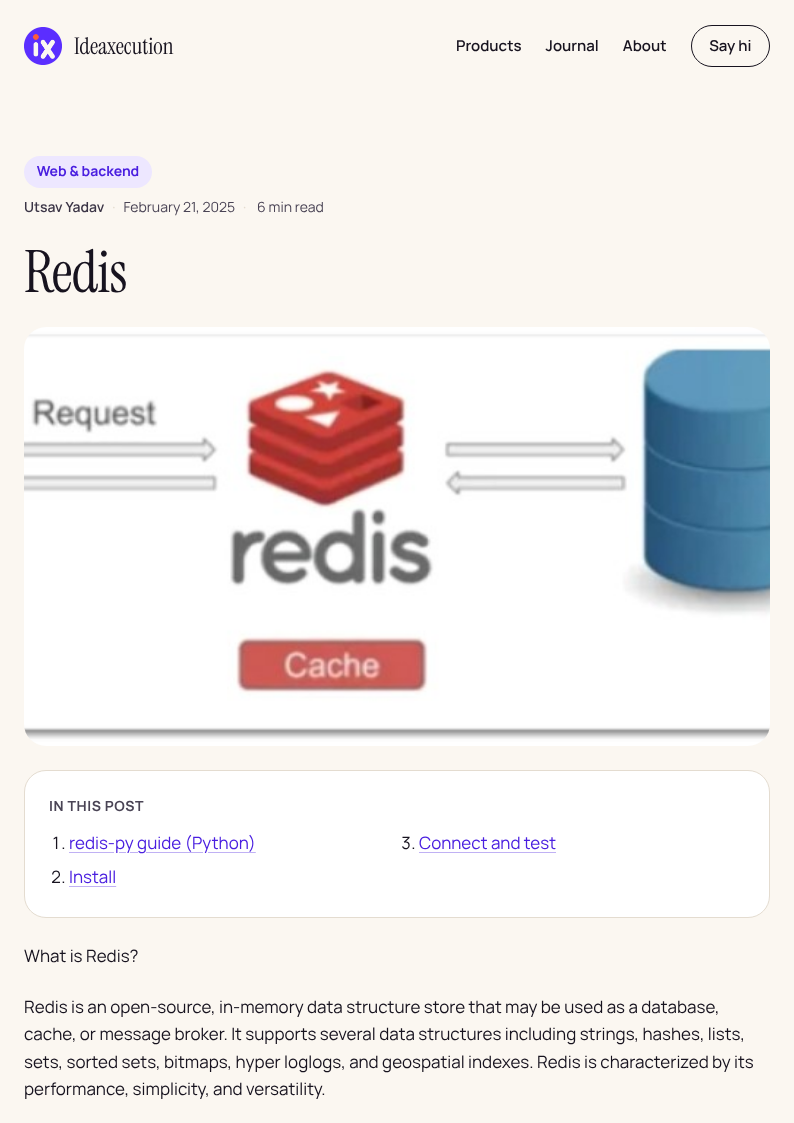
Before: the header nav and the “In this post” box both print, and link destinations are invisible on paper.
The stylesheet
The whole thing is one @media print block. It hides the chrome, gives the article the full page width, keeps code blocks and figures from breaking across a page boundary, and prints external link URLs in parentheses after the link text.
@media print {
  /* Pin an ink-friendly light page (the theme already prints light) */
  html, body { background: #fff !important; color: #111 !important;
               font-size: 11pt; line-height: 1.5; }

  /* Hide everything that is not the article */
  header, footer, nav, #wpadminbar,
  .wp-block-post-navigation-link, .pk-toc, .pk-share,
  .pk-related, .pk-newsletter, .pk-comments { display: none !important; }

  /* Give the article the full page */
  main, .entry-content, .wp-block-post-content {
    max-width: 100% !important; margin: 0 !important; padding: 0 !important; }
  @page { margin: 18mm 16mm; }

  /* Do not split things that must read as a unit */
  pre, figure, table, blockquote,
  .wp-block-image, .wp-block-code {
    break-inside: avoid; page-break-inside: avoid; }
  h1, h2, h3, h4 { break-after: avoid; page-break-after: avoid; }

  /* Wrap long code instead of clipping it */
  pre, .wp-block-code { white-space: pre-wrap !important; word-break: break-word;
    border: 1px solid #ccc !important; background: #f6f6f6 !important; }

  /* Expose external link targets, skip in-page and script anchors */
  a[href^="http"]::after { content: " (" attr(href) ")";
    font-size: 85%; color: #555; word-break: break-all; }
  a[href^="#"]::after, a[href^="javascript"]::after { content: ""; }

  img { max-width: 100% !important; height: auto !important; }
}
Why these specific rules
The selectors that matter are the theme’s own markup. Paperkite uses semantic header, footer and nav elements rather than class names like .site-header, so the first version of this CSS keyed on class names and hid nothing. Inspecting the DOM fixed that in a minute. The lesson: write print CSS against the elements your theme actually renders, not the ones you assume it uses.
break-inside: avoid on pre, figure, table and .wp-block-code is the rule that earns its place. Without it, a code block or a diagram gets cut in half at a page break, which is the single most common complaint about printed technical articles. We keep both break-inside and the older page-break-inside for browser coverage.
The a[href^="http"]::after rule prints the destination of external links, because a printed link you cannot follow is dead weight. We deliberately scope it to http so in-page anchors (the table of contents) and javascript: handlers do not dump noise into the text.
What it printed afterward
Same post, same page size, with the stylesheet applied:
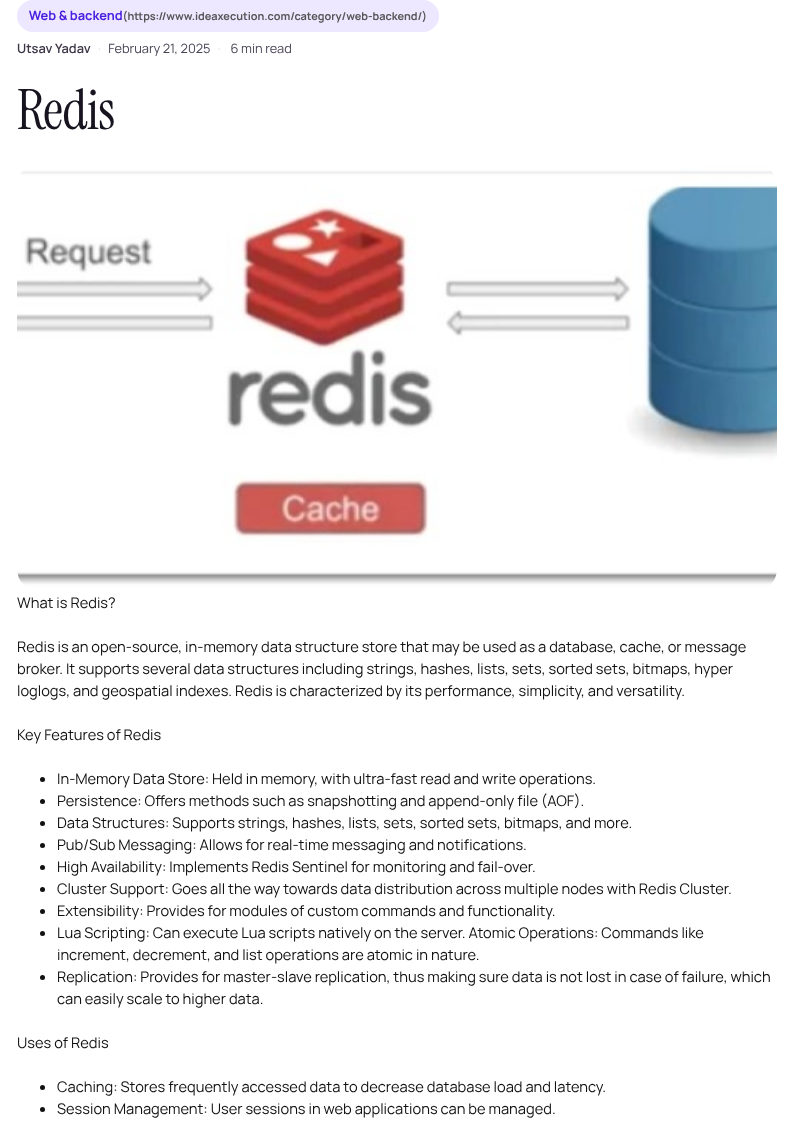
After: the article starts at the top, the chrome is gone, and the category link prints its URL.
The measured difference across both test posts:
| Post | Before | After |
|---|---|---|
| Redis guide (code + diagrams) | 11 pages, 580 KB | 9 pages, 347 KB |
| Mac uninstall guide (prose + lists) | 7 pages, 127 KB | 8 pages, 117 KB |
Note the honest result on the second post: it gained a page. Printing every external link URL adds text, and keeping lists and blocks unbroken adds a little whitespace, so a link-heavy prose post can run slightly longer even as the file gets lighter. That is a fair trade for a document someone can actually read on paper, with working references, instead of a clean-looking print that drops every link destination.
If you are adding this to your own theme
Three things carry most of the value: hide the header, footer, nav and any TOC or share widgets; put break-inside: avoid on your code blocks, figures and tables; and expose external link URLs. Check the result in your browser’s print preview as a PDF, not just on screen, because print media is where these rules take effect and the screen view can mislead you. We verified ours in Chromium here; test in Safari and Firefox too before you ship, since each handles break-inside on very long blocks a little differently.