If you want a “tiny laptop” on iPhone Duo, with your content on the top half and a keyboard or trackpad on the bottom half, build the split with ArrangementView and .split.axes(.vertical), keep keys clear of the fold with reservedRegions(kind: .division), and use onHingeChange only for behaviour that treats the hinge as input. Do not swap layouts on hinge.status == .partiallyOpen: Apple’s own documentation for onHingeChange(isEnabled:_:) says “Don’t use hinge updates for layout.” Everything here is from the iOS 27.1 SDK documentation on developer.apple.com, read on 28 Nov 2026.
Why we did this: Cardigami, our pop-up card app, is one of the few apps where the hinge really is input (opening the phone opens the card), and client teams now ask for the laptop split after the Screens update below. This post is a docs review plus SwiftUI sketches to compile against the iOS 27.1 SDK. It builds on our earlier ArrangementView and ReservedRegion basics and does not repeat them.
What Screens shipped on 25 Nov
9to5Mac reported on 25 Nov 2026 that Screens 5.10.6 shows the remote desktop on the upper half of a partially folded iPhone Duo and a custom keyboard and trackpad below, which the app calls a tiny laptop mode. The article does not say which APIs Screens uses, so we do not guess. What follows is how Apple’s documented APIs give you the same shape.
The four APIs, and what each one is for
| API (iOS 27.1 SDK) | What it reports or does | Use it for |
|---|---|---|
ArrangementView with .split |
Places a primary and a secondary view in separate spaces and adapts them to reserved regions such as the fold | The top/bottom layout itself |
axes(_:) |
Limits the split to the axes you pass; “for axes that you don’t include, the arrangement only displays the primary view” | Showing the keyboard half only when the halves are stacked |
reservedRegions(kind:) |
Reserved regions that overlap the view, frames in the view’s coordinate space; .division is the fold |
Keeping keys and touch targets off the crease |
onHingeChange |
Calls your action with the initial DeviceHingeContext and again on every change; hinge is optional |
Input: modes, animations, gestures that follow the hinge |
DeviceHinge has two properties: angle (an Angle) and status. DeviceHinge.Status has exactly three values: closed, partiallyOpen and fullyOpen. There is no flat case, and Apple does not document the angle’s range or update rate; it says precision is system policy and suggests status when you only need the three states.
Two documented details matter for the laptop pose. First, ReservedRegion says that when you partially fold iPhone Duo like a laptop, “the fold runs horizontally across the center”, and when you fold it like a book it runs vertically. Second, a division “is active only when the device is partially open or closed”; when the device is fully open, reservedRegions returns no division.
Layout: let the arrangement do the split
The Human Interface Guidelines page for iPhone Duo says an arrangement “splits vertically when the arrangement is taller than it is wide”, which is the laptop pose. So the top/bottom layout is one view:
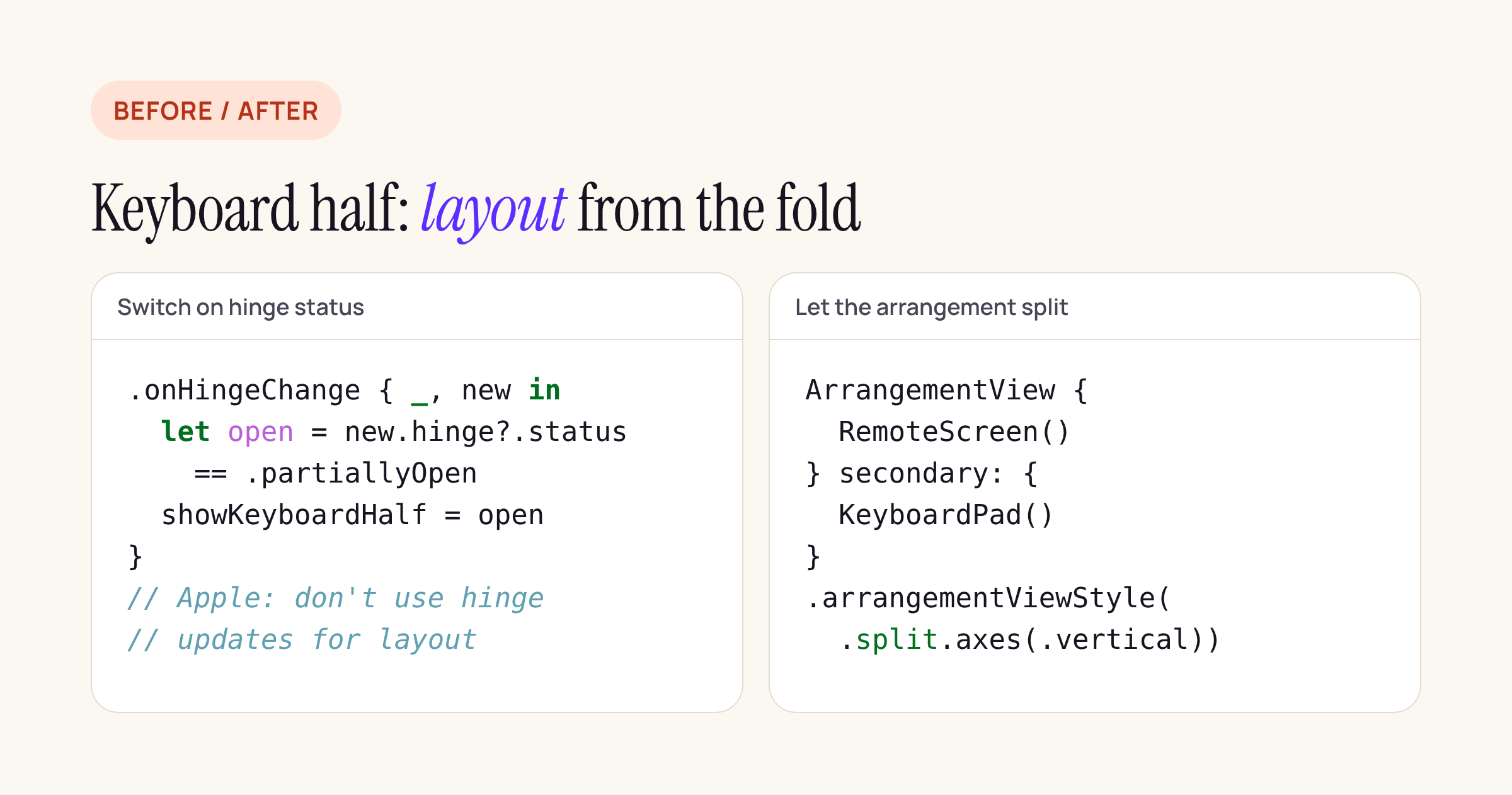
Left: what Apple advises against. Right: the arrangement adapts to the fold for you.
import SwiftUI

struct LaptopLayout: View {
    var body: some View {
        ArrangementView {
            RemoteScreen()
        } secondary: {
            KeyboardPad()
        }
        .arrangementViewStyle(
            .split.axes(.vertical))
    }
}
RemoteScreen is the primary view, so in portrait it sits on top; SplitArrangementViewStyle puts the primary view on top in portrait and leading in landscape. With .axes(.vertical), a wide arrangement (book pose, or landscape) shows only RemoteScreen. That is often what you want for a keyboard half, but the HIG also asks you to “maintain the same functionality across device poses”, so keep a way to type there too, for example the system keyboard on a text field.
By default a split sizes both views equally when the display has one region. If the keyboard needs less room, splitArrangementLayoutRatio(_:) takes a value between zero and one and applies to the view with the highest layoutPriority.
Treat these as a starting point and compile them against the iOS 27.1 SDK in your own project; RemoteScreen, KeyboardPad and Keys are your views.
Keep the keys off the crease
The split already adapts to the fold, but a keyboard is the one view where a row of keys under the crease hurts. Ask the geometry proxy inside the keyboard half:
struct KeyboardPad: View {
    var body: some View {
        GeometryReader { proxy in
            let folds = proxy.reservedRegions(
                kind: .division)
            let clear = folds
                .map(\.frame.maxY)
                .max() ?? 0
            Keys()
                .padding(.top, clear)
        }
    }
}
Frames come back in the view’s own coordinate space and are mirrored for right-to-left layouts by default (layoutDirectionBehavior: .mirrors). When nothing overlaps the view, the array is empty and the padding is zero. Pass .includeInactive in options if you want the region even while it is inactive, for example to reserve space before the user folds.
The hinge as input, not layout
onHingeChange is the right tool when the hinge changes what touches mean, not where views go. In a laptop split, a fair use is switching the bottom half from keys to trackpad gestures, or driving an animation from the angle the way Cardigami opens a card:
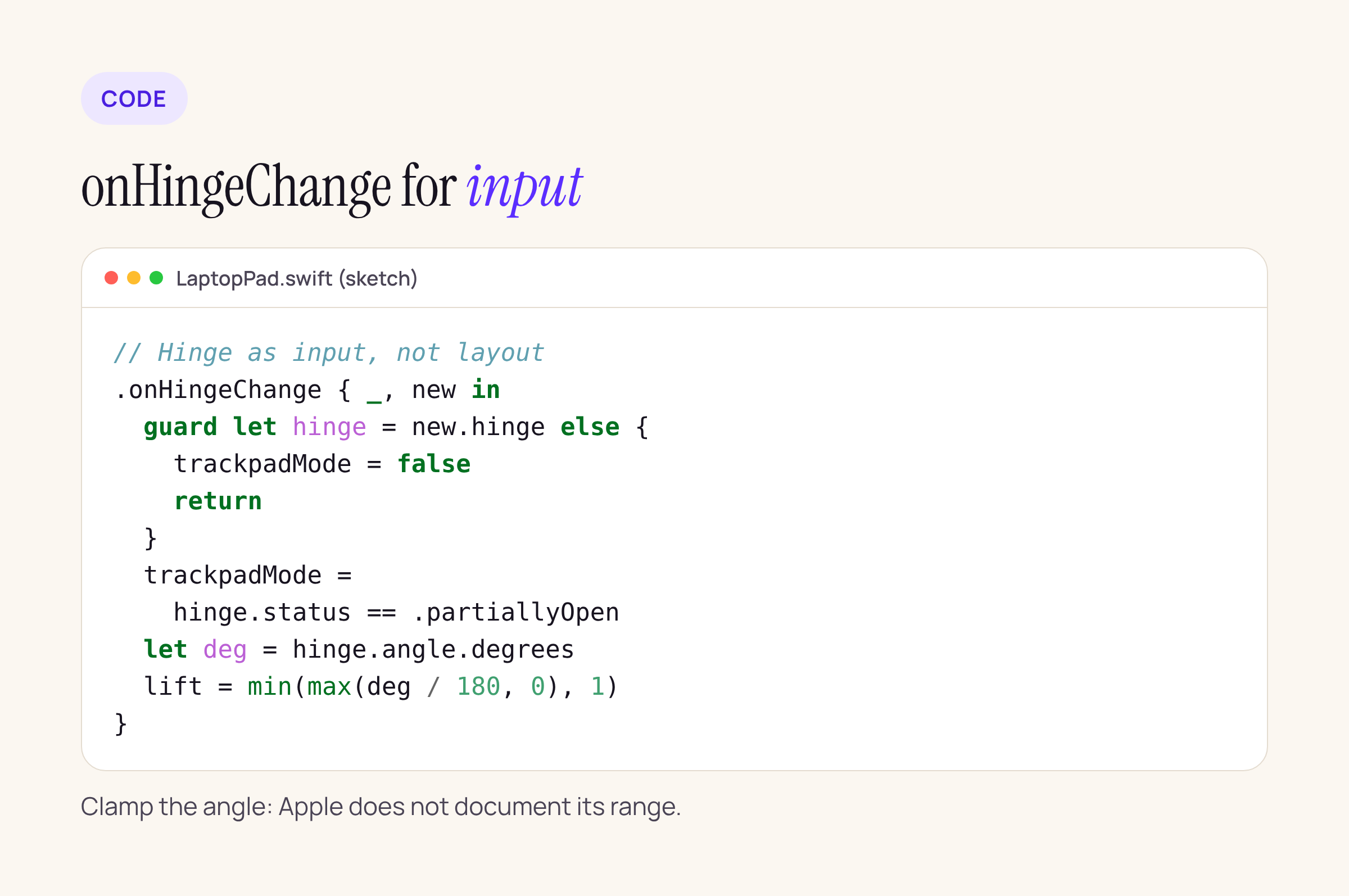
A sketch: the mode and the animation follow the hinge; the layout does not.
.onHingeChange { _, new in
    guard let hinge = new.hinge else {
        trackpadMode = false
        return
    }
    trackpadMode =
        hinge.status == .partiallyOpen
    let deg = hinge.angle.degrees
    lift = min(max(deg / 180, 0), 1)
}
Three documented behaviours to plan for: the action runs once with the initial context, so you do not need a separate “read the hinge on appear”; hinge is nil on a device without one, and when you set isEnabled to false SwiftUI calls you once more with no hinge; and the modifier is listed for every Apple platform at 27.1, so the nil path is the one most of your users hit. The divisor of 180 is our assumption, since Apple gives no range: calibrate it on hardware.
Why not switch layouts on partiallyOpen
It looks simpler, and it is what most first attempts look like (left side of the image above). The documentation gives three reasons against it:
- Apple says it directly on
onHingeChange: useArrangementVieworReservedRegionto adapt layout to the fold. - The fold exists as a division when the device is closed too, and a closed iPhone Duo held in landscape shows only the primary view of a split arrangement. A switch on one status value misses those cases; the arrangement handles them.
- The HIG says “avoid extreme layout changes as people fold the device” and to move only what is needed. An arrangement moves views between halves; a status switch tears one tree down and builds another mid-fold.
What to check in your own app
- Build with the iOS 27.1 SDK; every API above is 27.1 and later.
- Make the content view the primary view, so the wide and closed-landscape cases still show it.
- Decide per pose where typing lives when the keyboard half is hidden.
- Look for any
onHingeChangethat sets a layout flag, and move that layout into an arrangement. - Handle
hinge == nilas the normal case. - Test the laptop pose, the book pose, closed and fully open on hardware, and watch the keyboard row nearest the fold.
For bars that move to the side on iPhone Duo in a React Native app, see our note on react-native-screens 5.0 beta.2 and axisBehavior.